Add Expense Invoice and Process Payment
BiadaGO ERP: Add Expense Invoice and Process Payment
This guide will walk you through adding an expense invoice and processing the payment in BiadaGO ERP
Go to cloud.biadago.com
1. Introduction
By following these instructions, you will efficiently manage invoices and payments within the application.
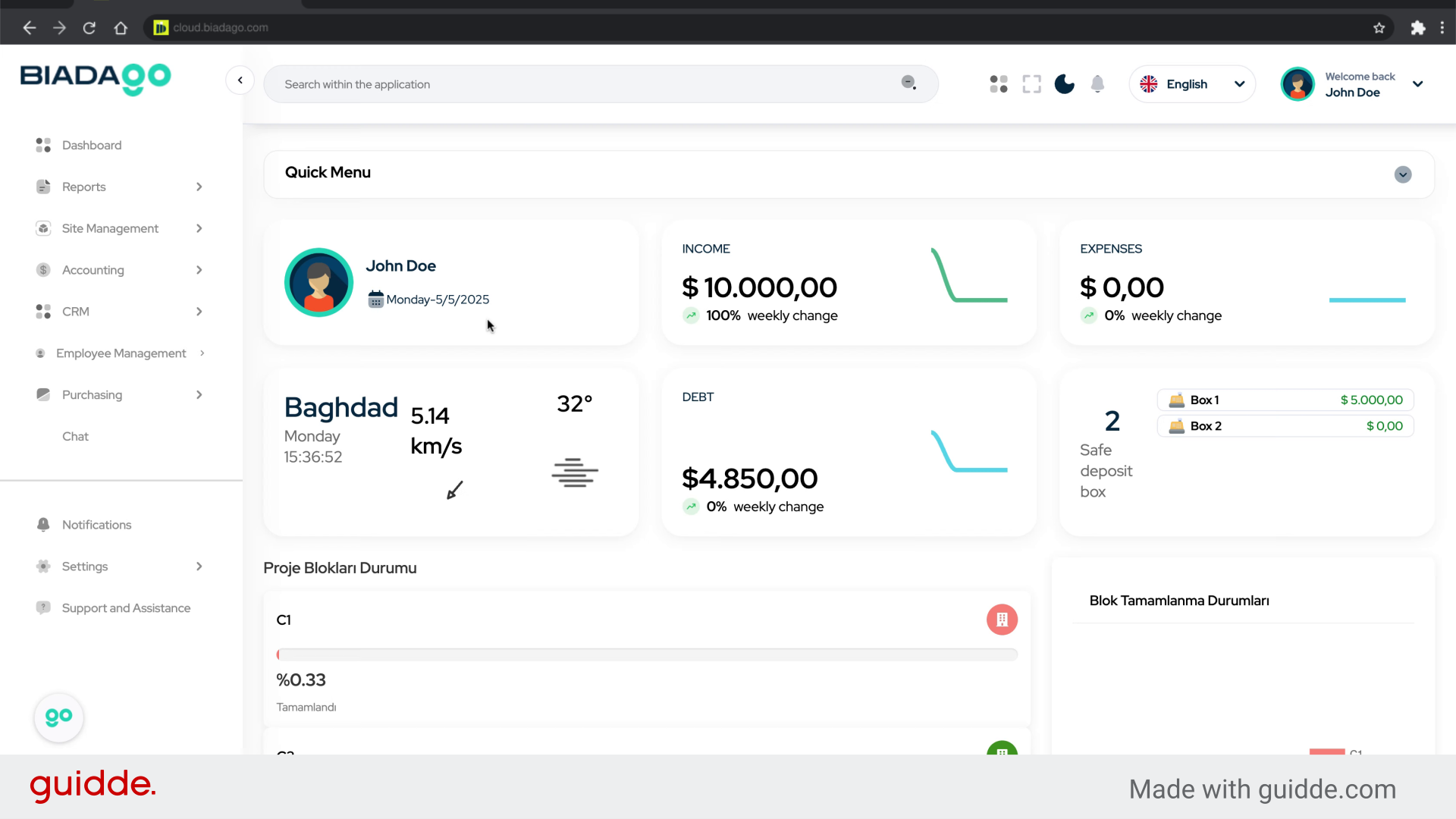
2. Click here
Navigate to the desired section.
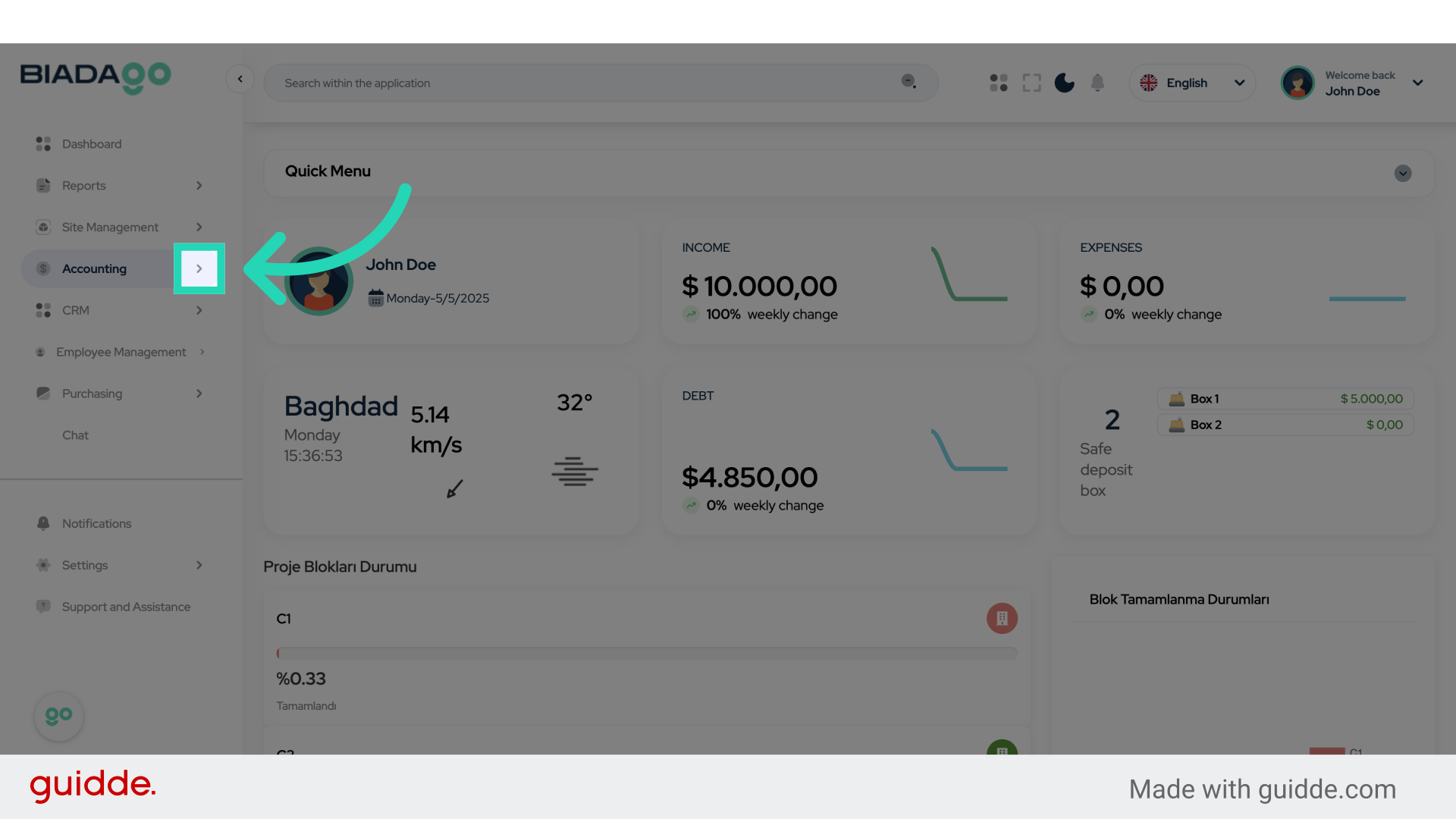
3. Click “Expense Invoice”
Select the “Expense Invoice” option.
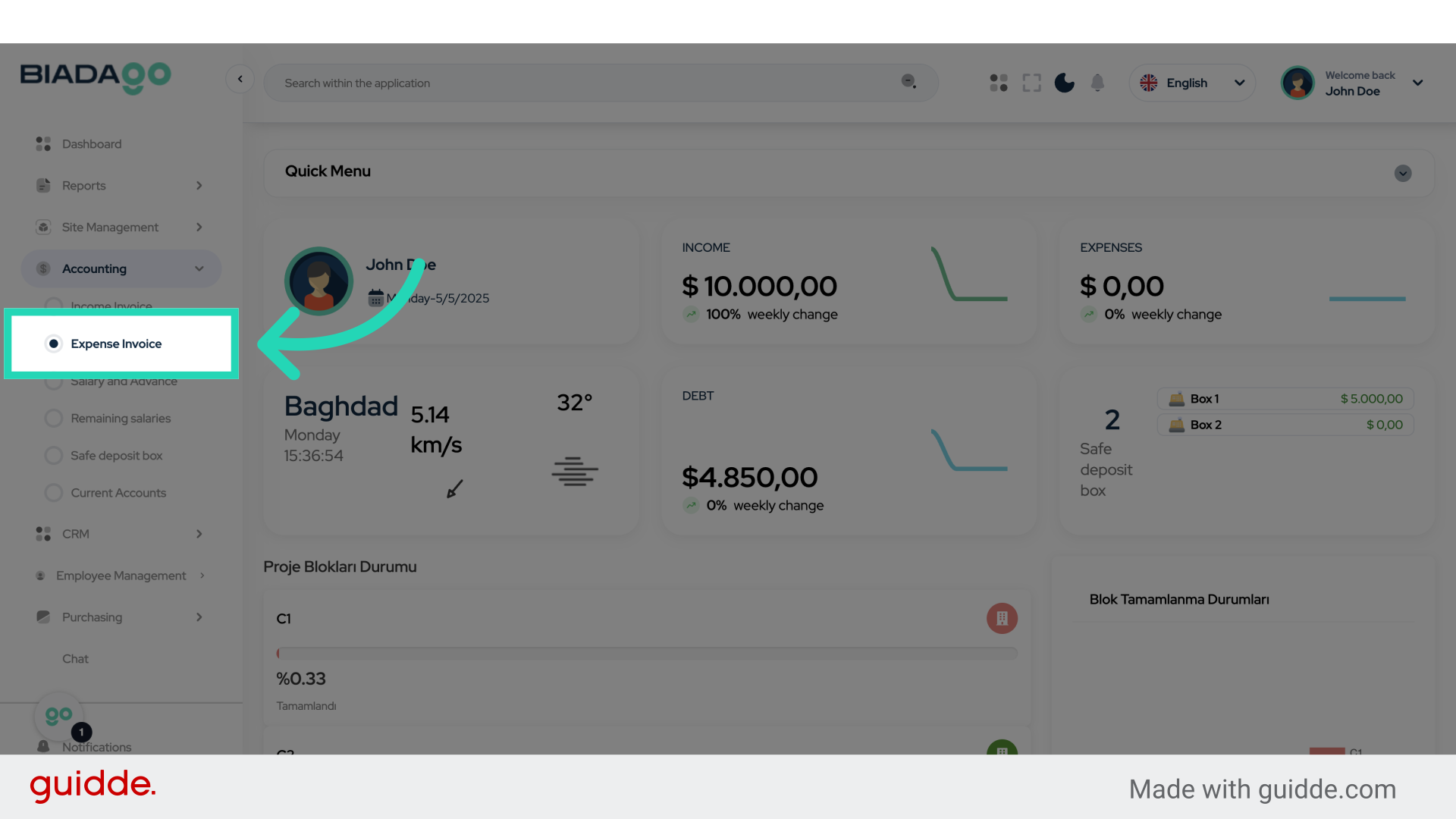
4. Click “Details”
Access the details section for the invoice.
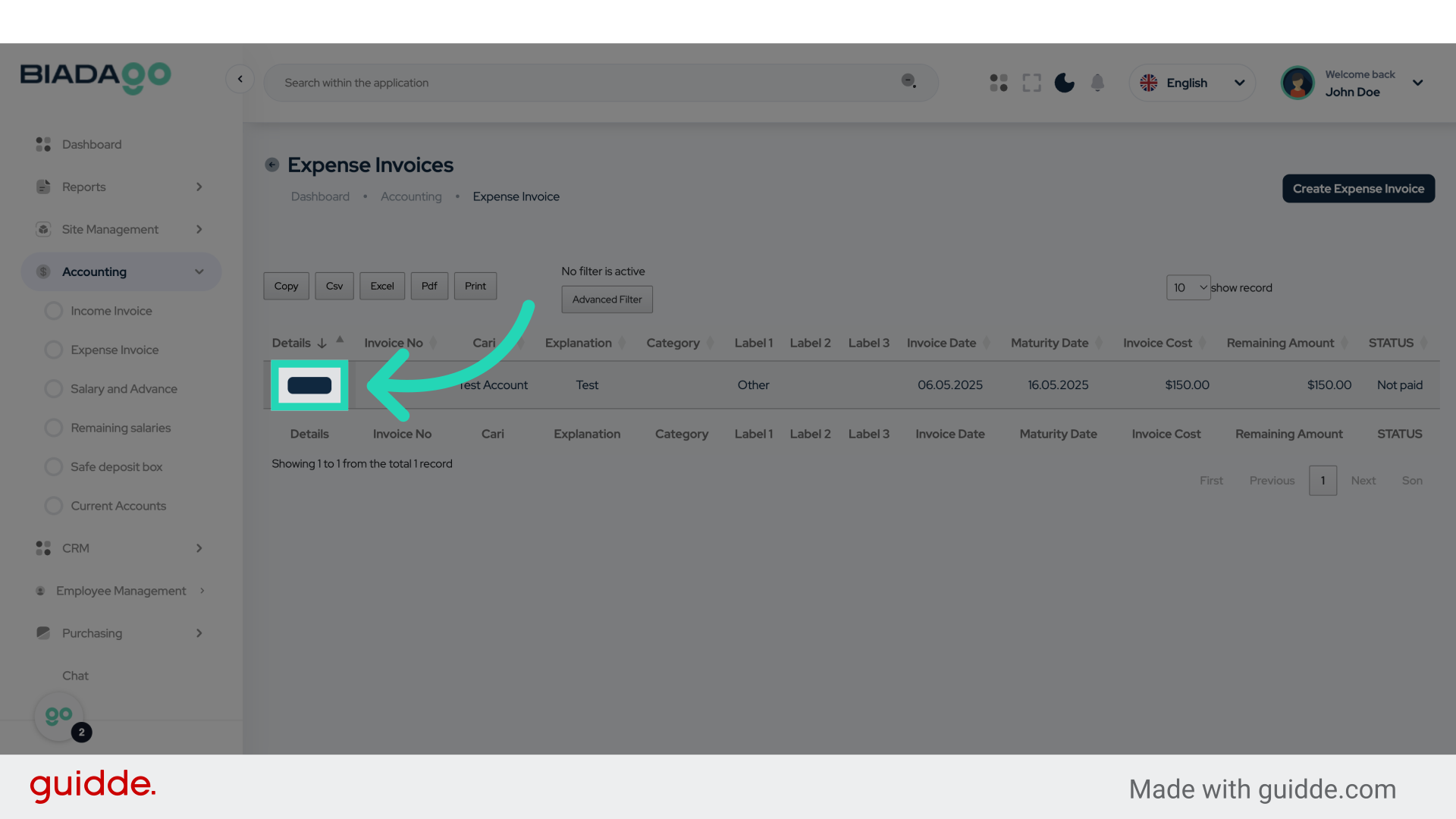
5. Click here
Navigate to the payment section.
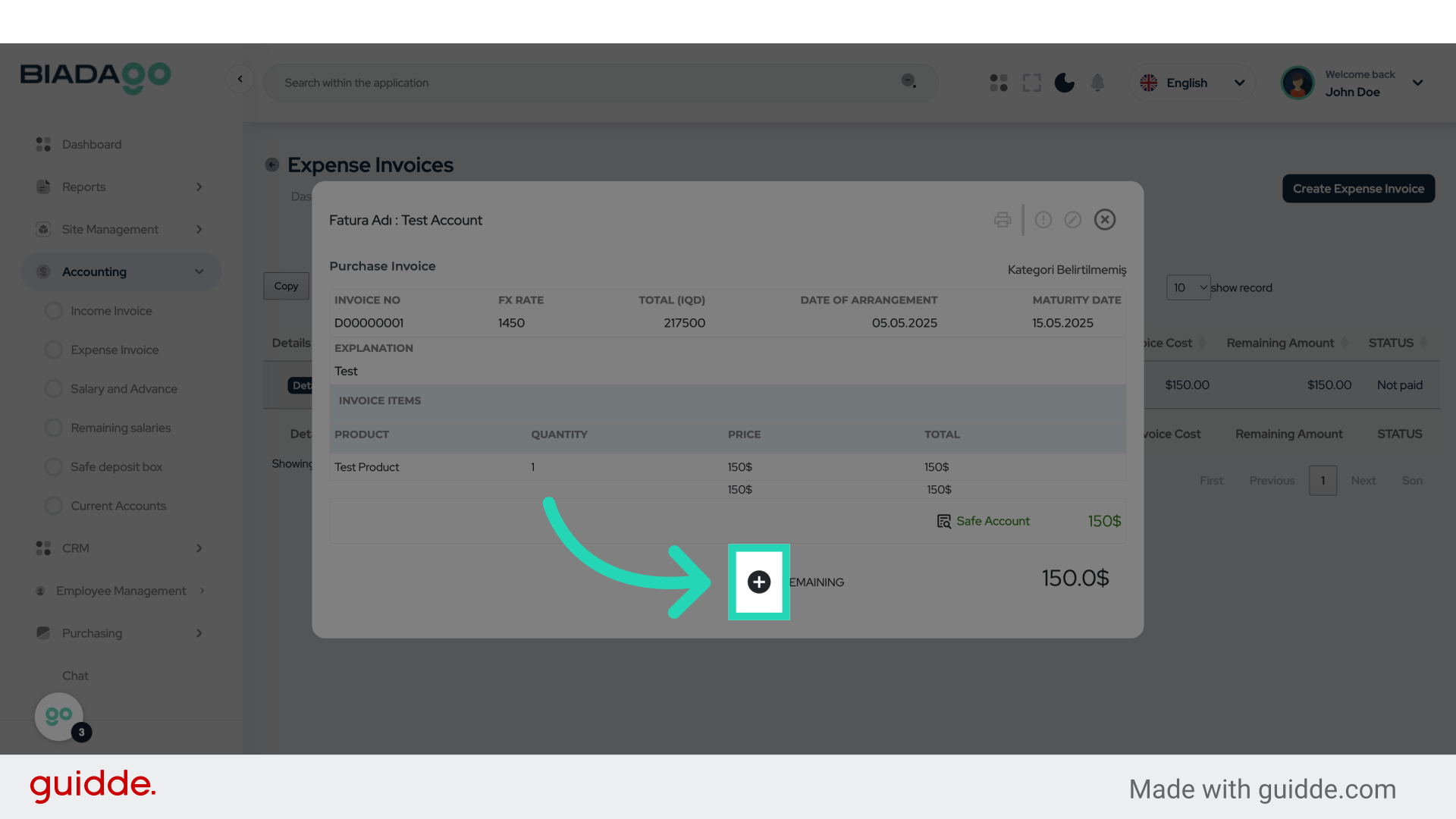
6. Click here
Select the payment method.
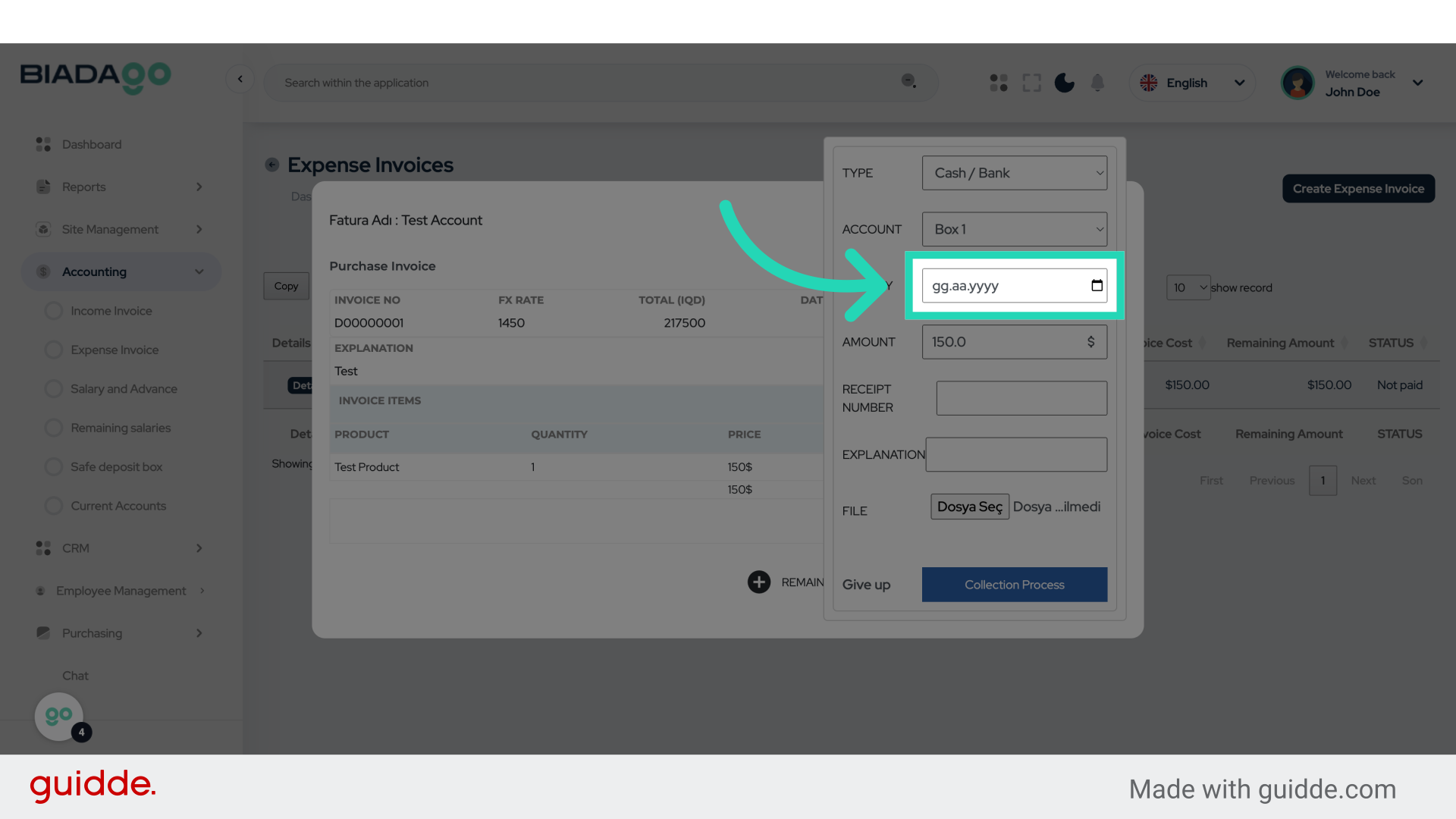
7. Fill “2025-05-05”
Fill in “2025-05-05”
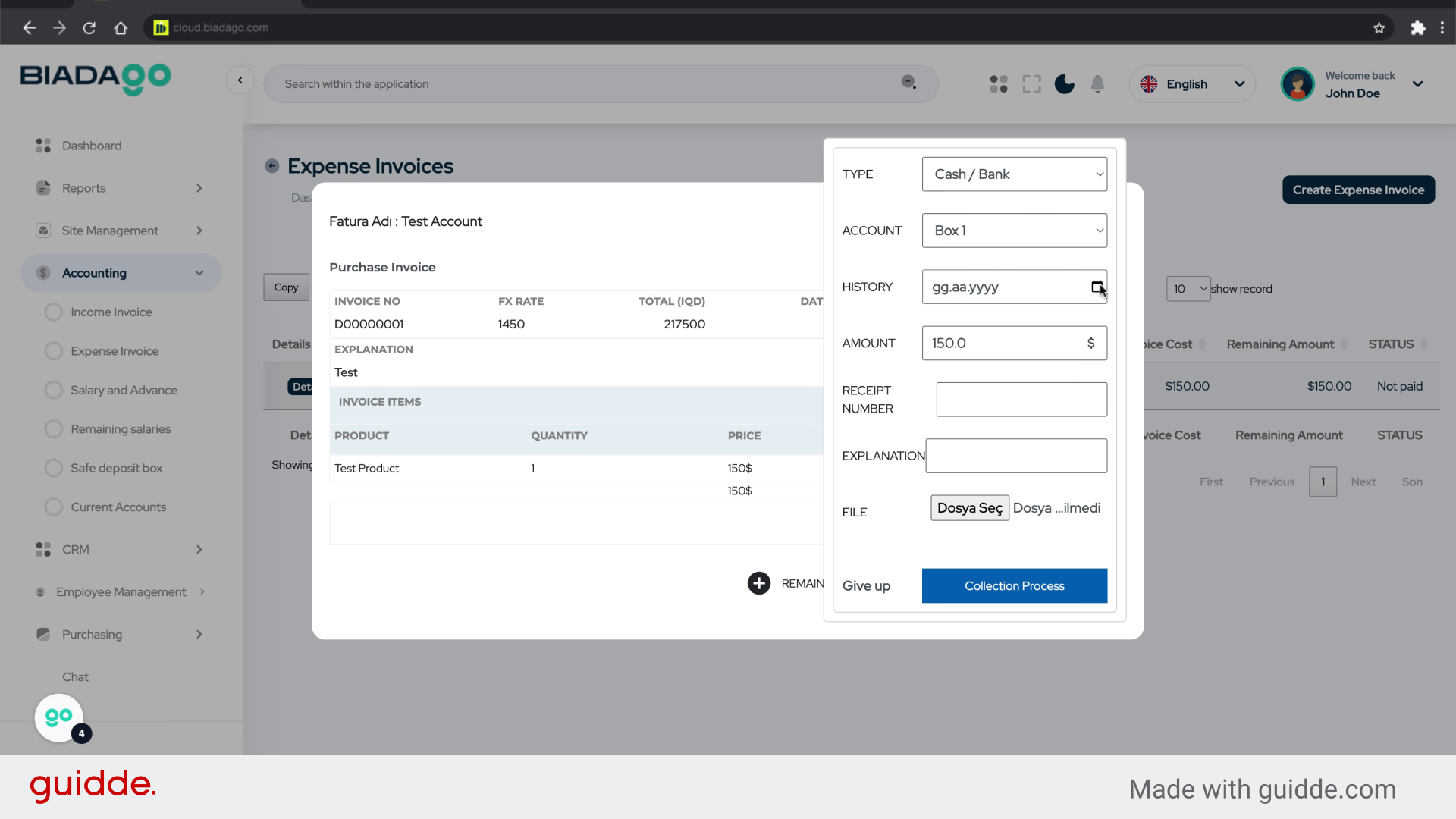
8. Click “150.0”
Enter the amount for the invoice.
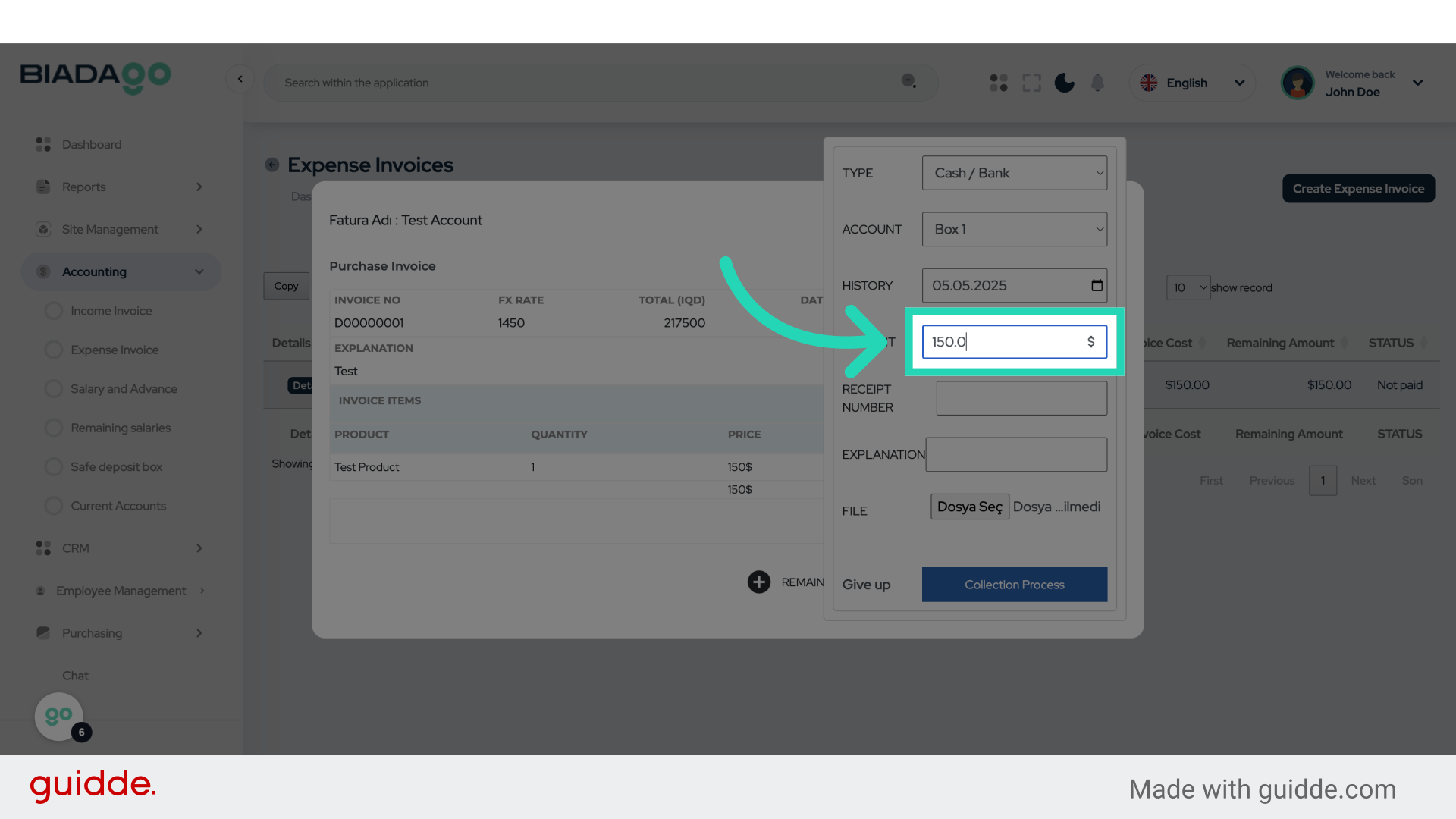
9. Fill “100”
Enter “100” in the provided field
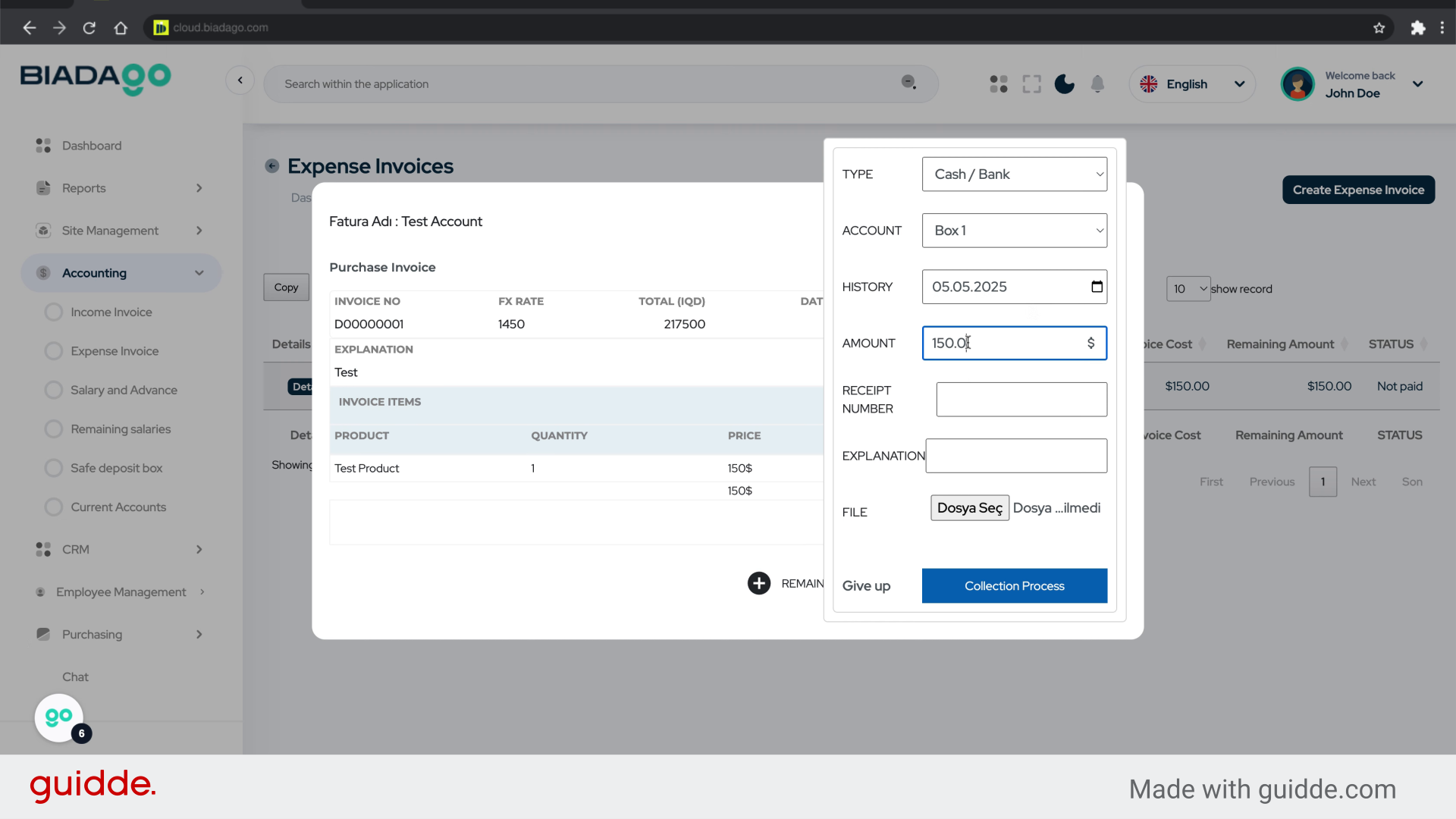
10. Click here
Proceed to the next step.
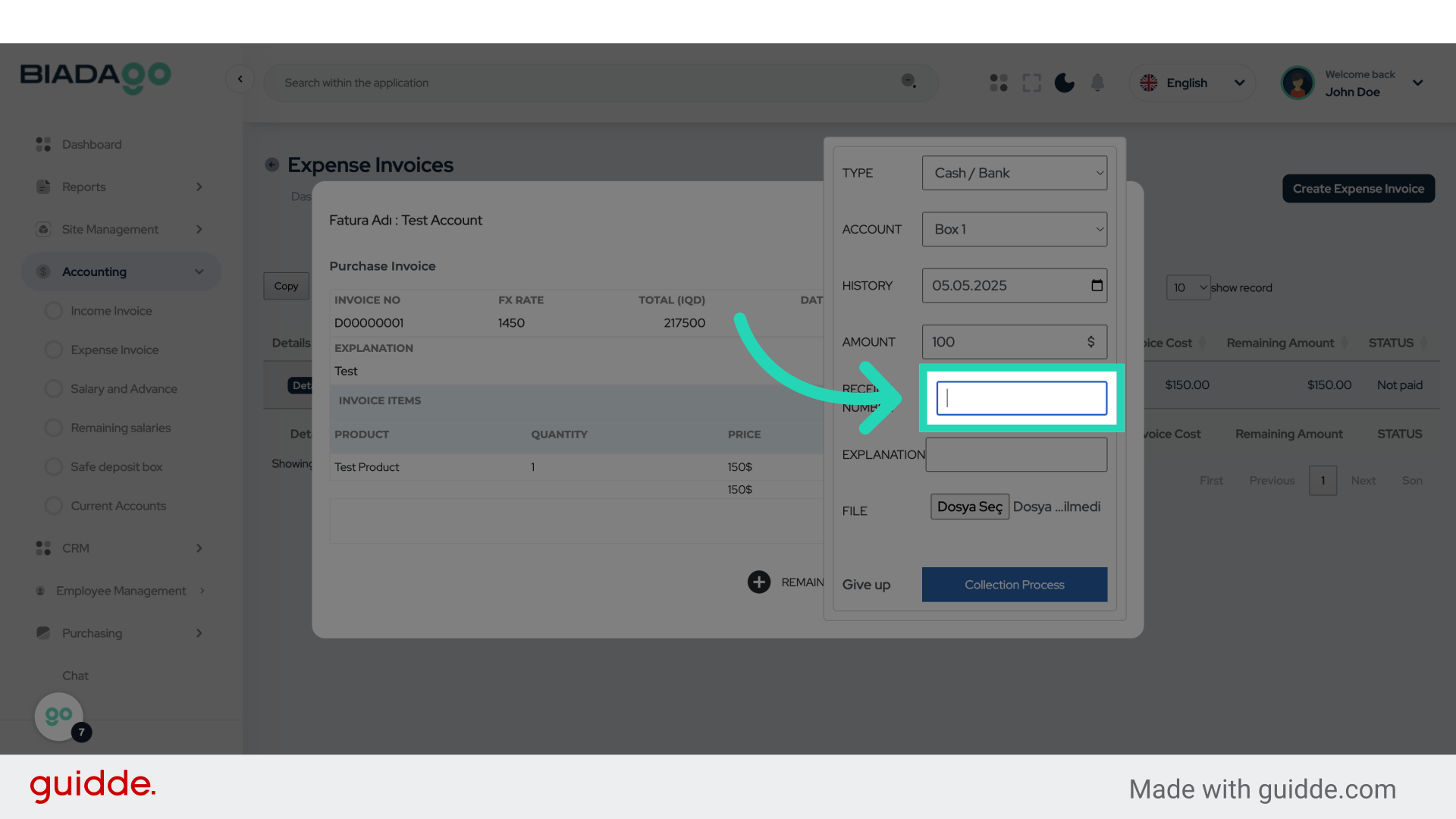
11. Fill “0003”
Fill in the text box with “0003”
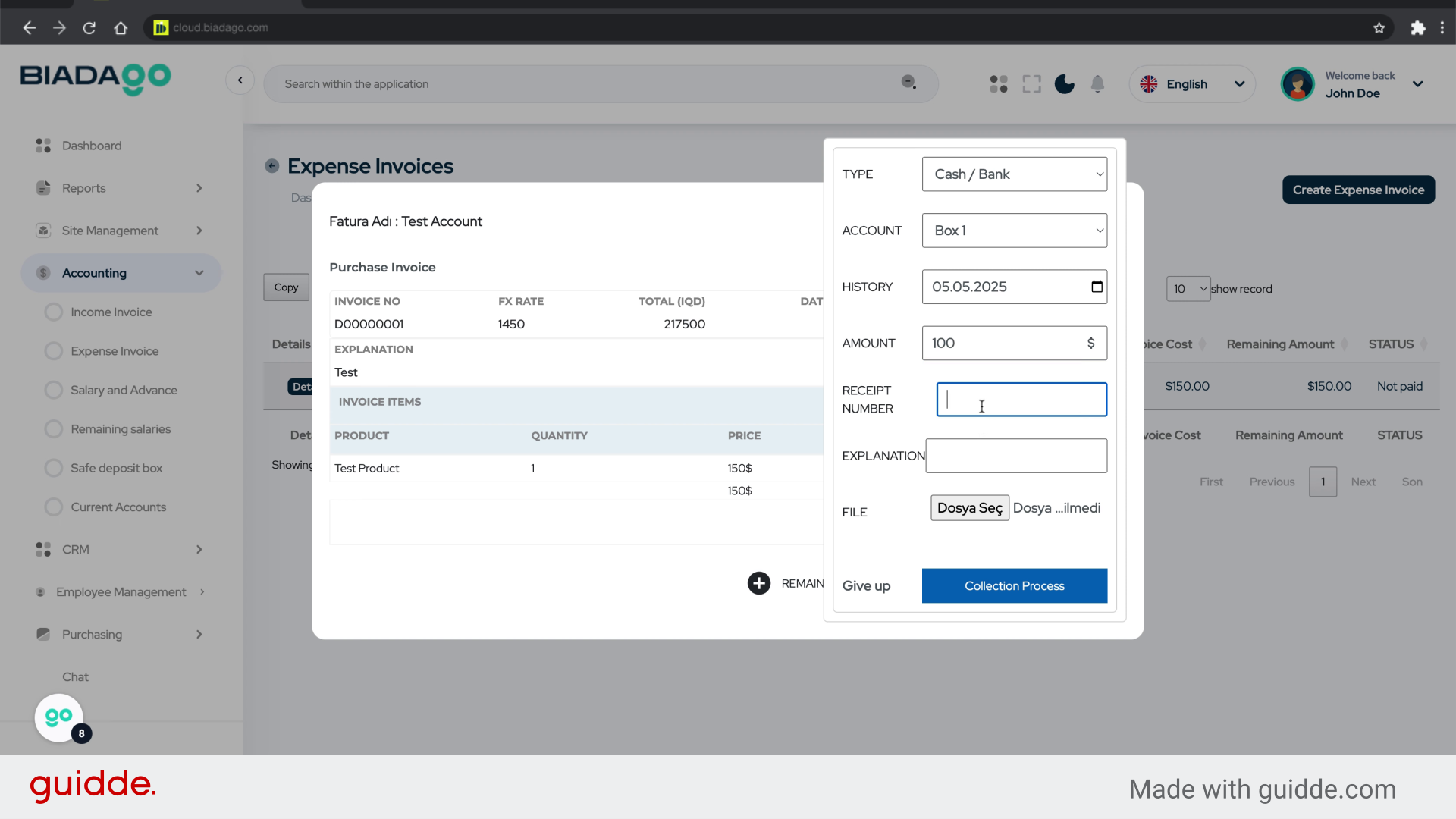
12. Click here
Continue with the payment process.
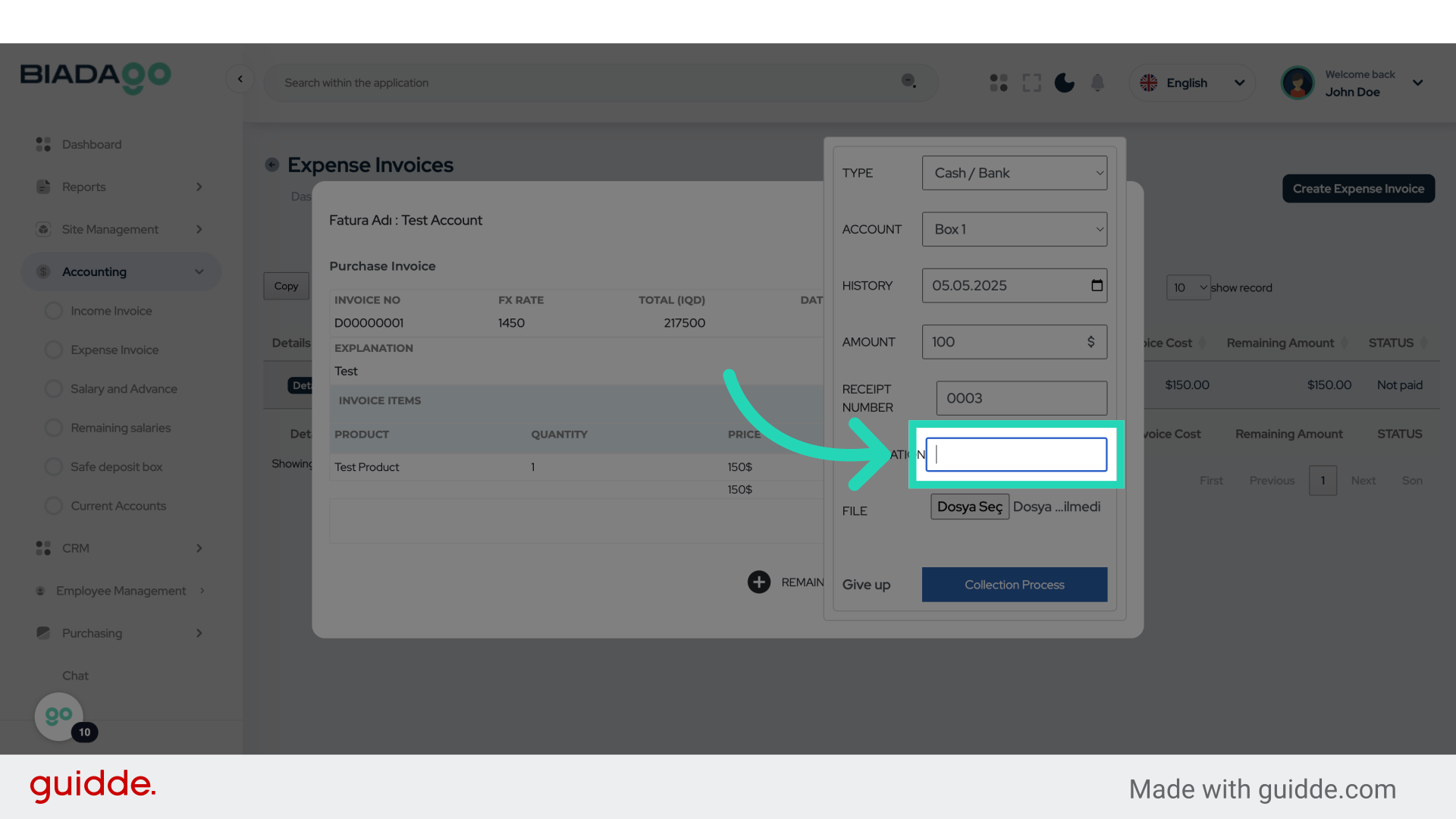
13. Fill “test”
Enter the desired text.
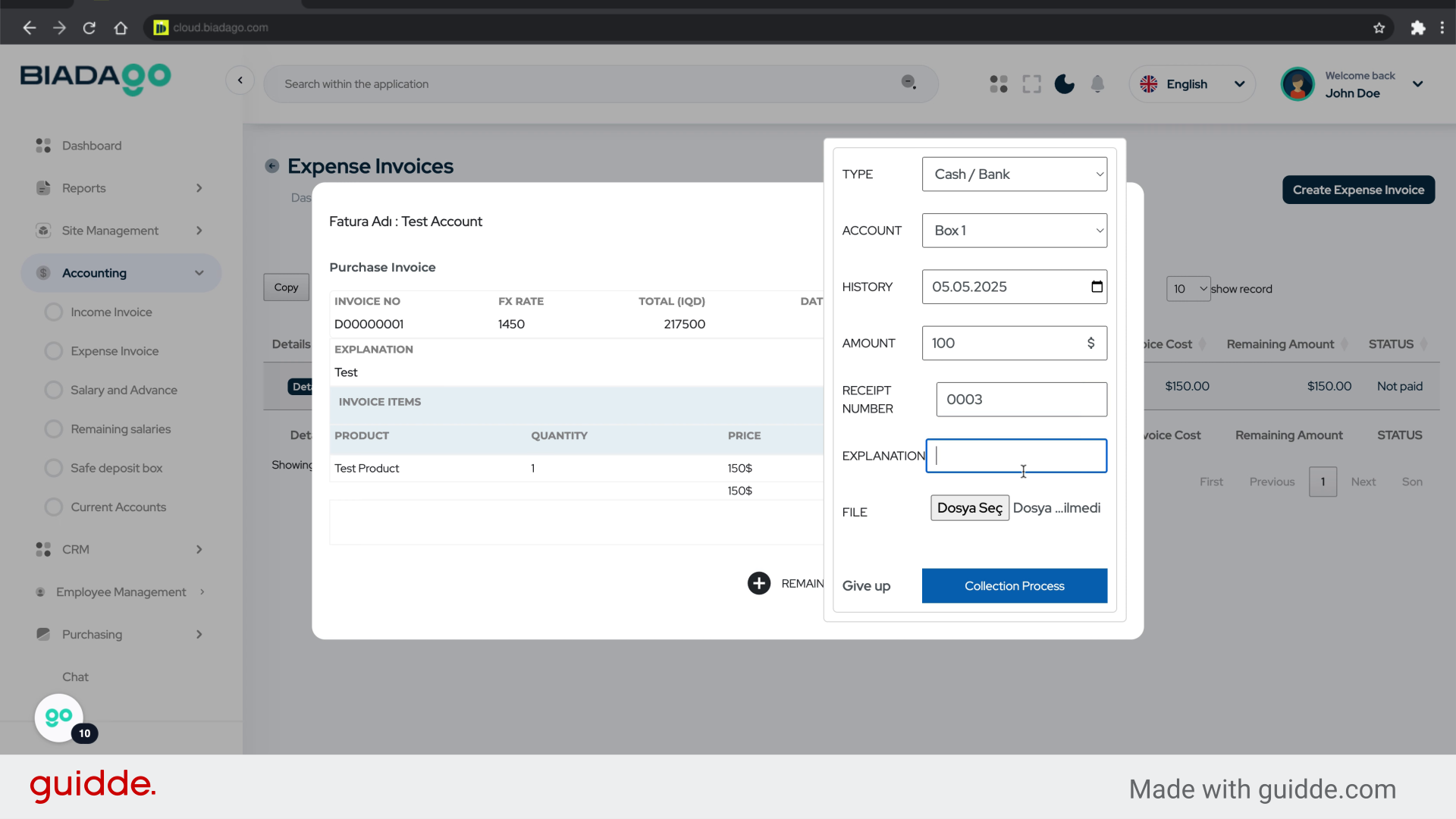
14. Click here
Complete the transaction.
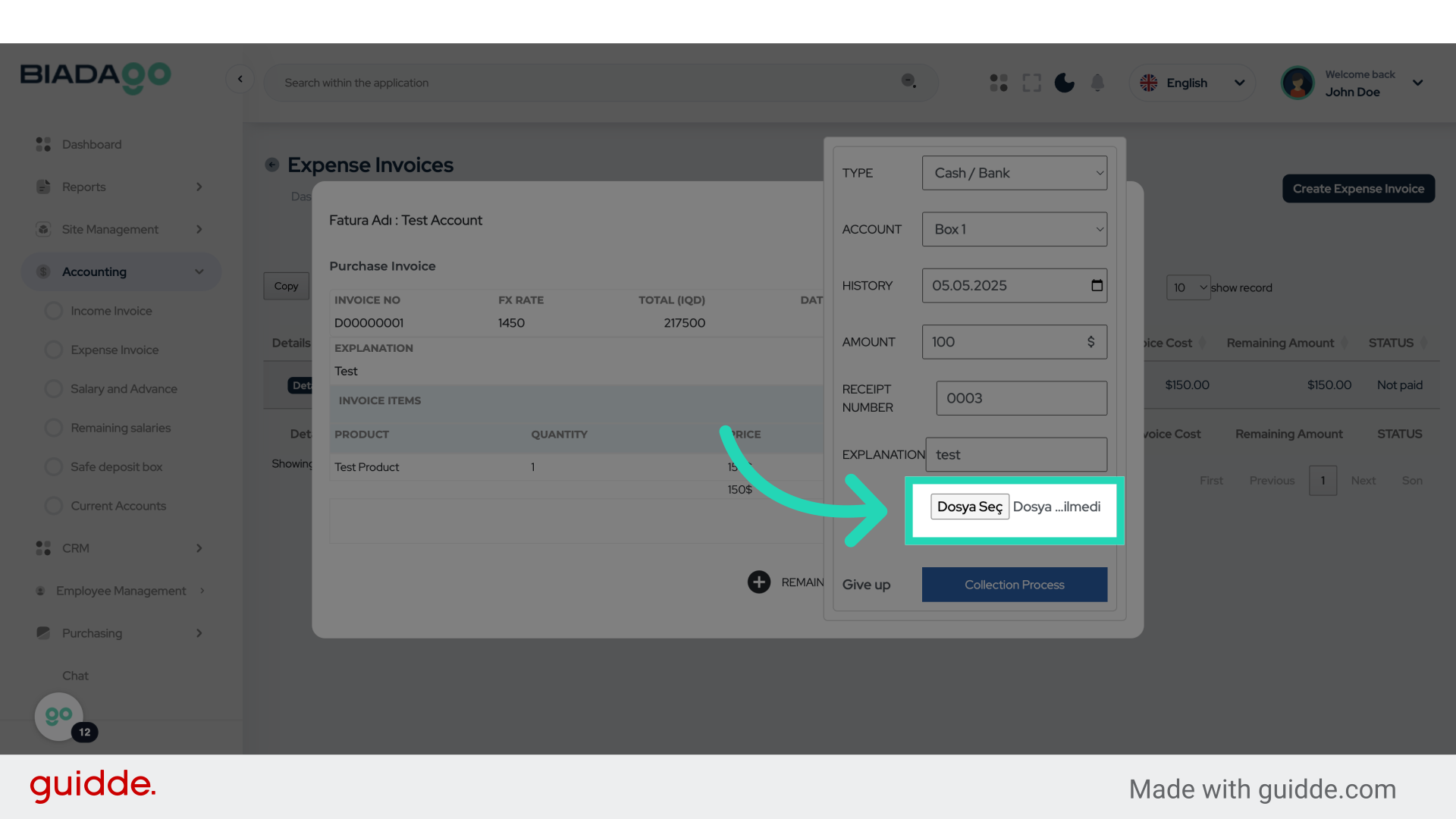
15. Fill “C:\fakepath\logo.png”
Type “C:\fakepath\logo.png” in the given field
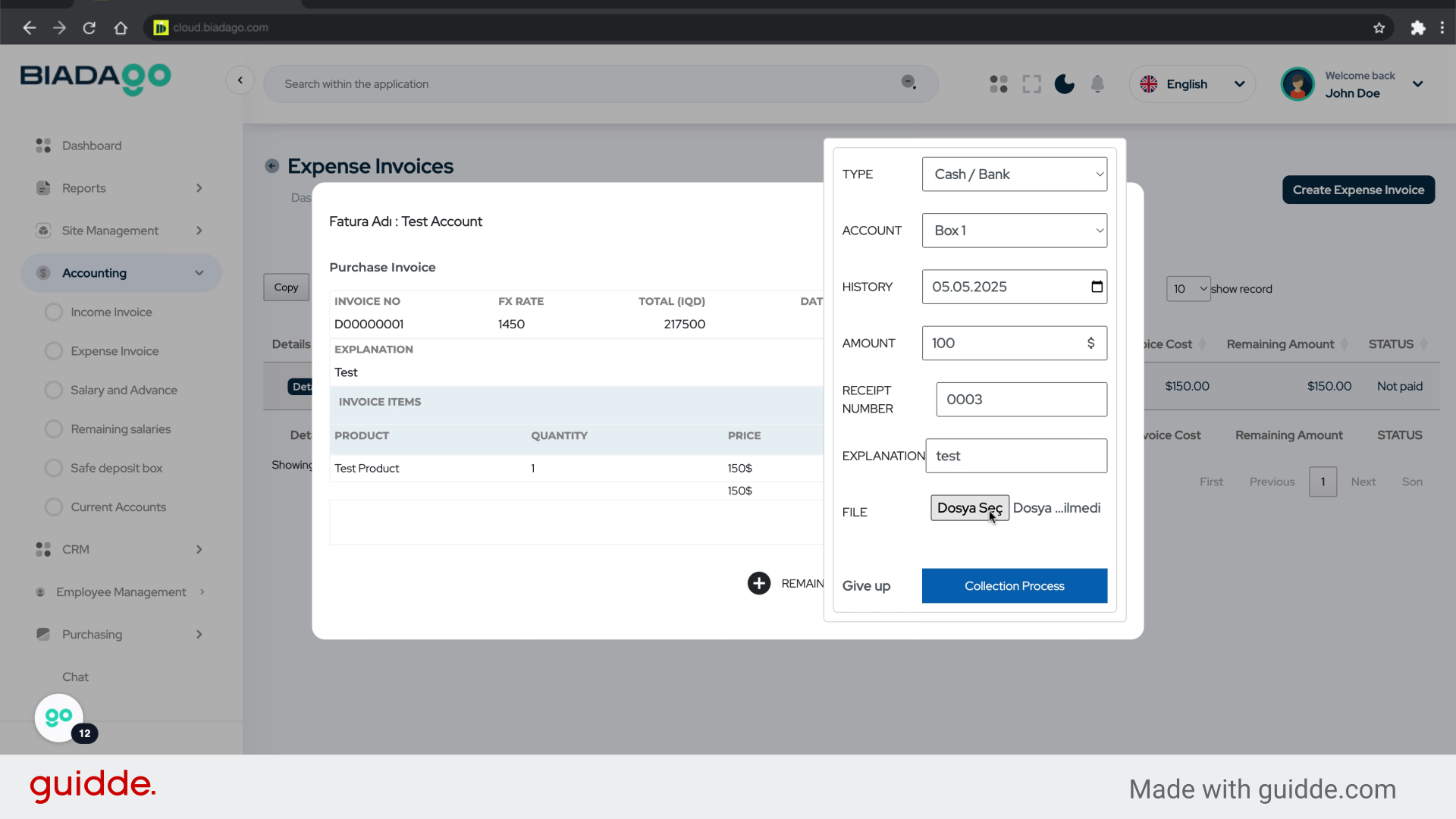
16. Click “Collection Process”
Access the Collection Process feature.
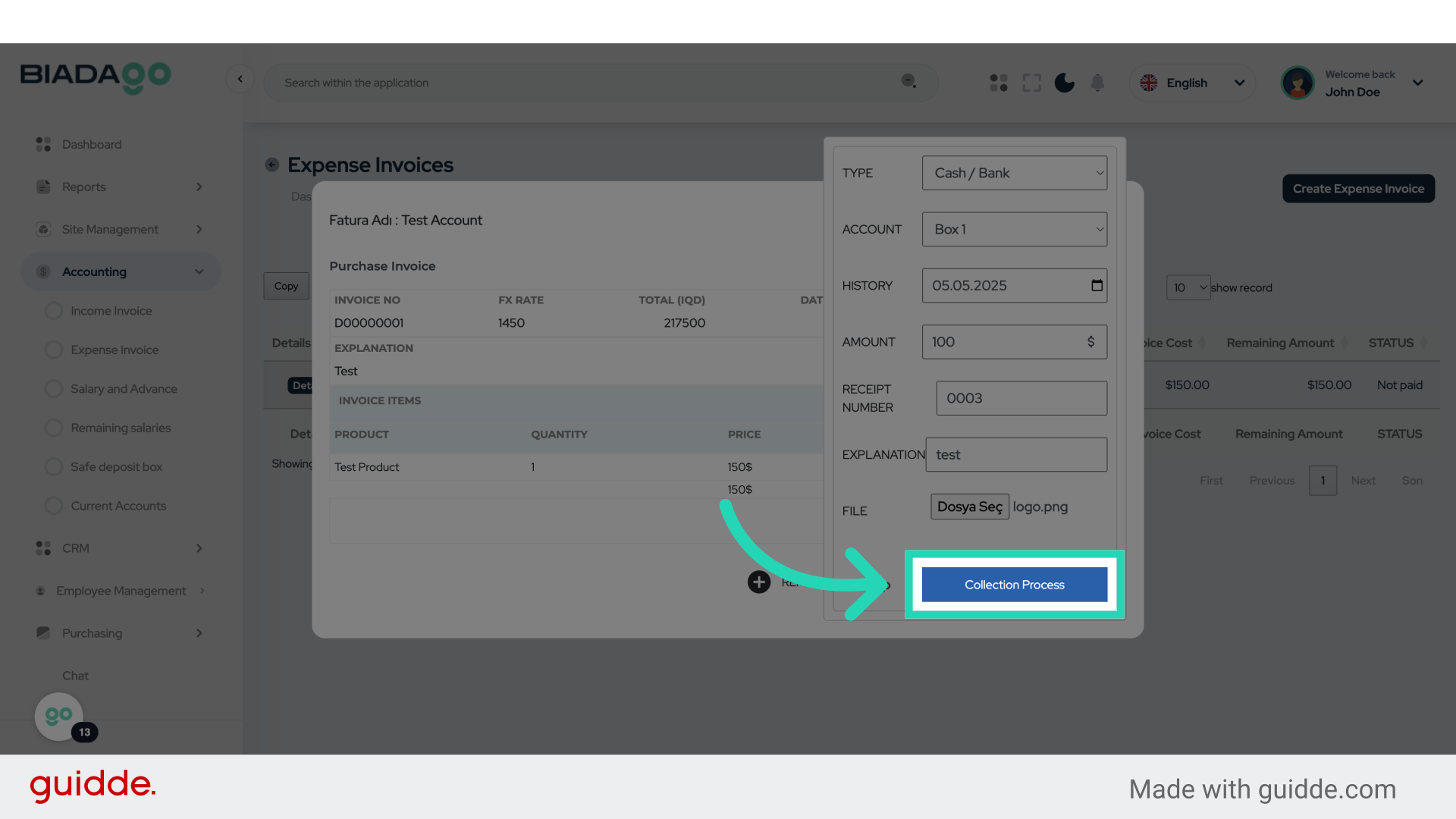
17. Click “Details”
View the details of the transaction.
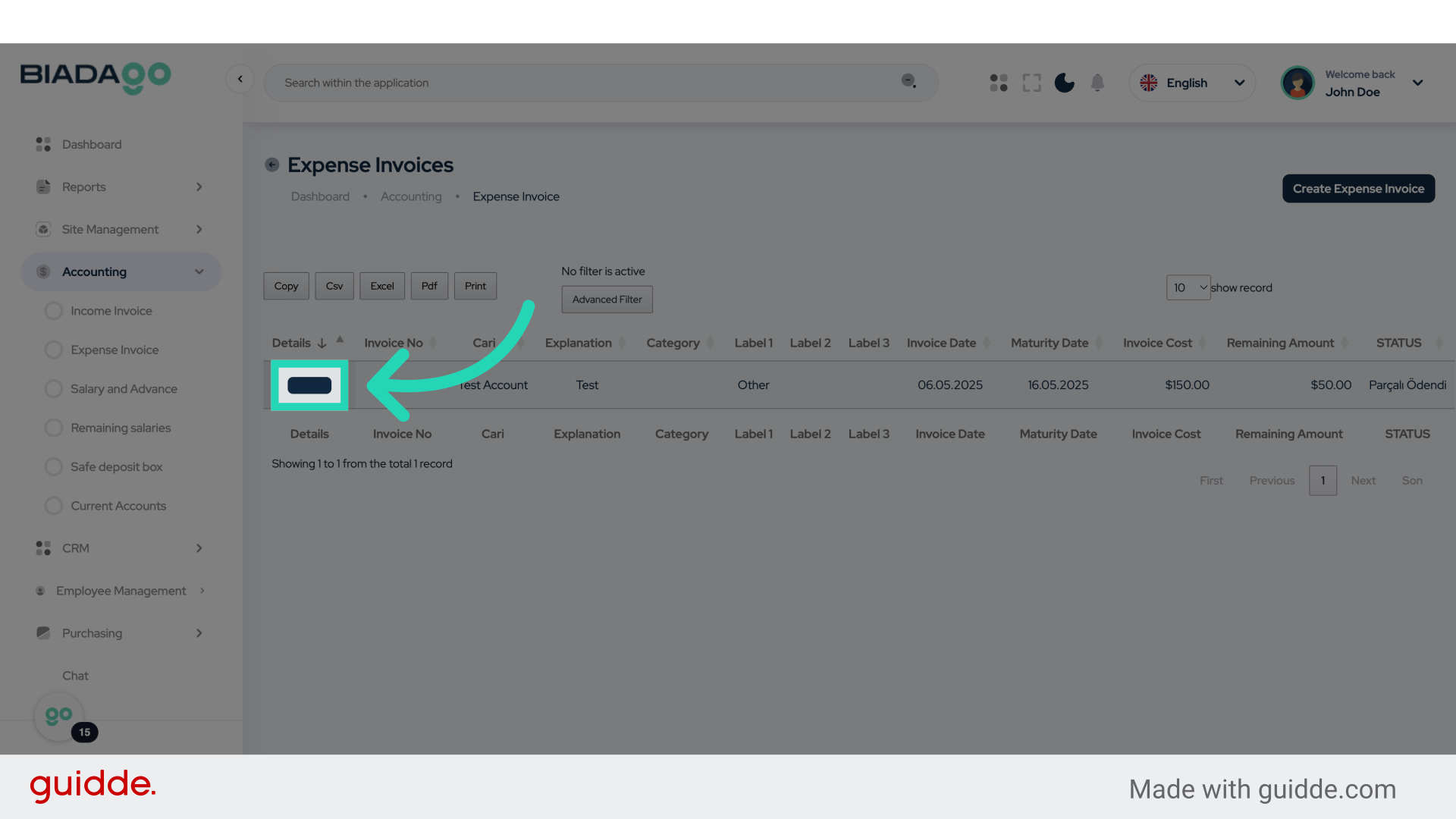
18. Click here
Navigate to the deletion option.
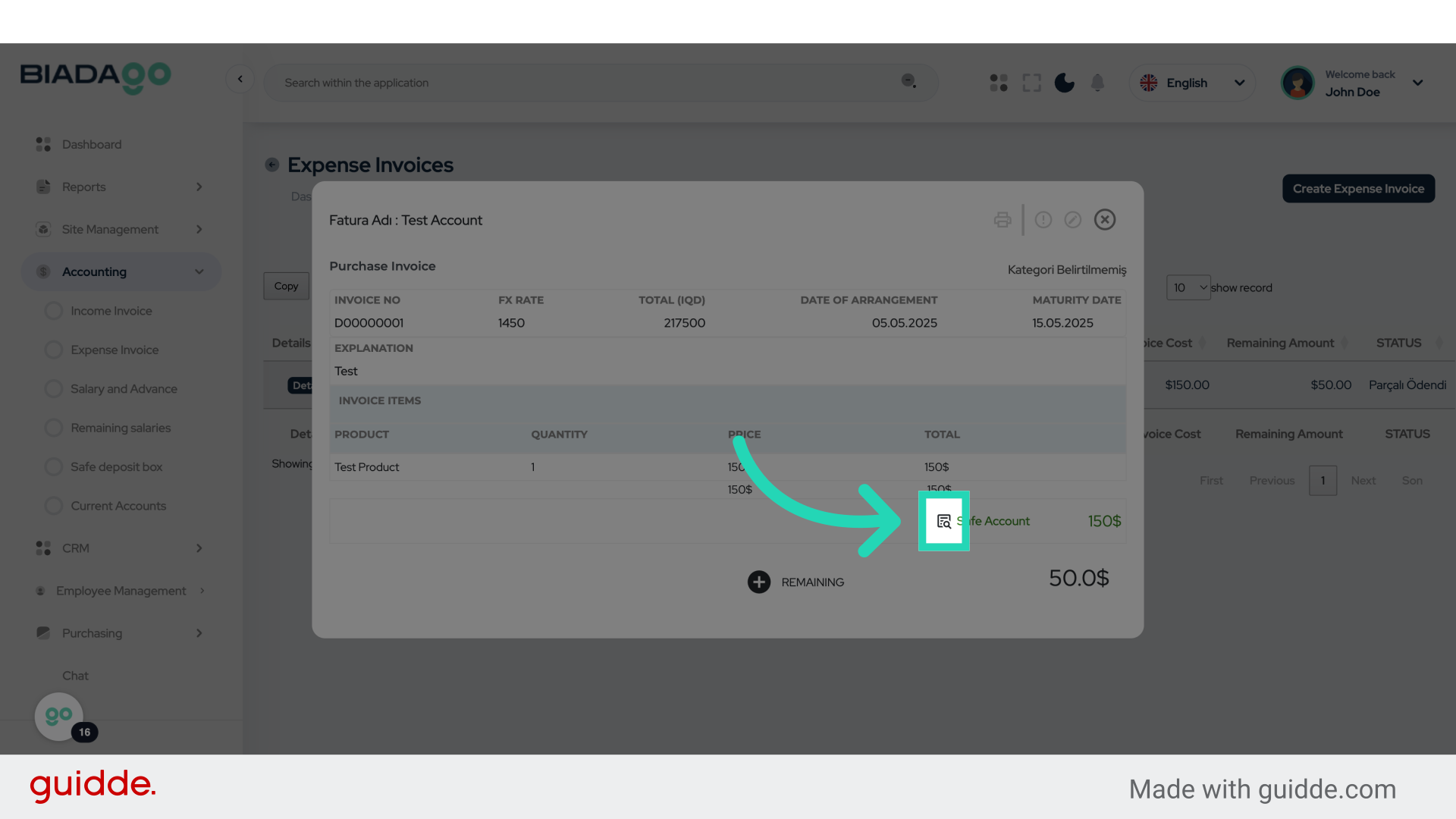
19. Click “DELETE”
Initiate the deletion process.
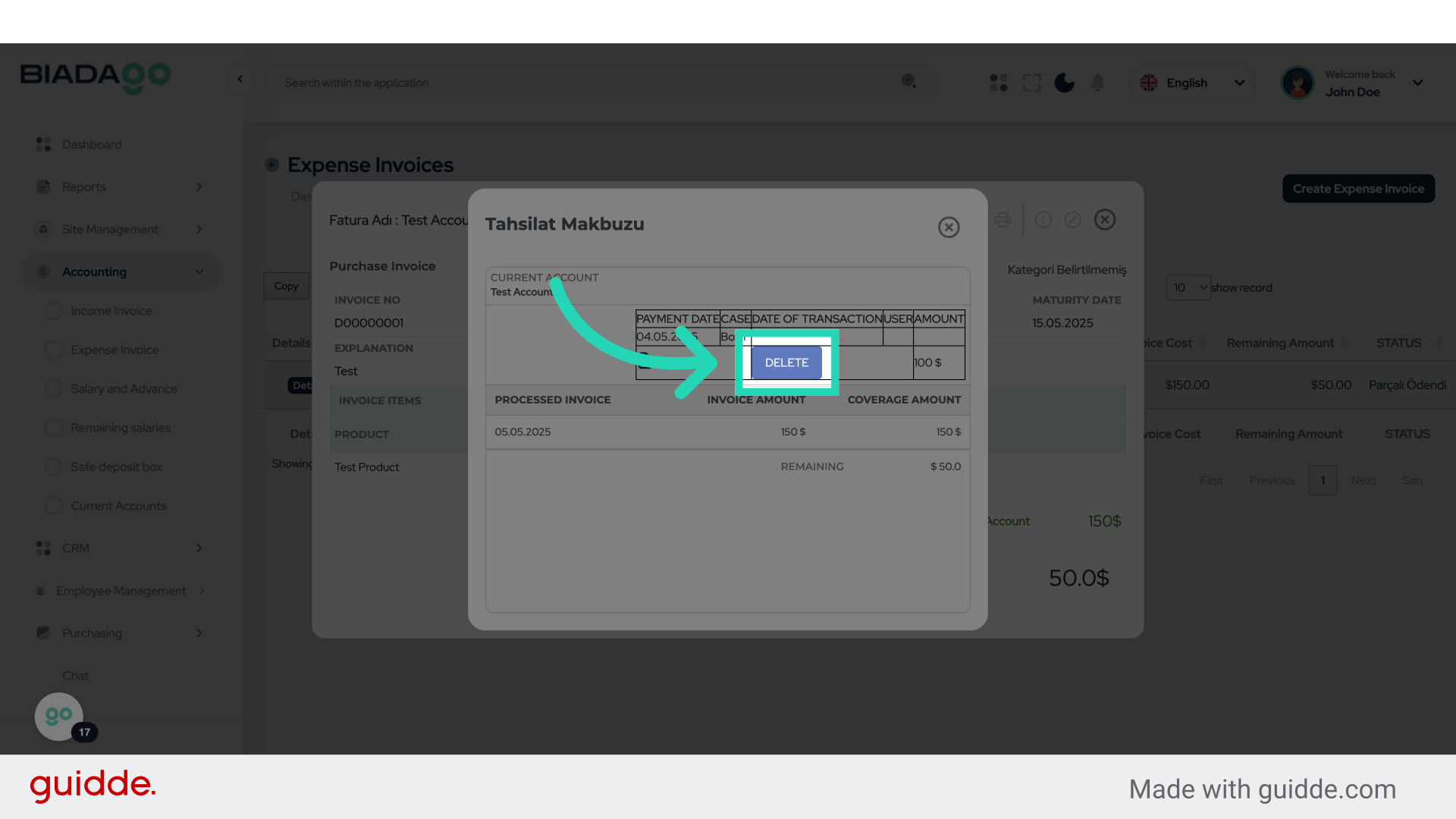
20. Click “Delete”
Confirm the deletion action.
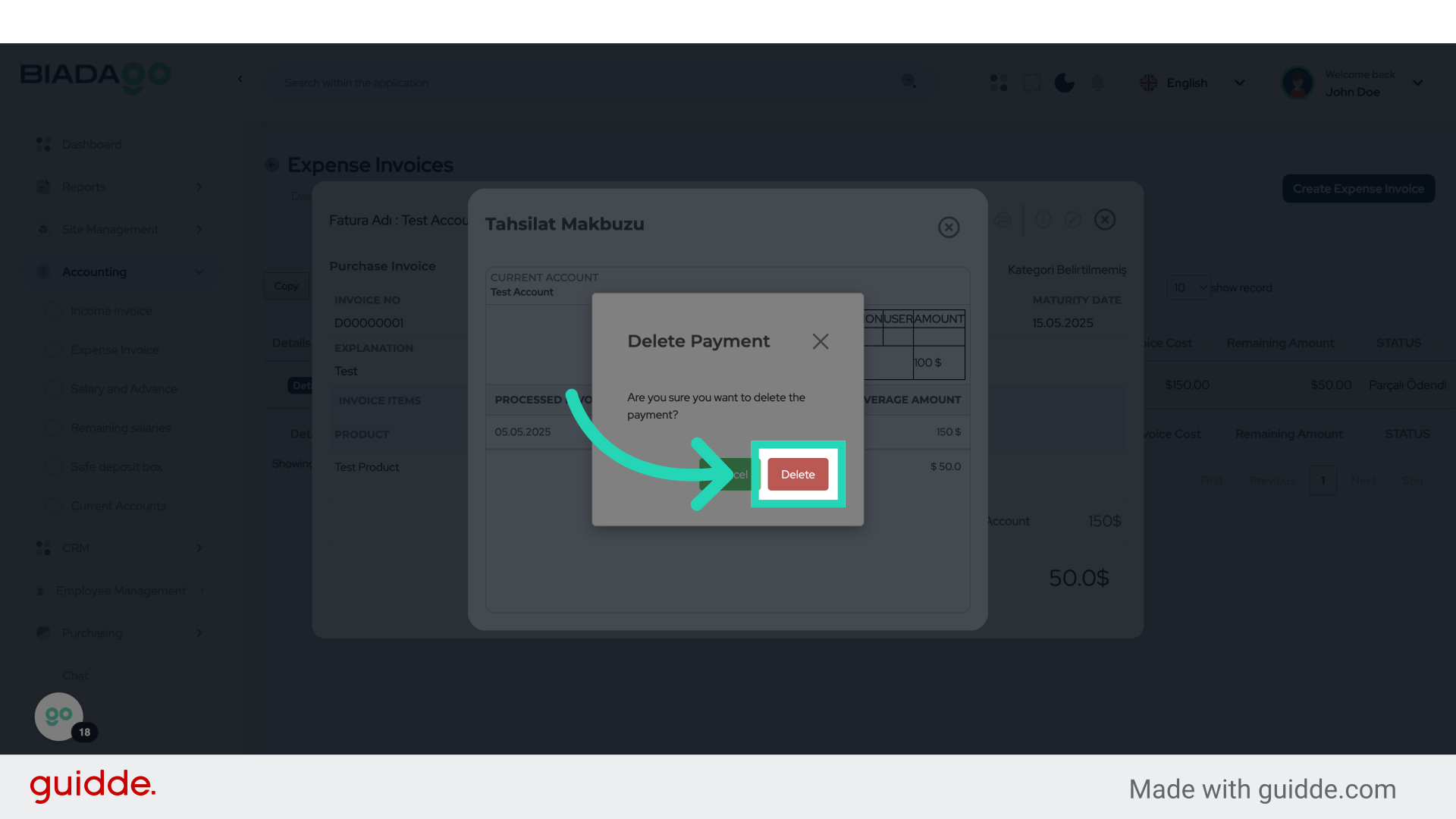
21. Click “Details”
Access the details section.
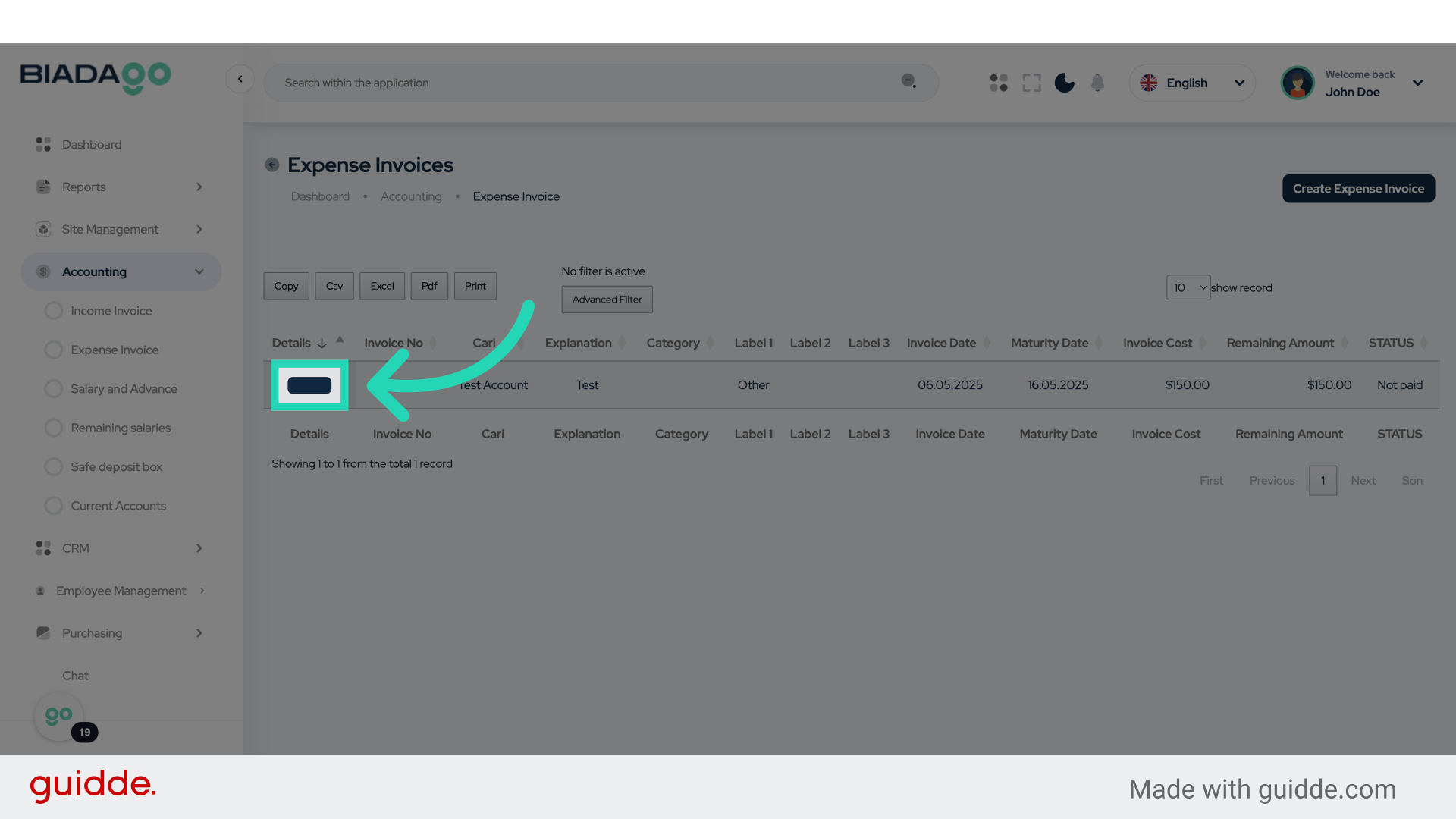
22. Click here
Proceed with the next step.
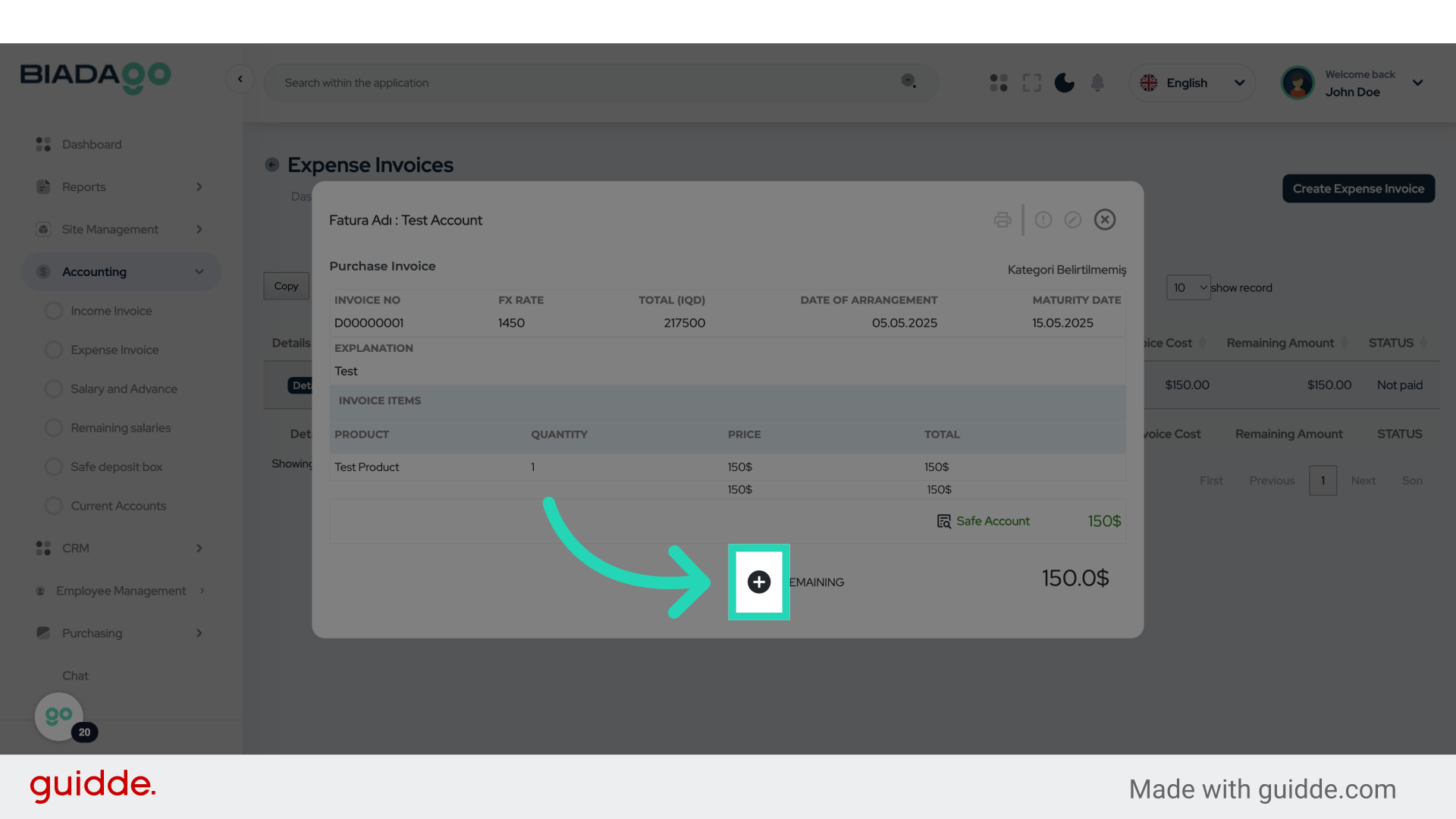
23. Click here
Continue with the process.
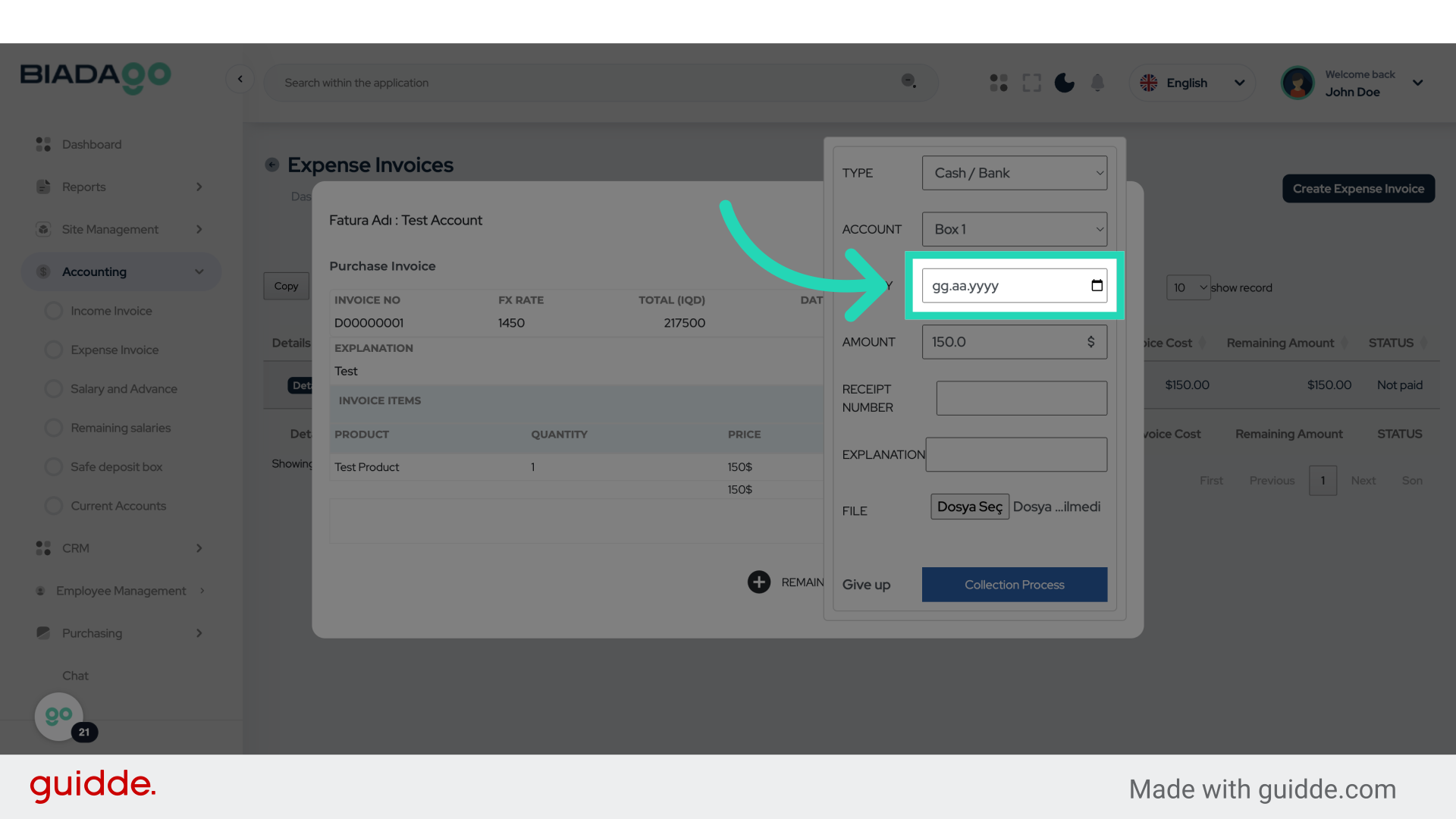
24. Fill “2025-05-05”
Input “2025-05-05” in the available field
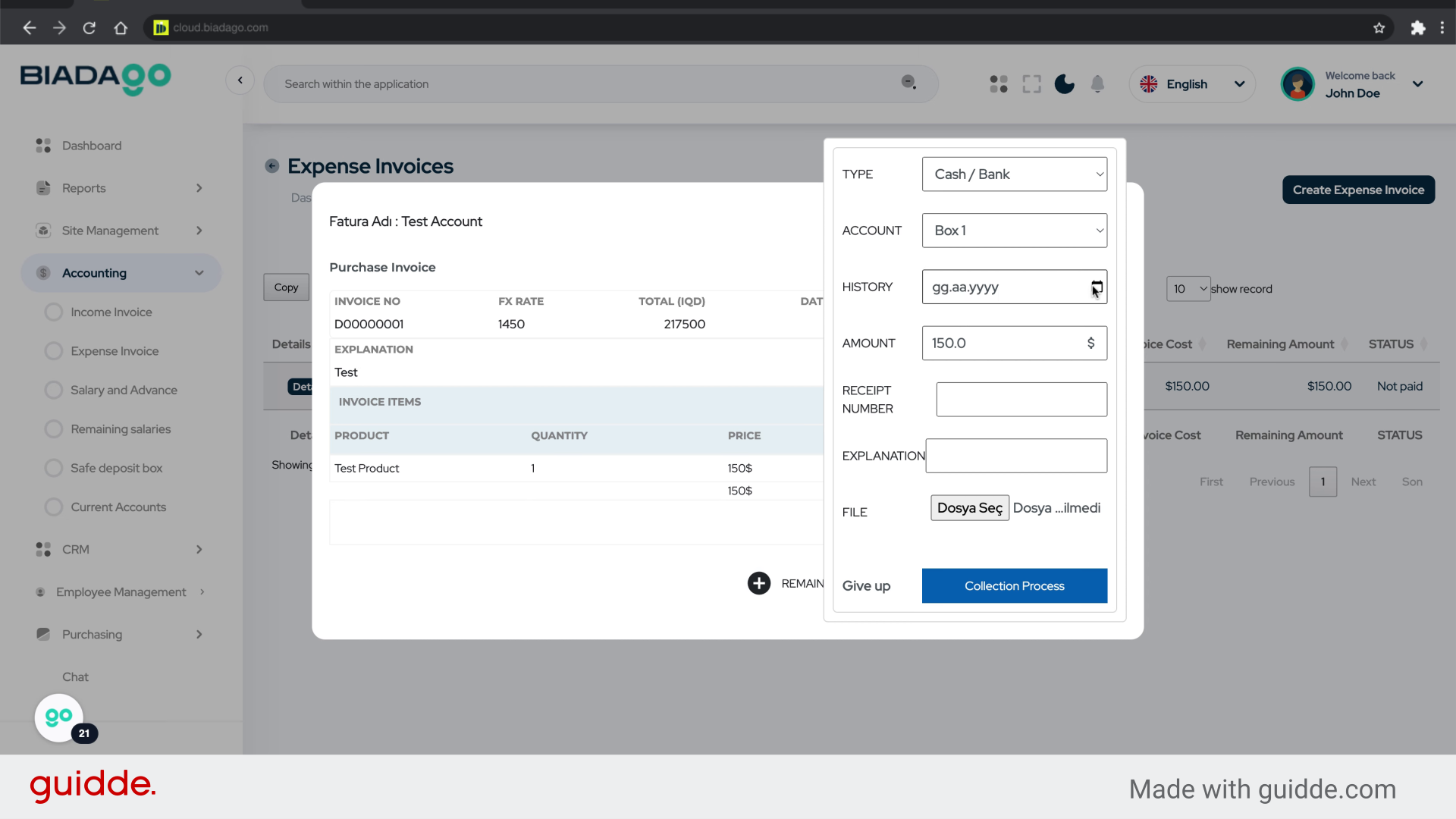
25. Click here
Navigate to the next step.
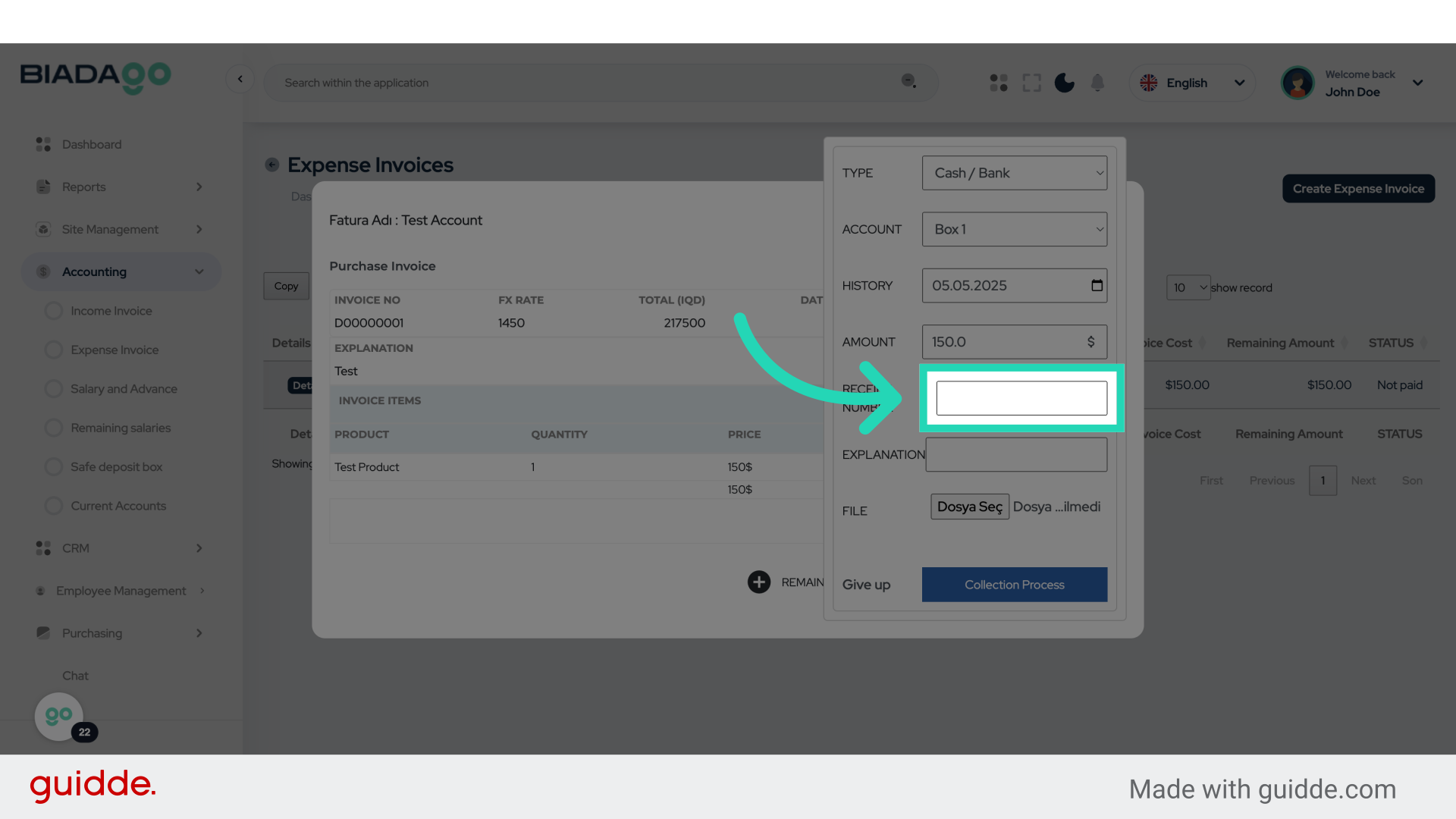
26. Fill “0003”
Write “0003” in the specified field
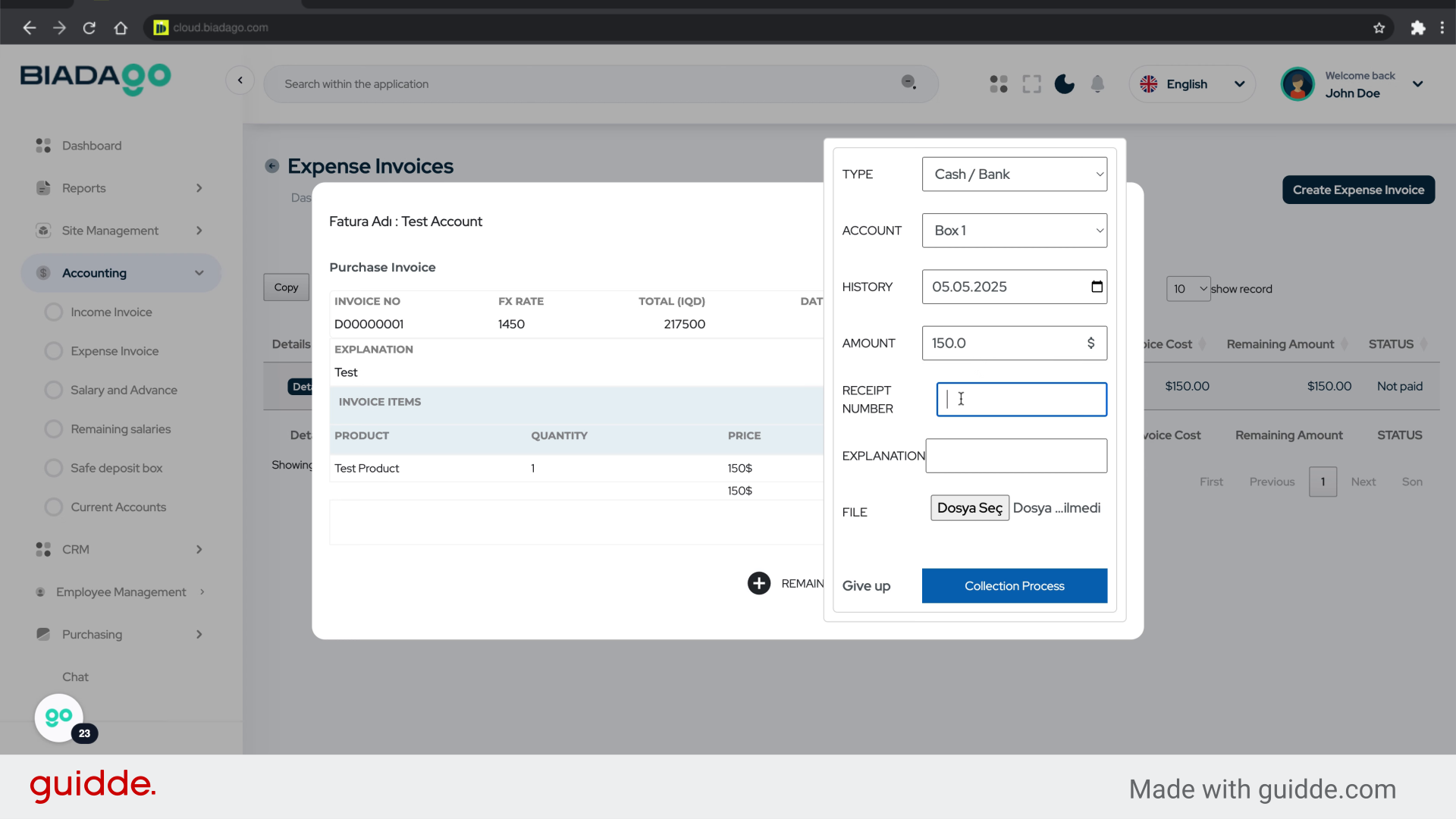
27. Click here
Proceed to the following action.
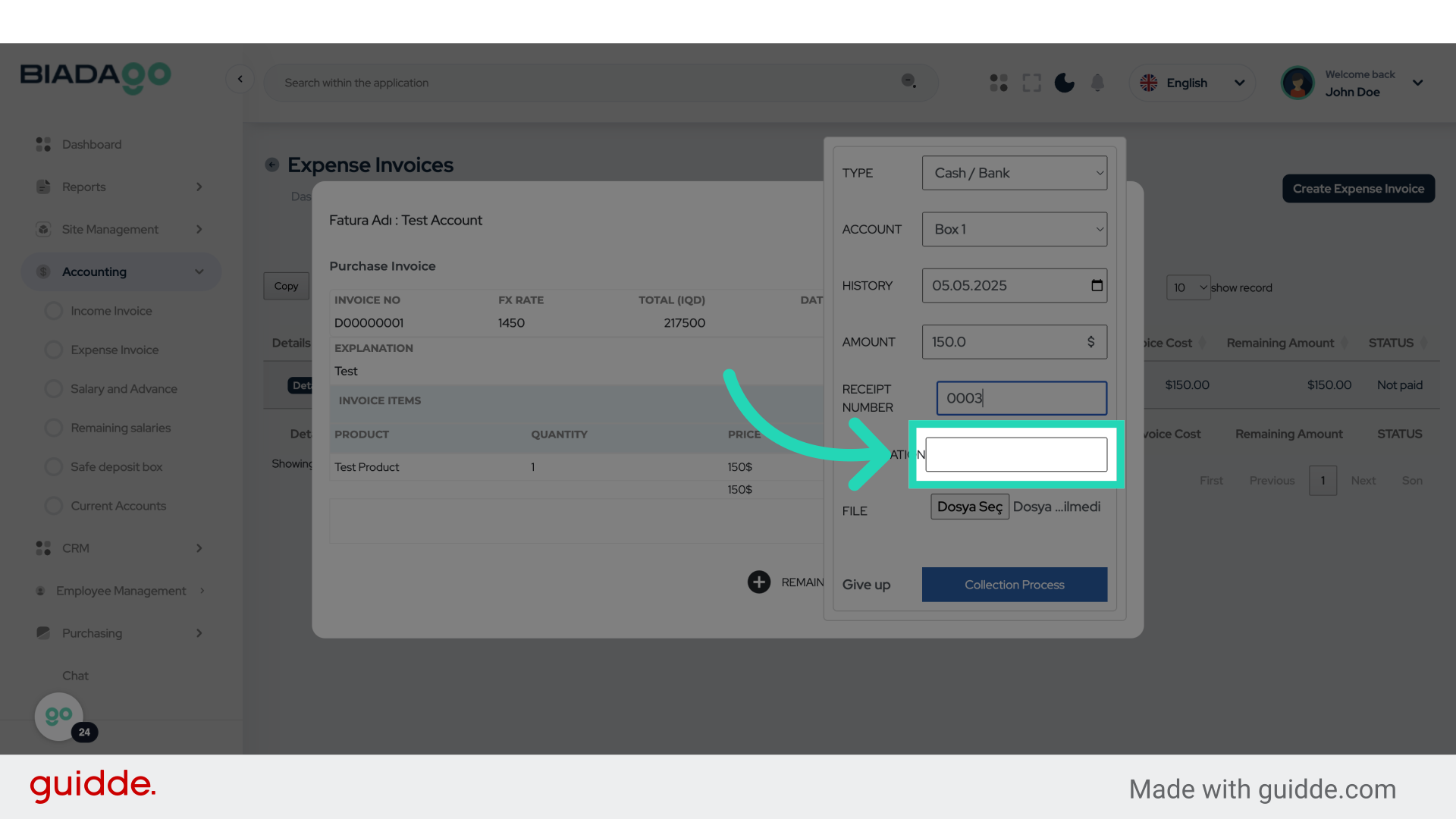
28. Fill “test”
Submit “test” in the appropriate field
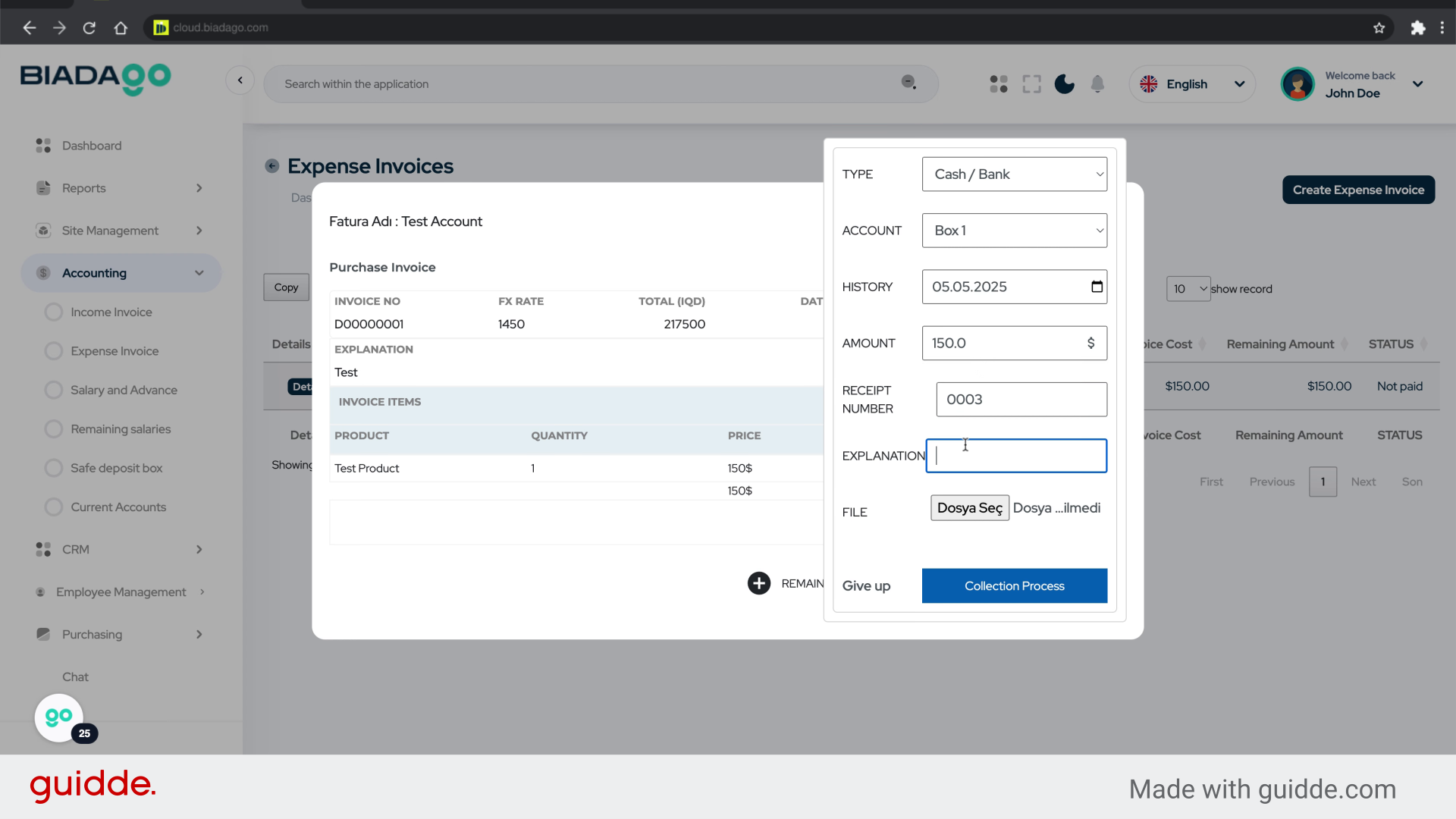
29. Click here
Complete the process.
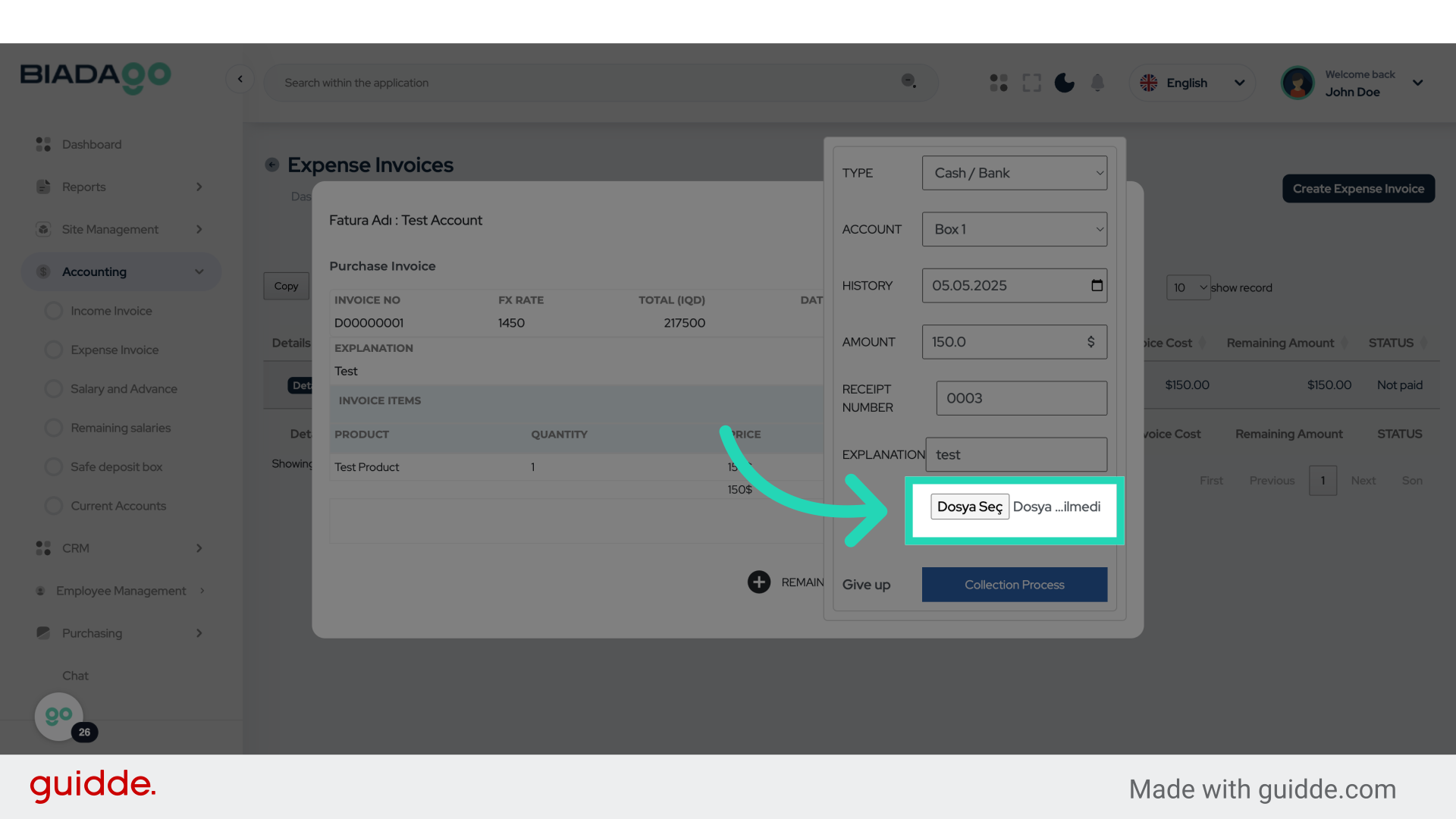
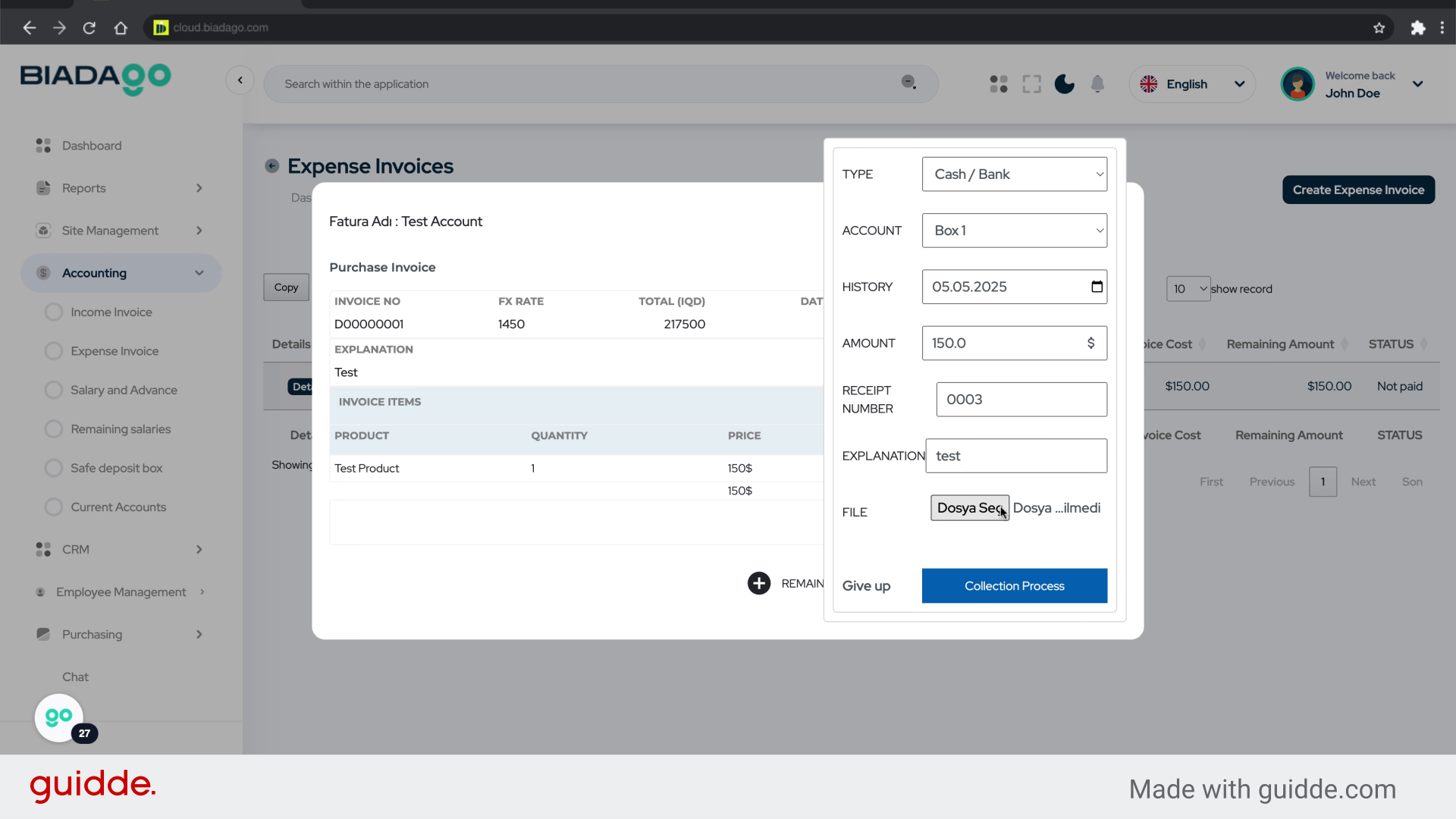
30. Fill “C:\fakepath\logo.png”
Input the desired text
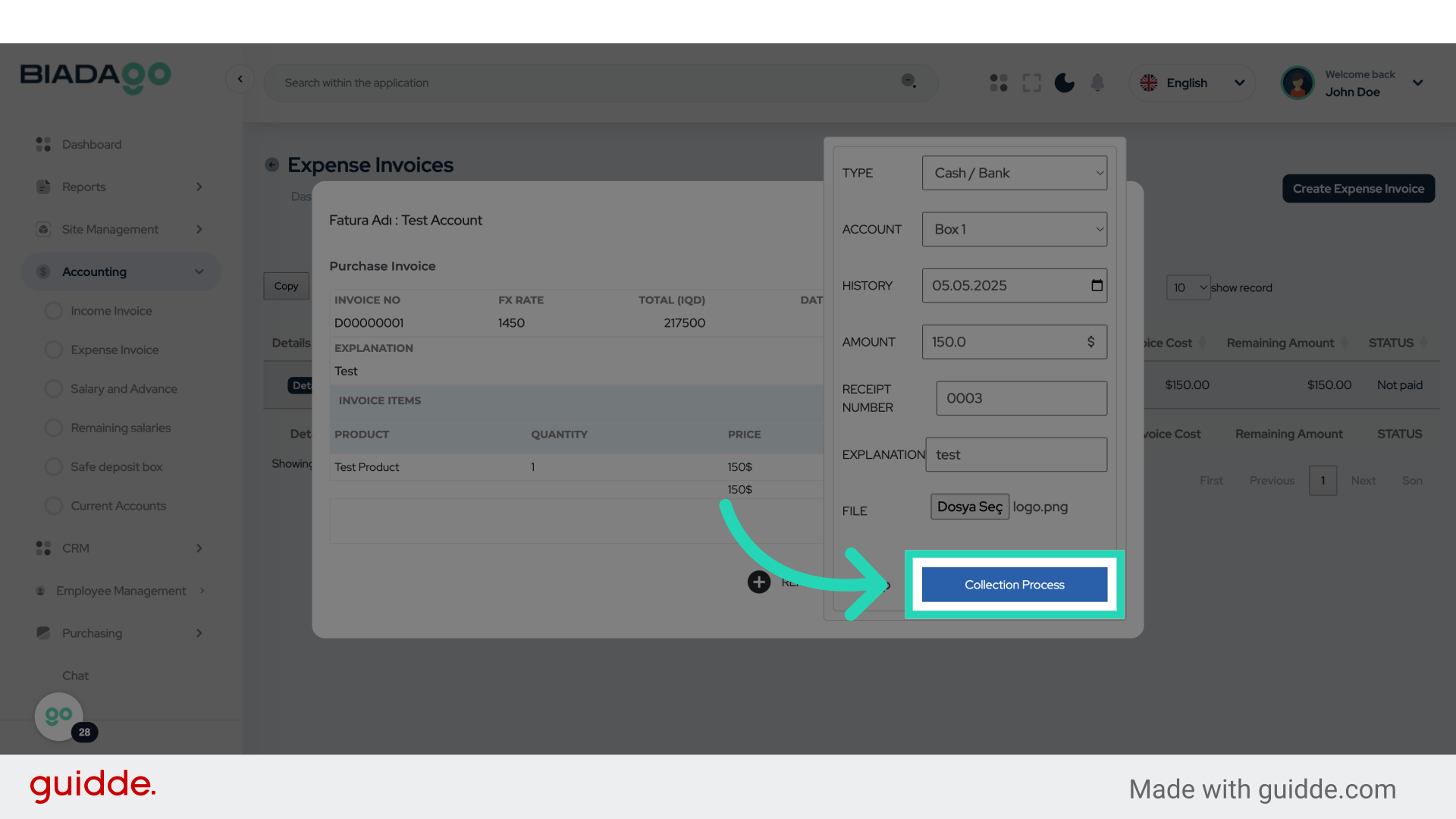
31. Click “Collection Process”
Access the Collection Process feature.
This guide covered the process of adding an expense invoice, processing payments, accessing transaction details, and handling deletions in BiadaGO ERP. Master the steps outlined to streamline your expense management tasks effectively.