How to Add a User in BiadaGO
How to Add a User in BiadaGO
In this guide, you will learn how to add users in BiadaGO efficiently. By following these clear instructions, you can easily navigate through the necessary steps to create new user accounts and manage their details effectively.
Go to cloud.biadago.com
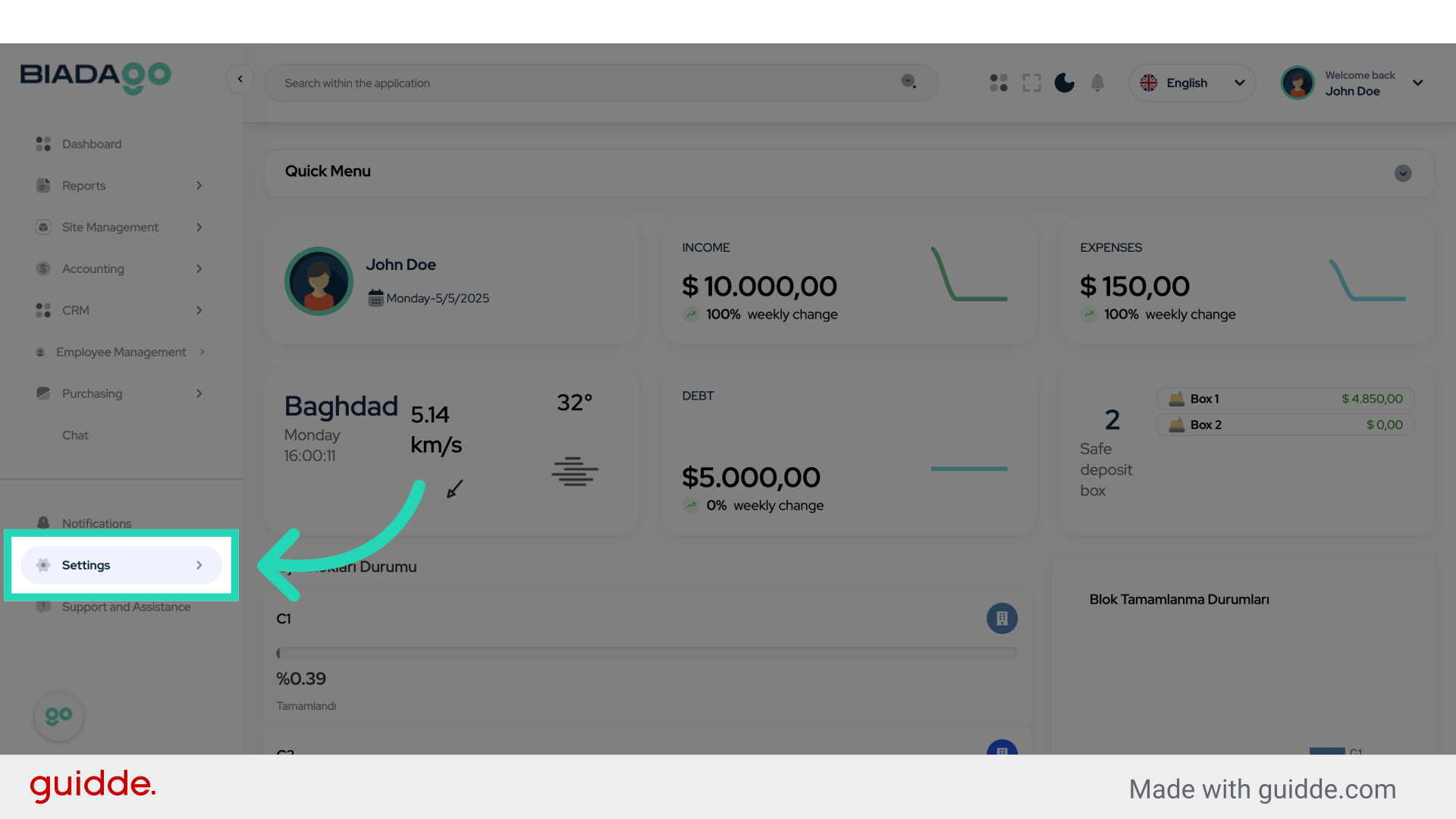
1. Click “Settings”
Access the settings menu.
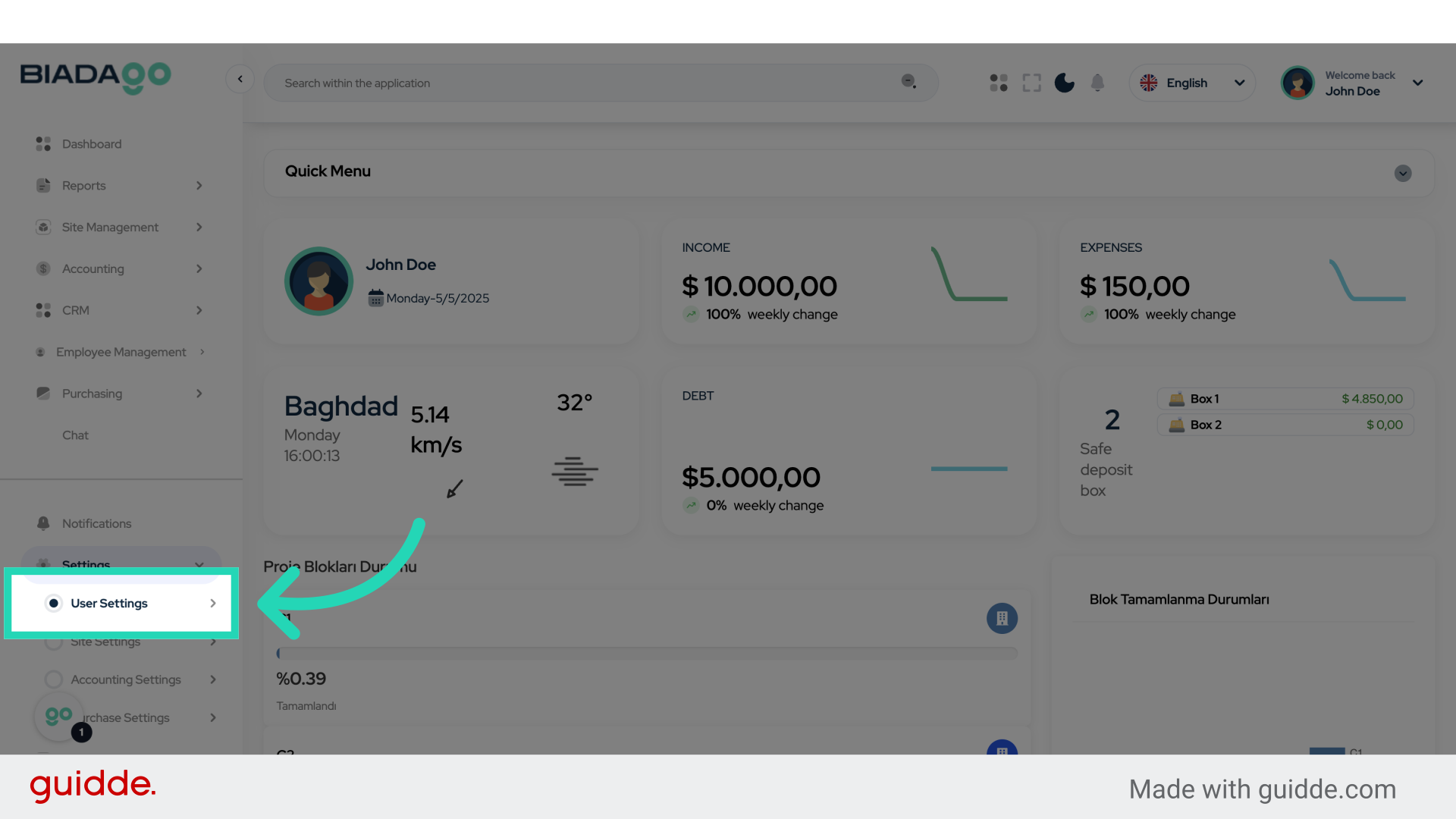
2. Click “User Settings”
Navigate to the User Settings section.
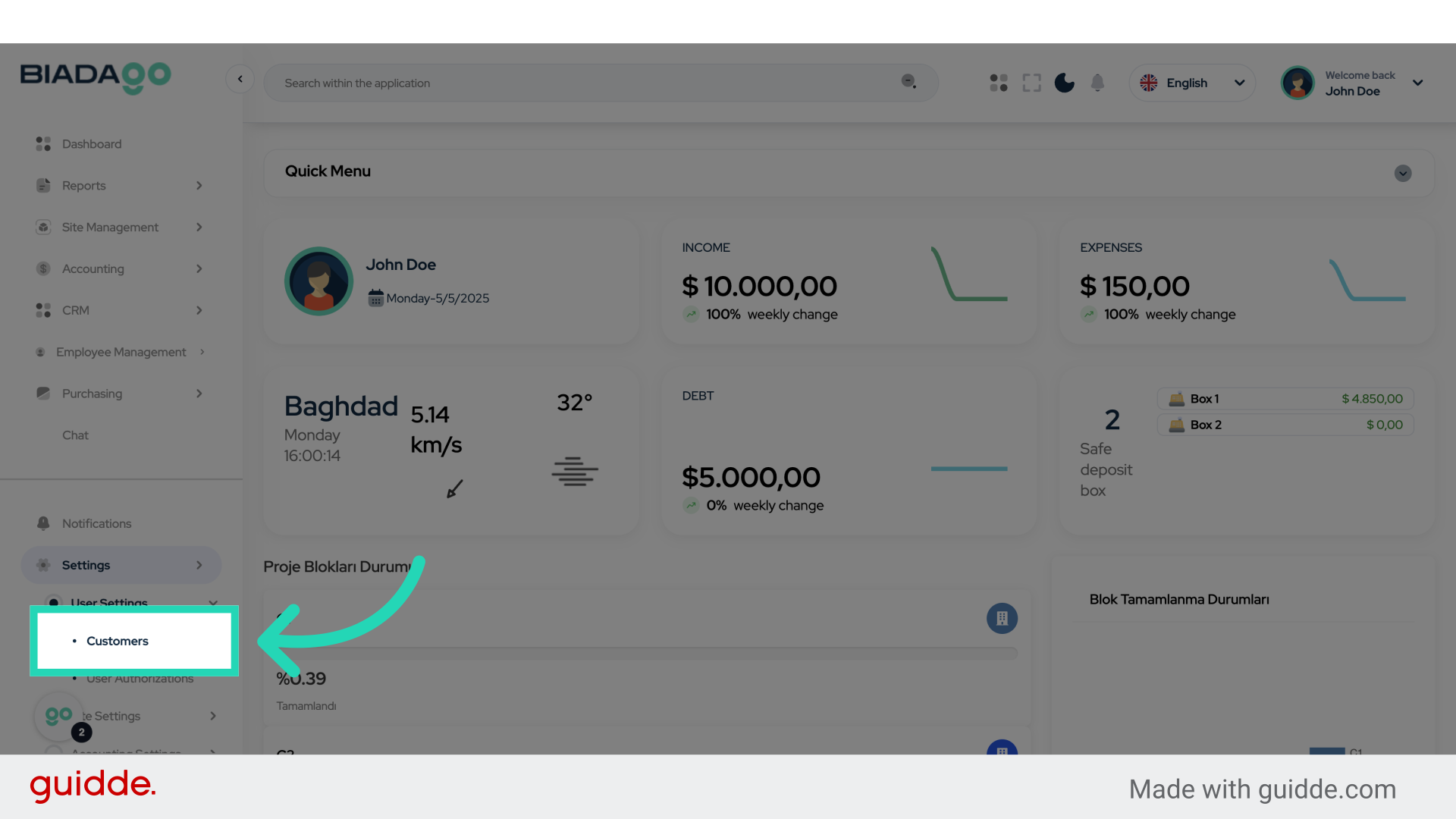
3. Click “Customers”
Select the Customers option from the menu.
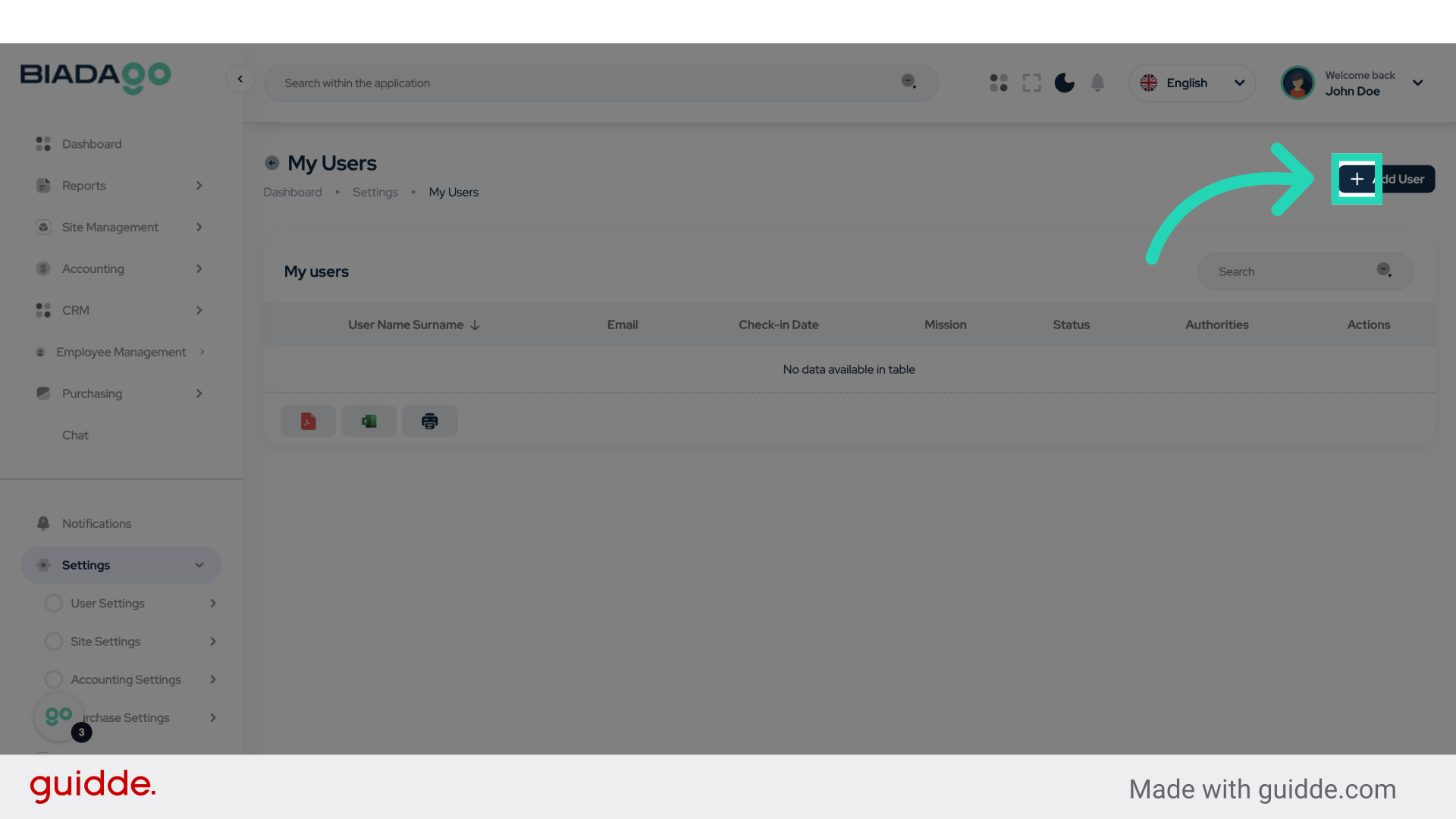
4. Click here
Click on the indicated element.
5. Click “Name and surname”
Choose the “Name and Surname” field.
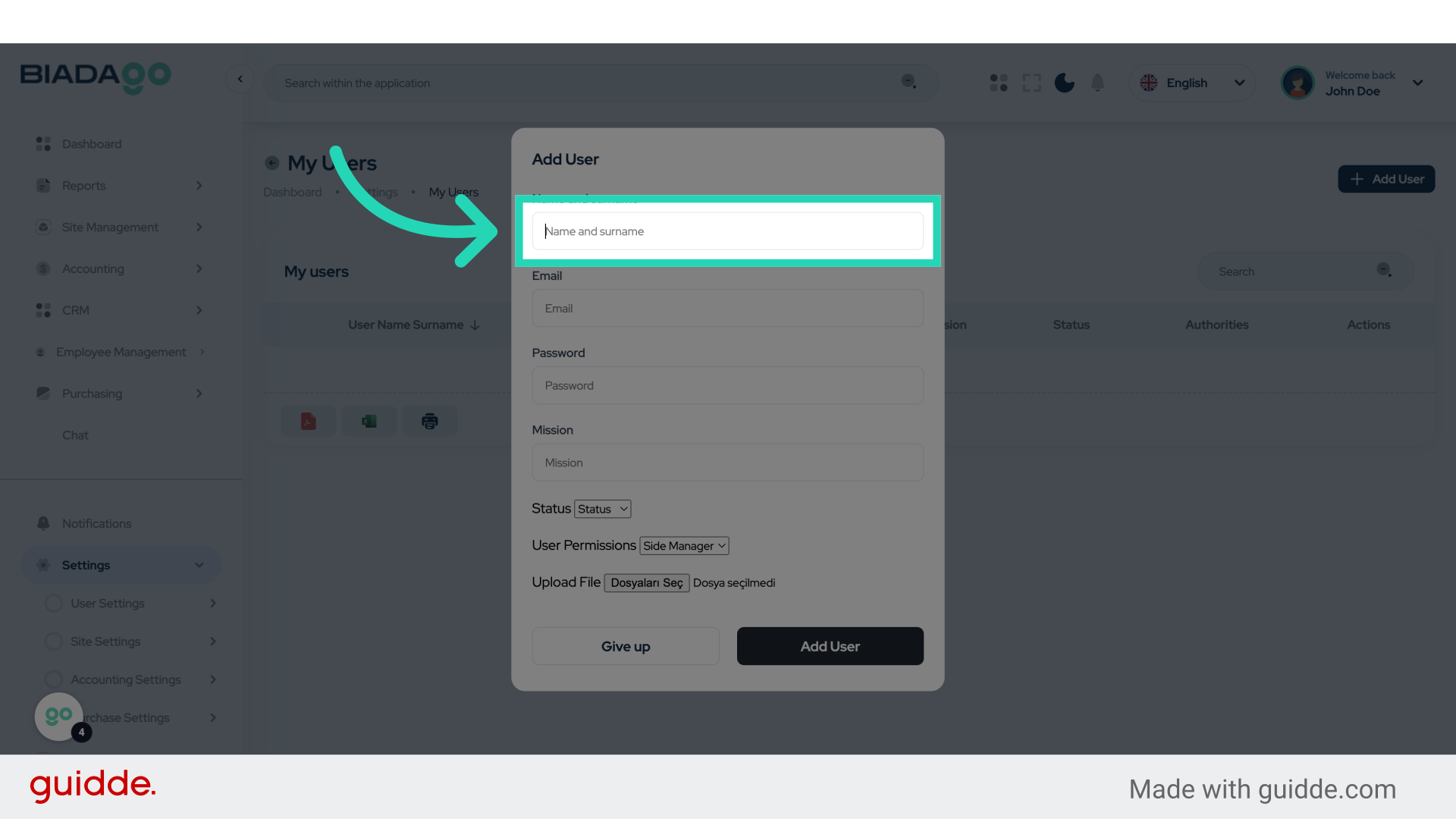
6. Fill “Test User Manager”
Enter “Test User Manager” in the field.
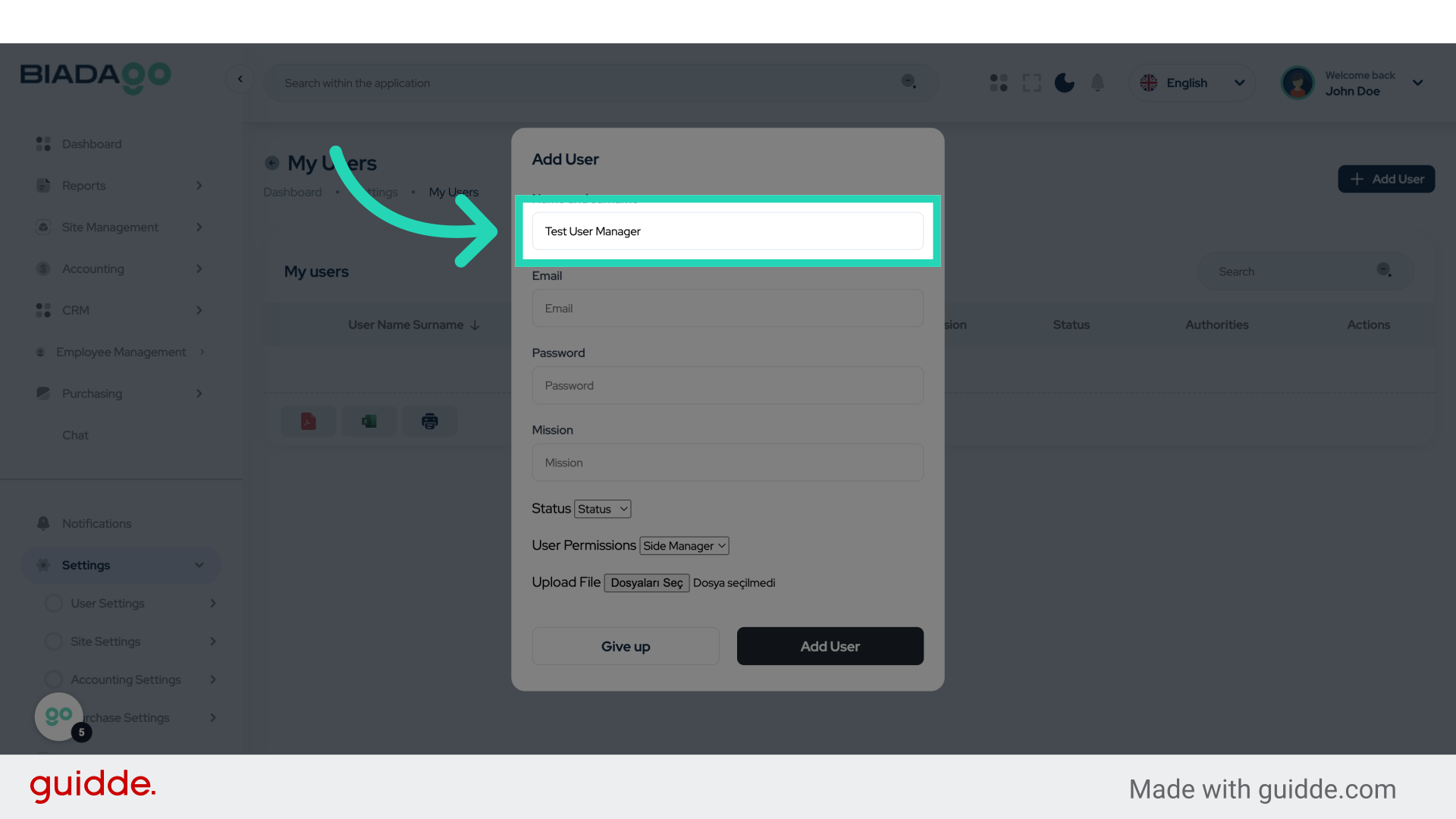
7. Click “Email”
Select the “Email” option.
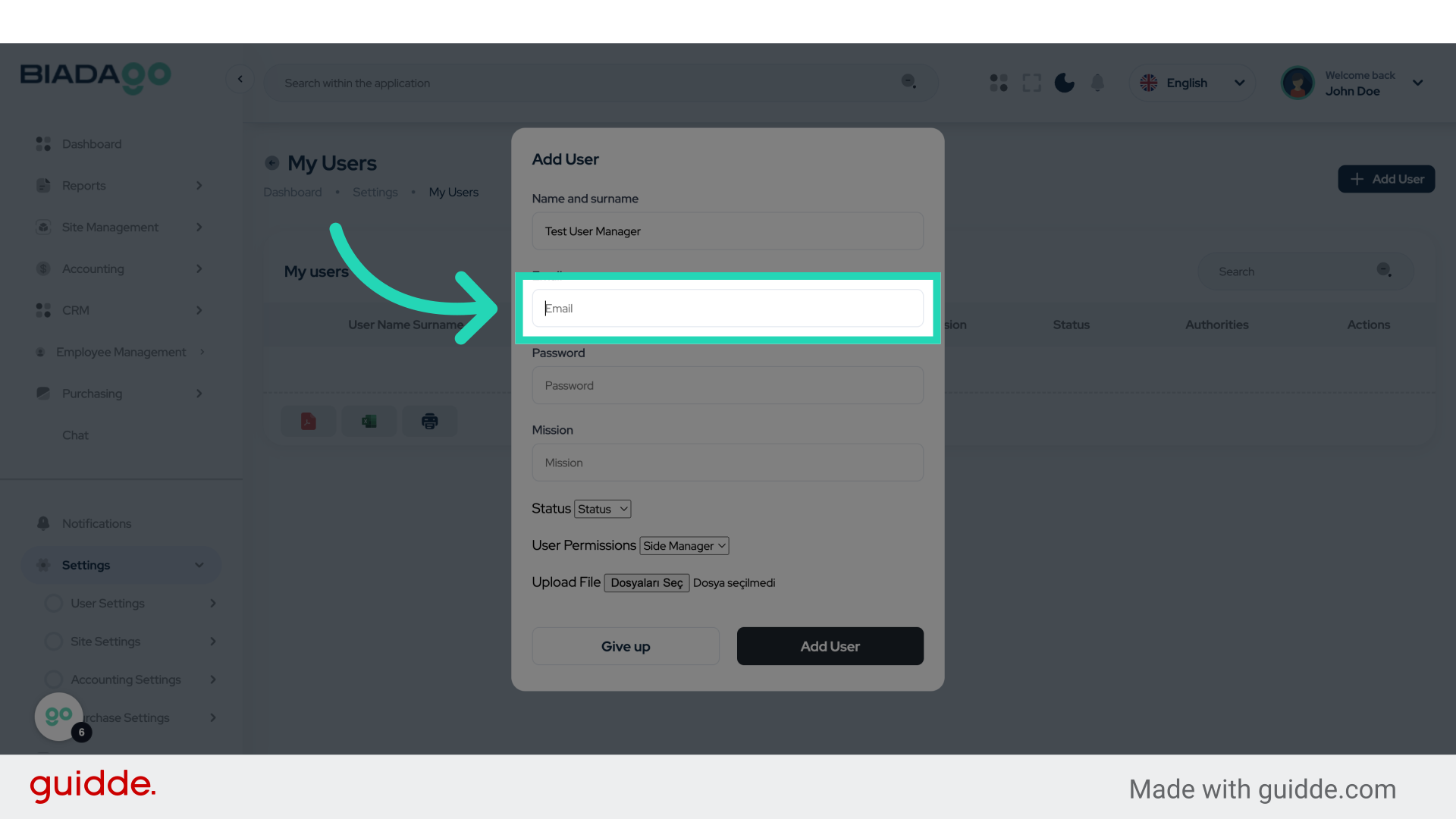
8. Fill “testmail@mail.com”
Enter the email address as “testmail@mail.com”.
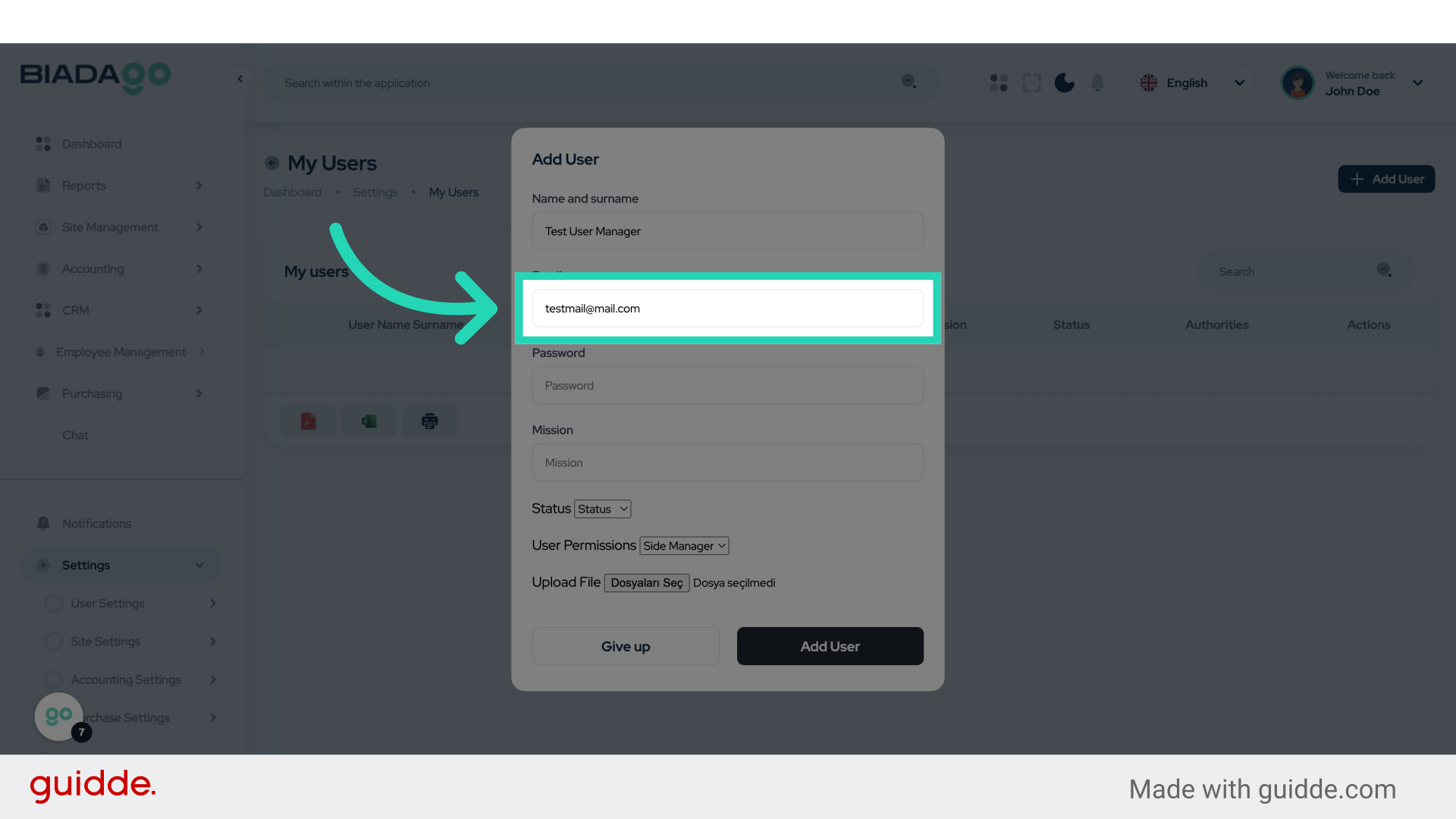
9. Click “Password”
Choose the “Password” field.
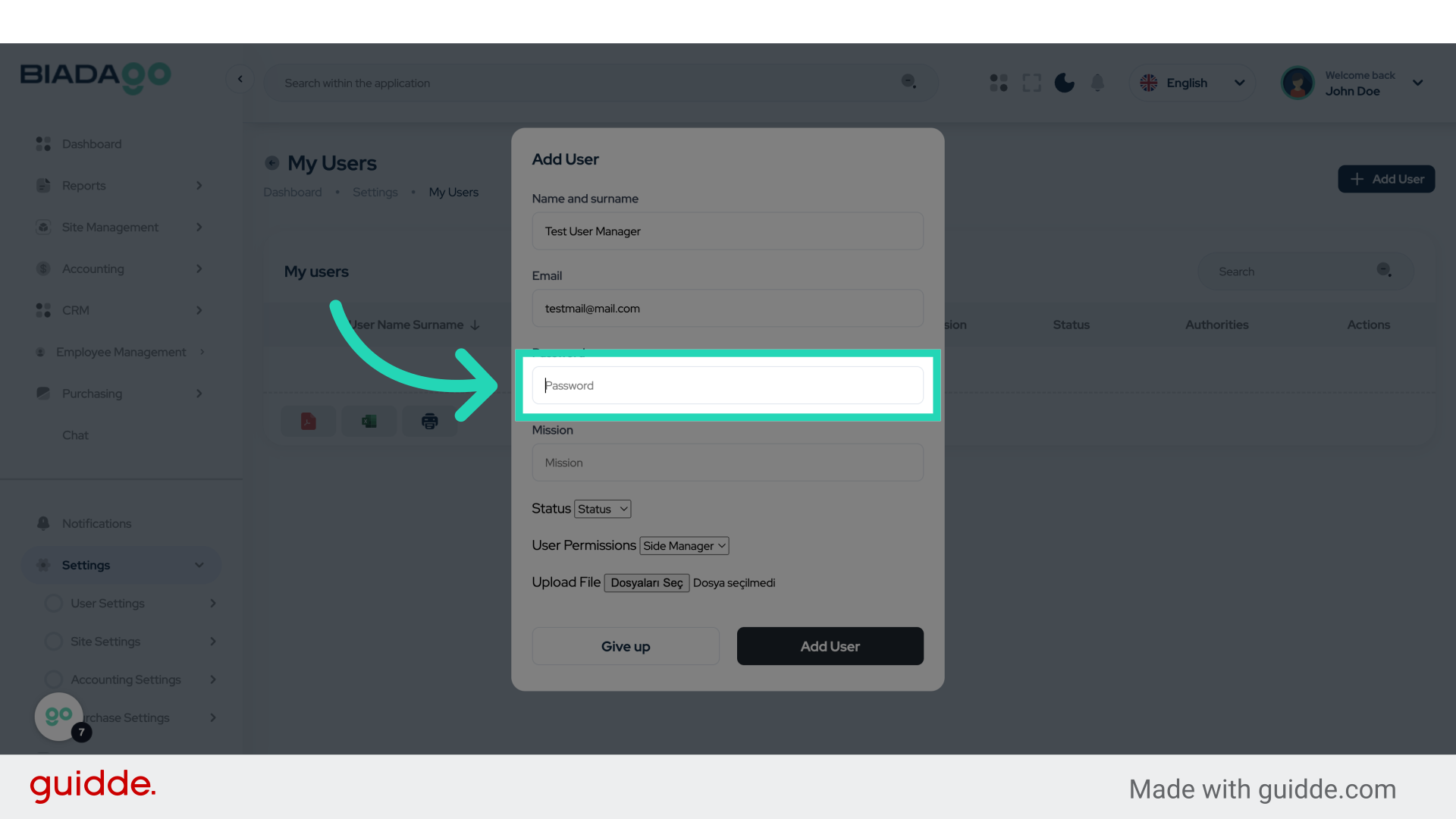
10. Fill “123456”
Enter “123456” as the password.
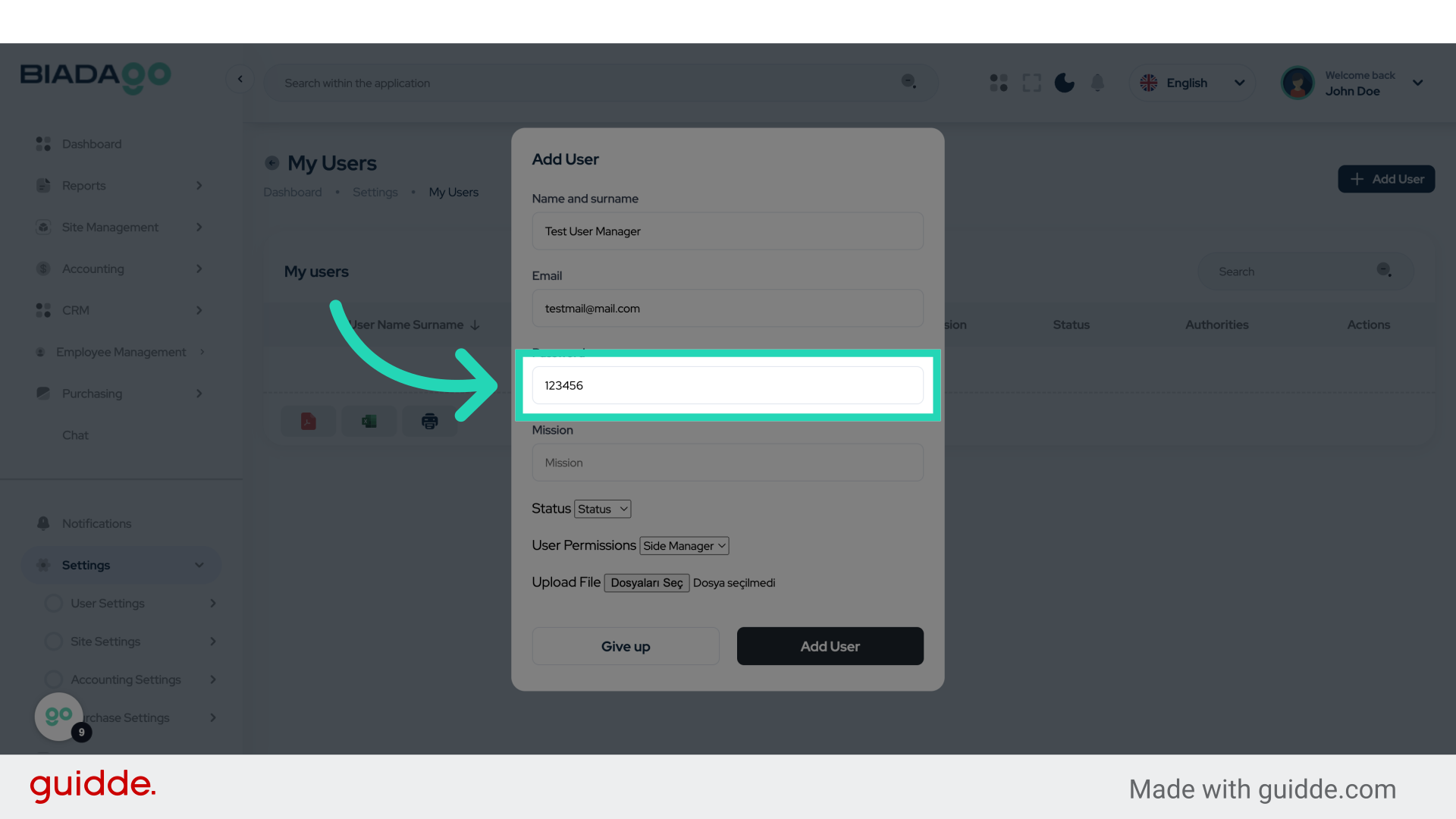
11. Click “Mission”
Select the “Mission” option.
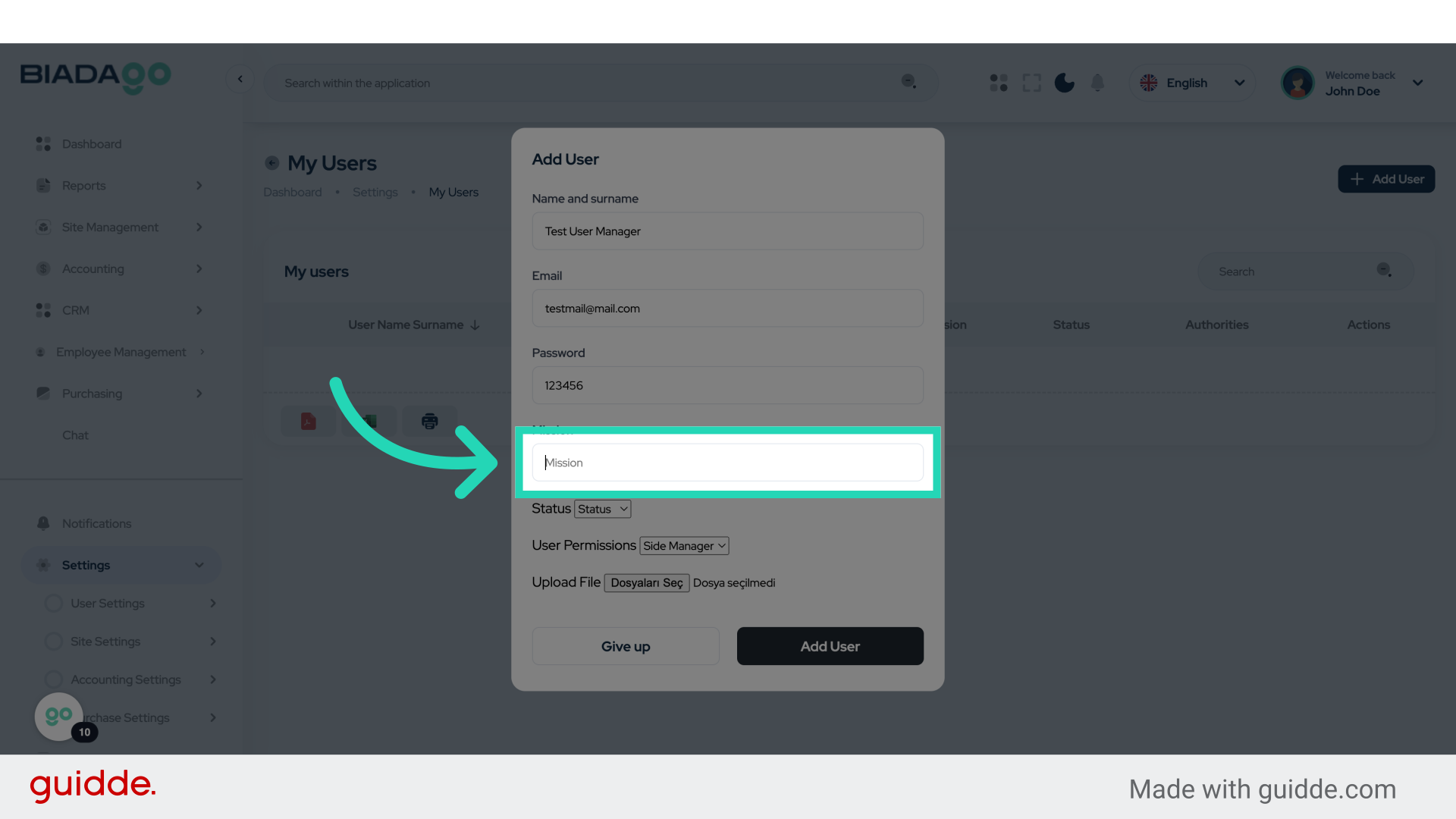
12. Click “Mission”
Click on the “Mission” field again.
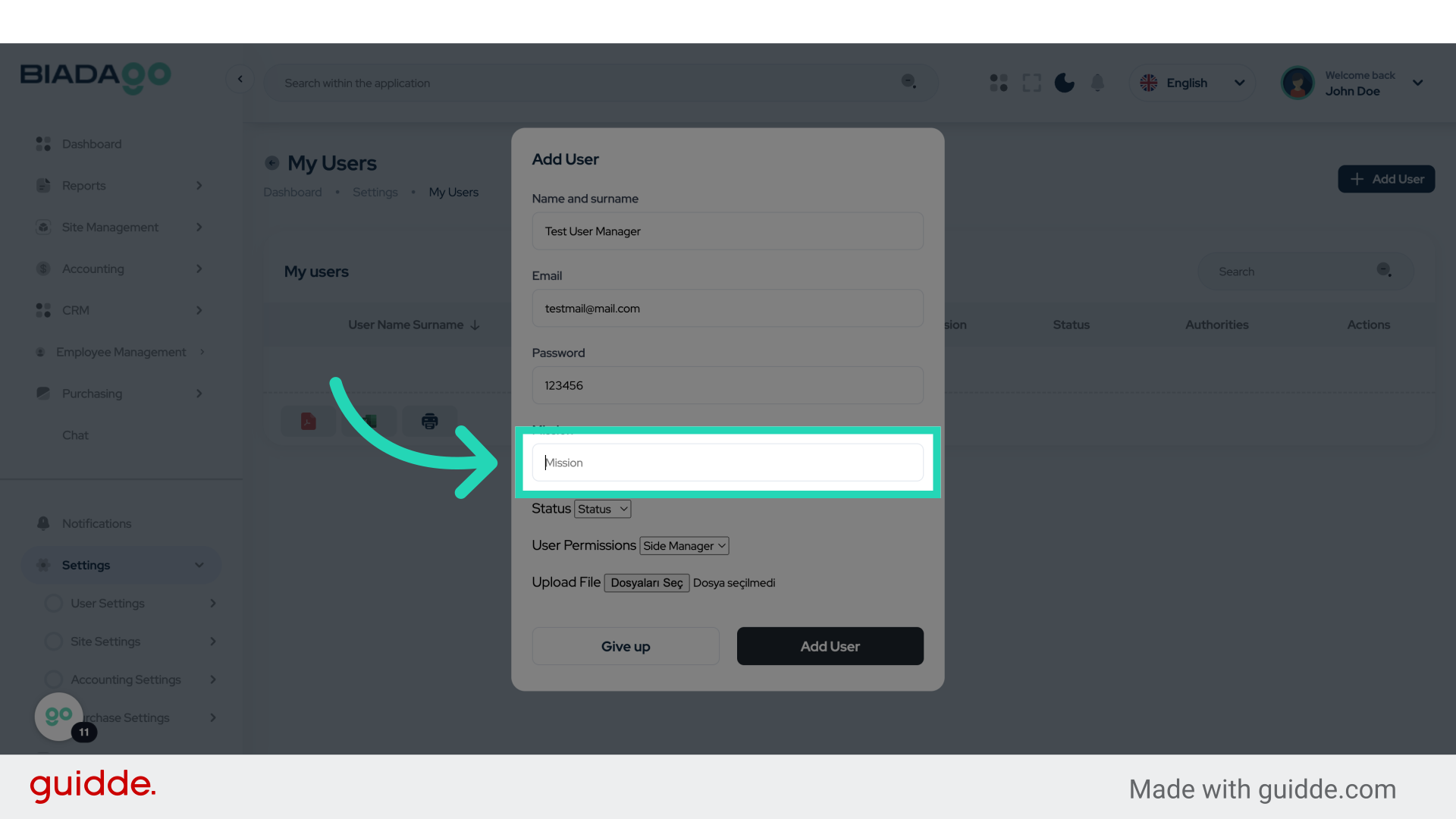
13. Fill “Manager”
Enter “Manager” in the field.
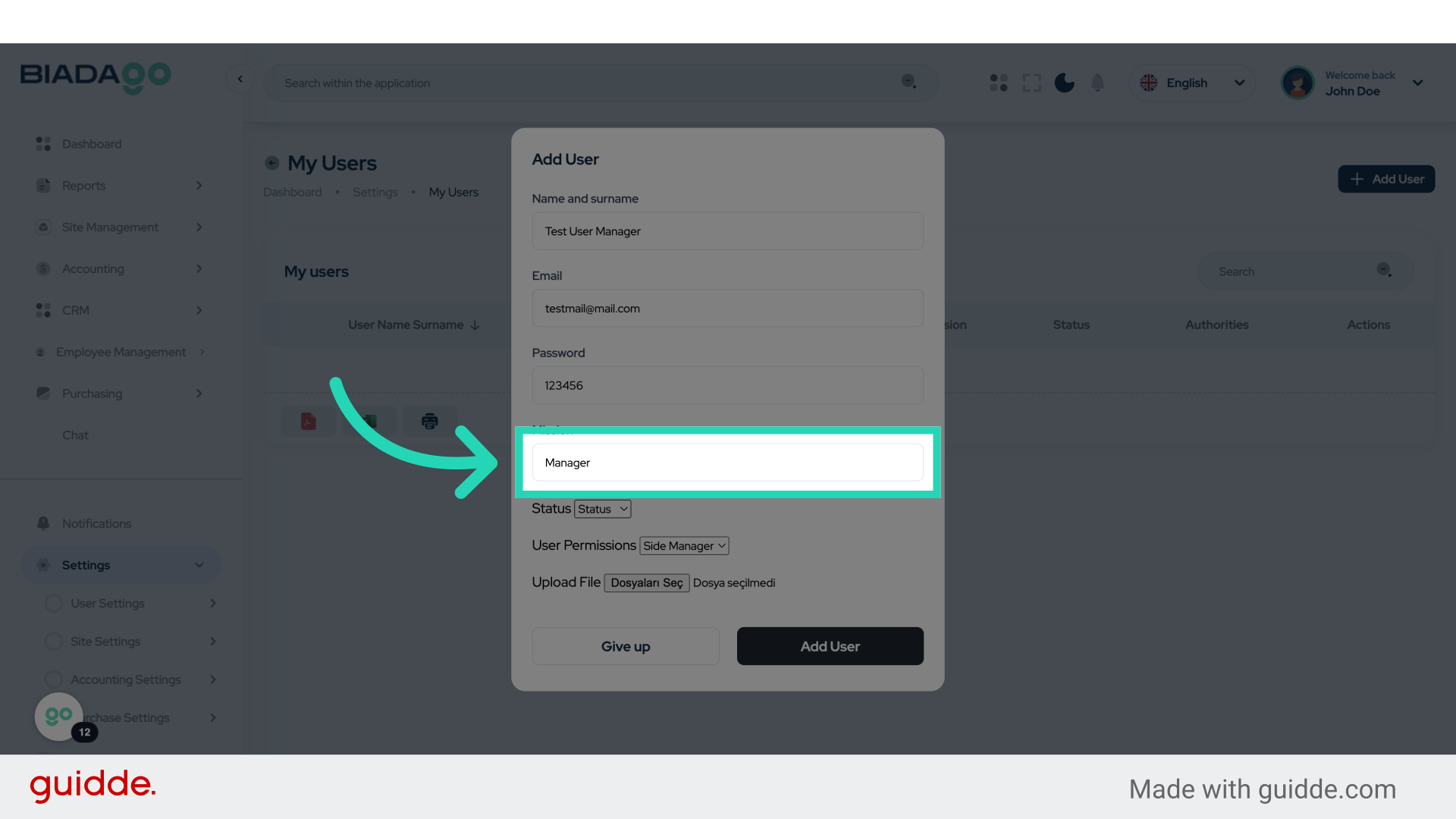
14. Click “Status
Active
Passive”
Select either “Active” or “Passive” for the status.
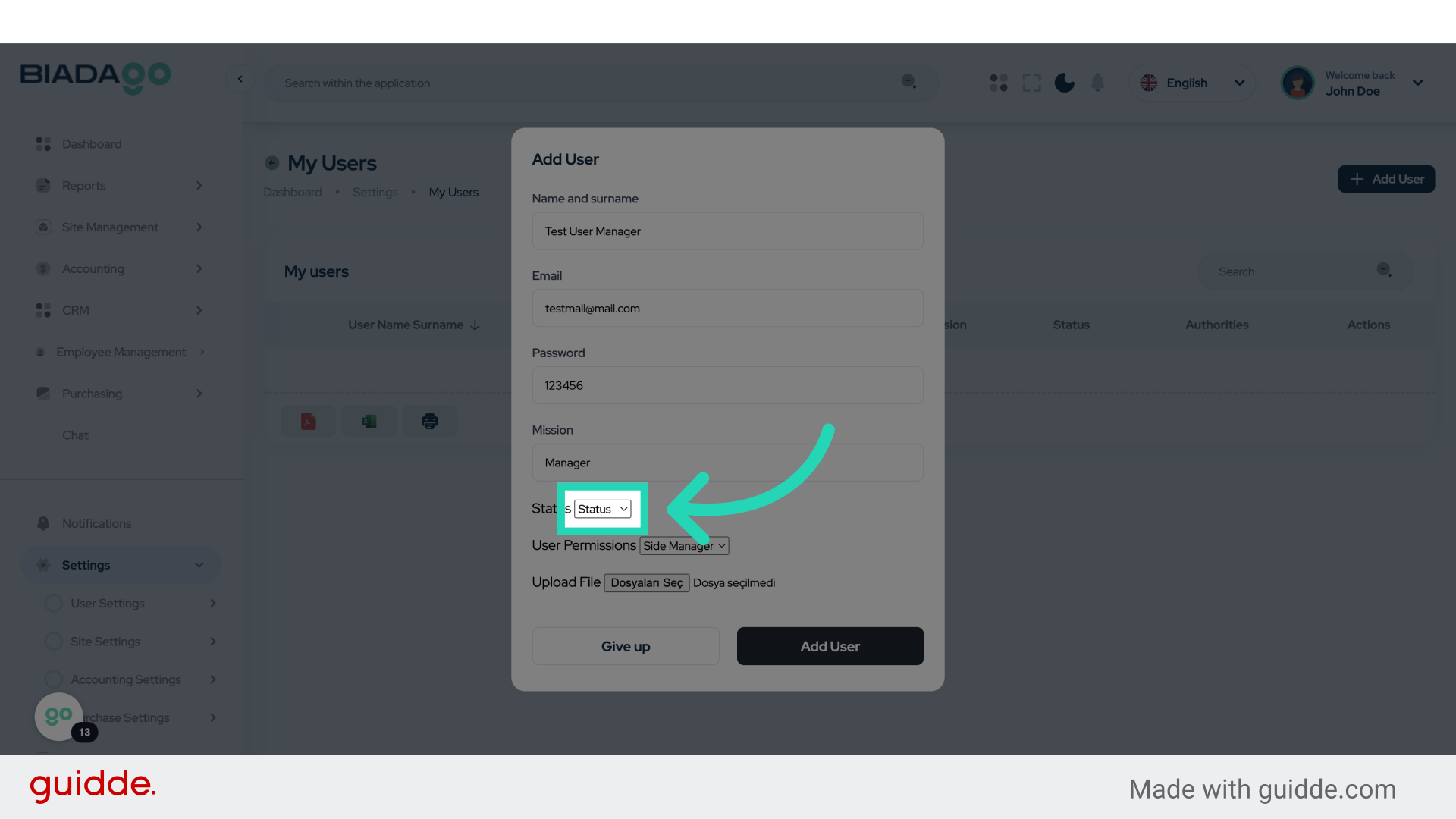
15. Fill “Status
Active
Passive”
Choose either “Active” or “Passive” for the status.
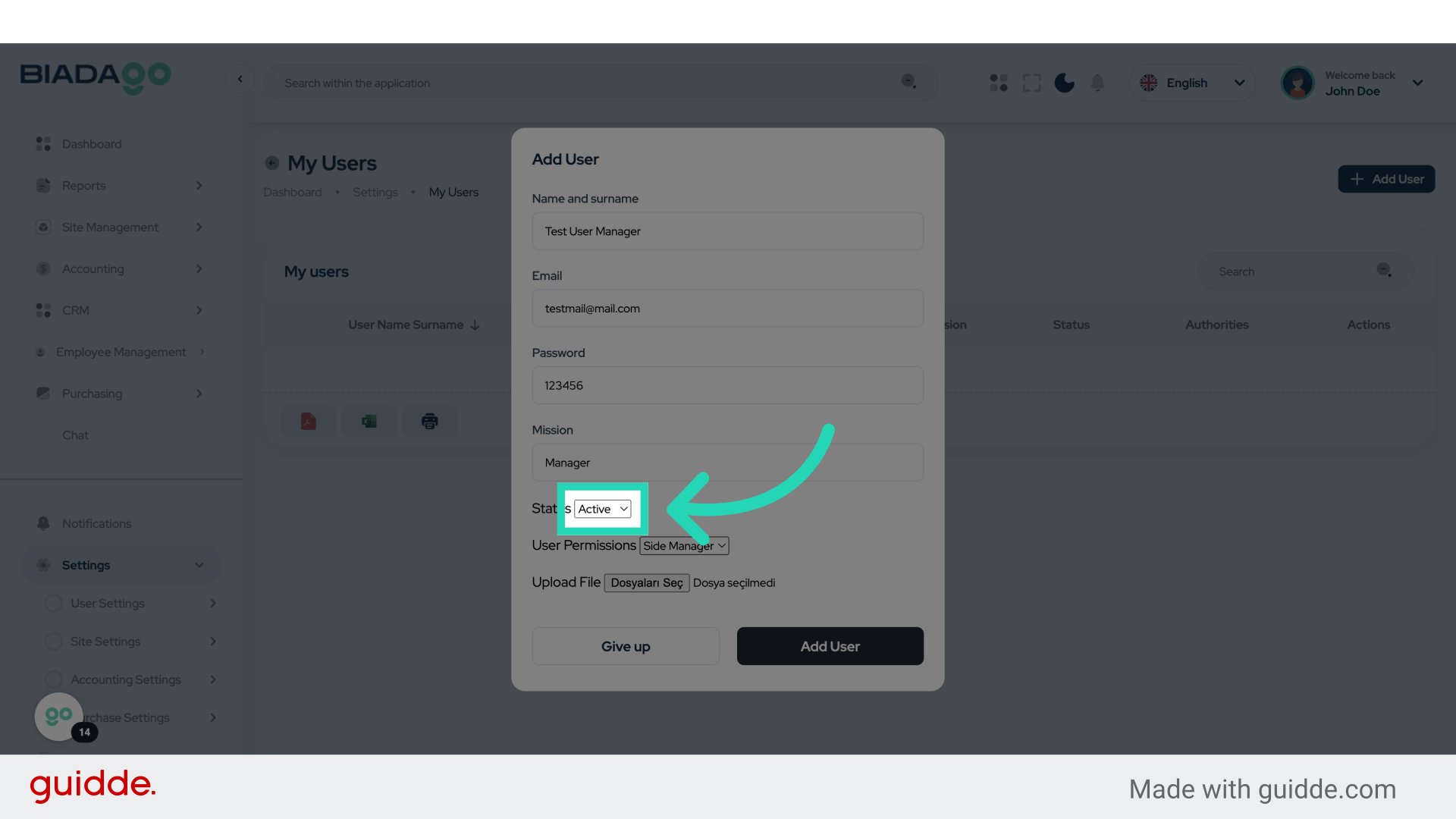
16. Click “Side Manager
Foreman”
Select either “Side Manager” or “Foreman”.
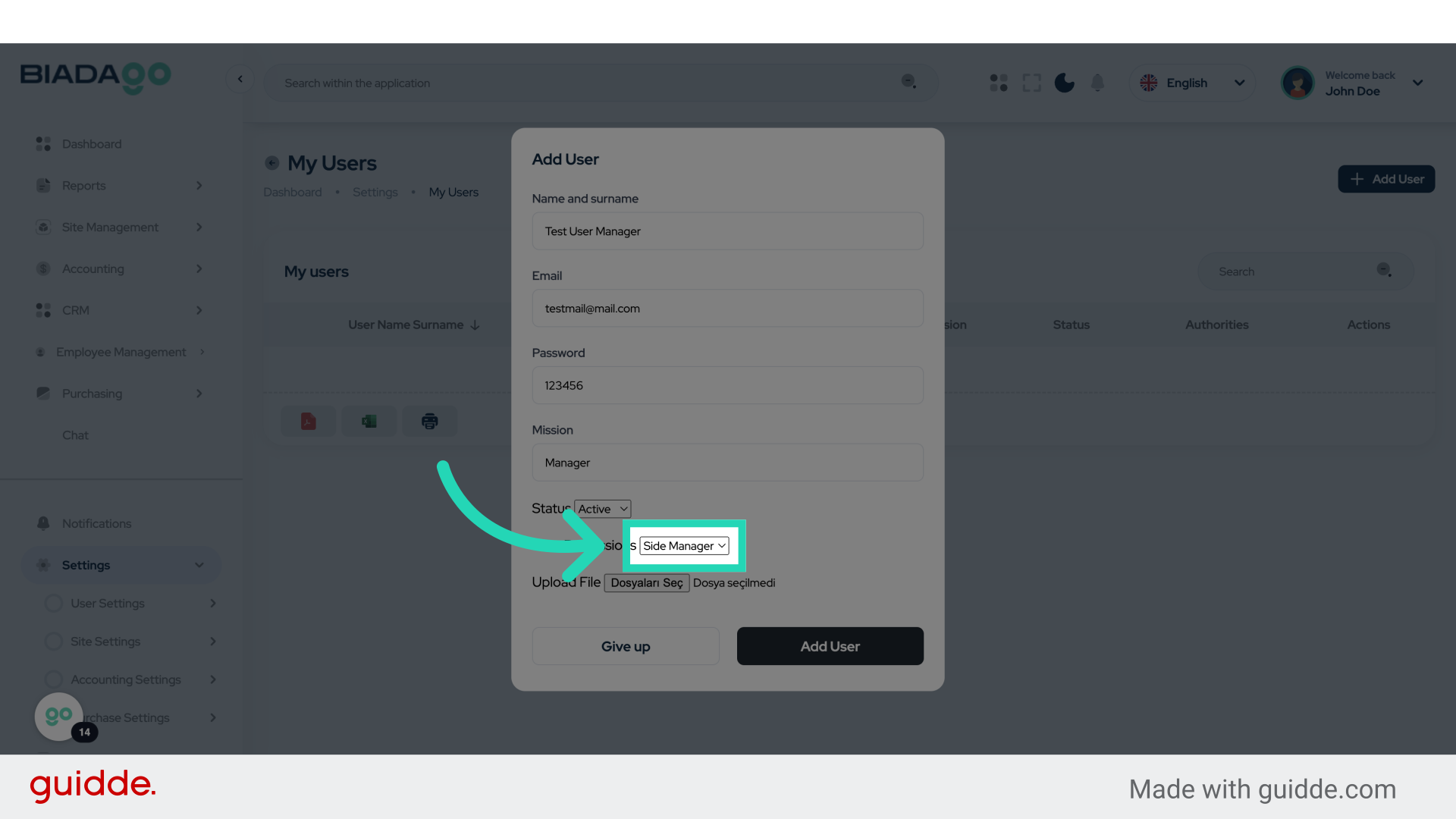
17. Click “Add User”
Click on “Add User” to finalize.
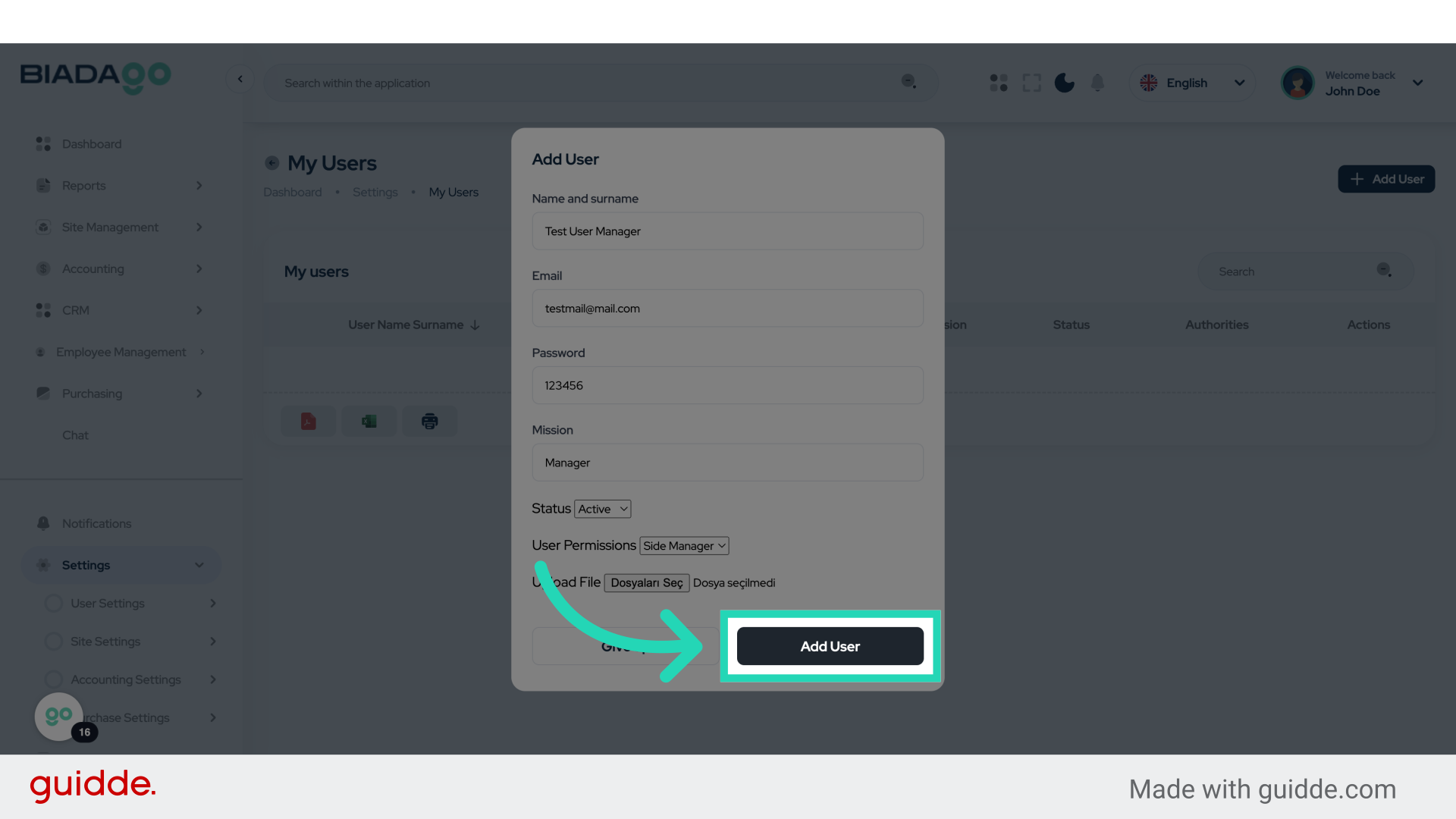
18. Click “Add User”
Click on “Add User” once more.
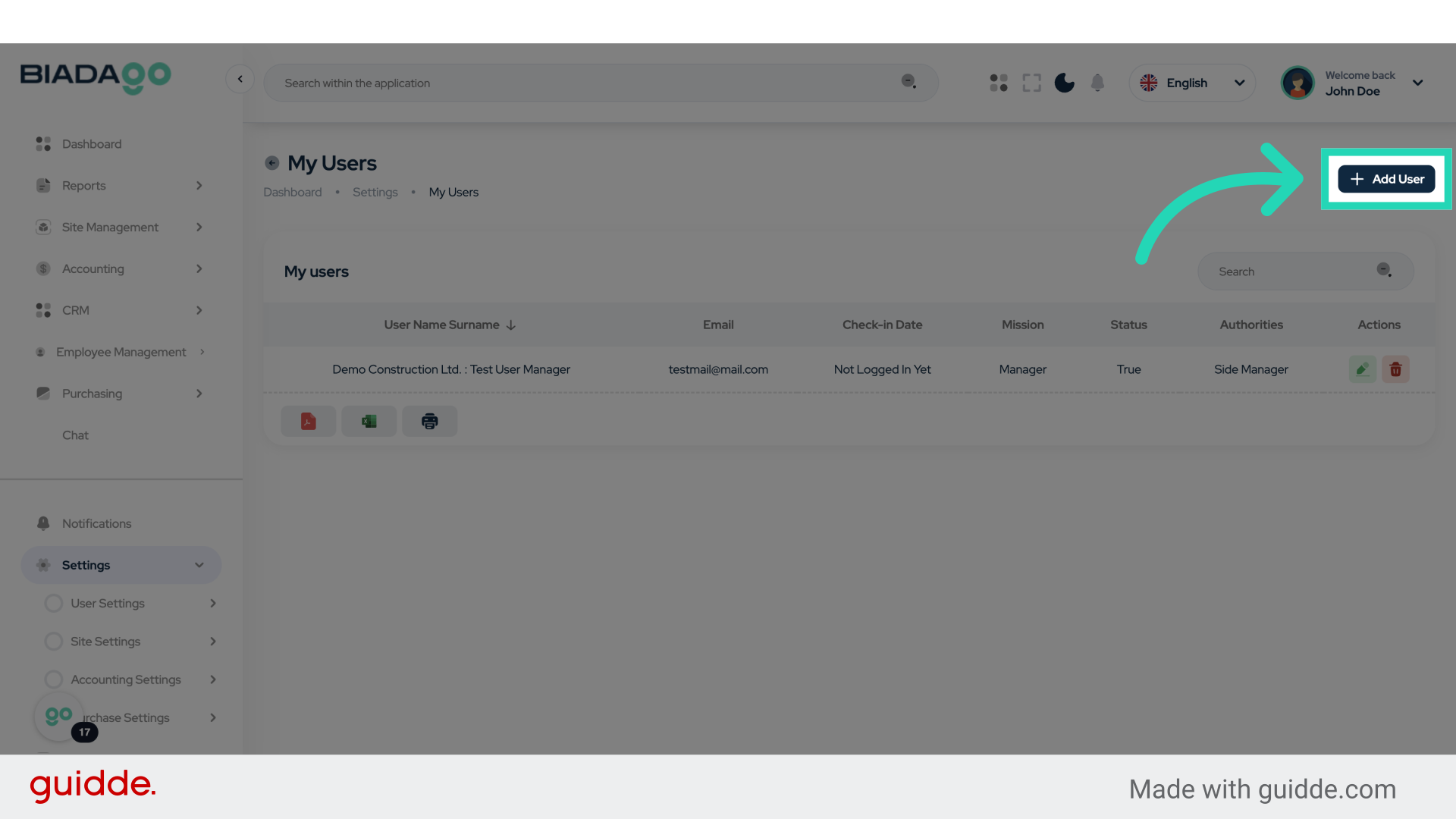
19. Click “Name and surname”
Select the “Name and Surname” field.
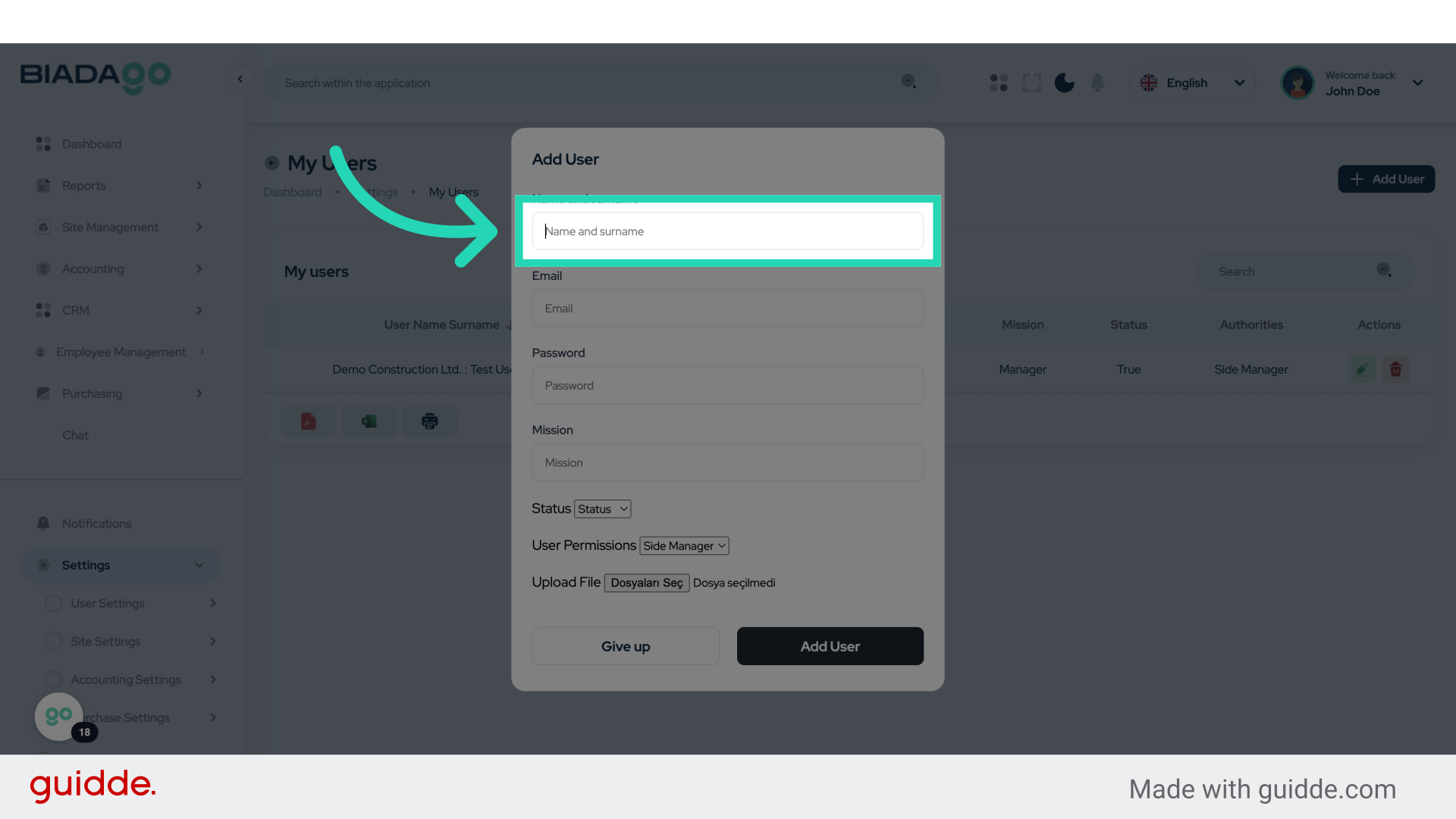
20. Fill “Test Foreman”
Enter “Test Foreman” in the field.
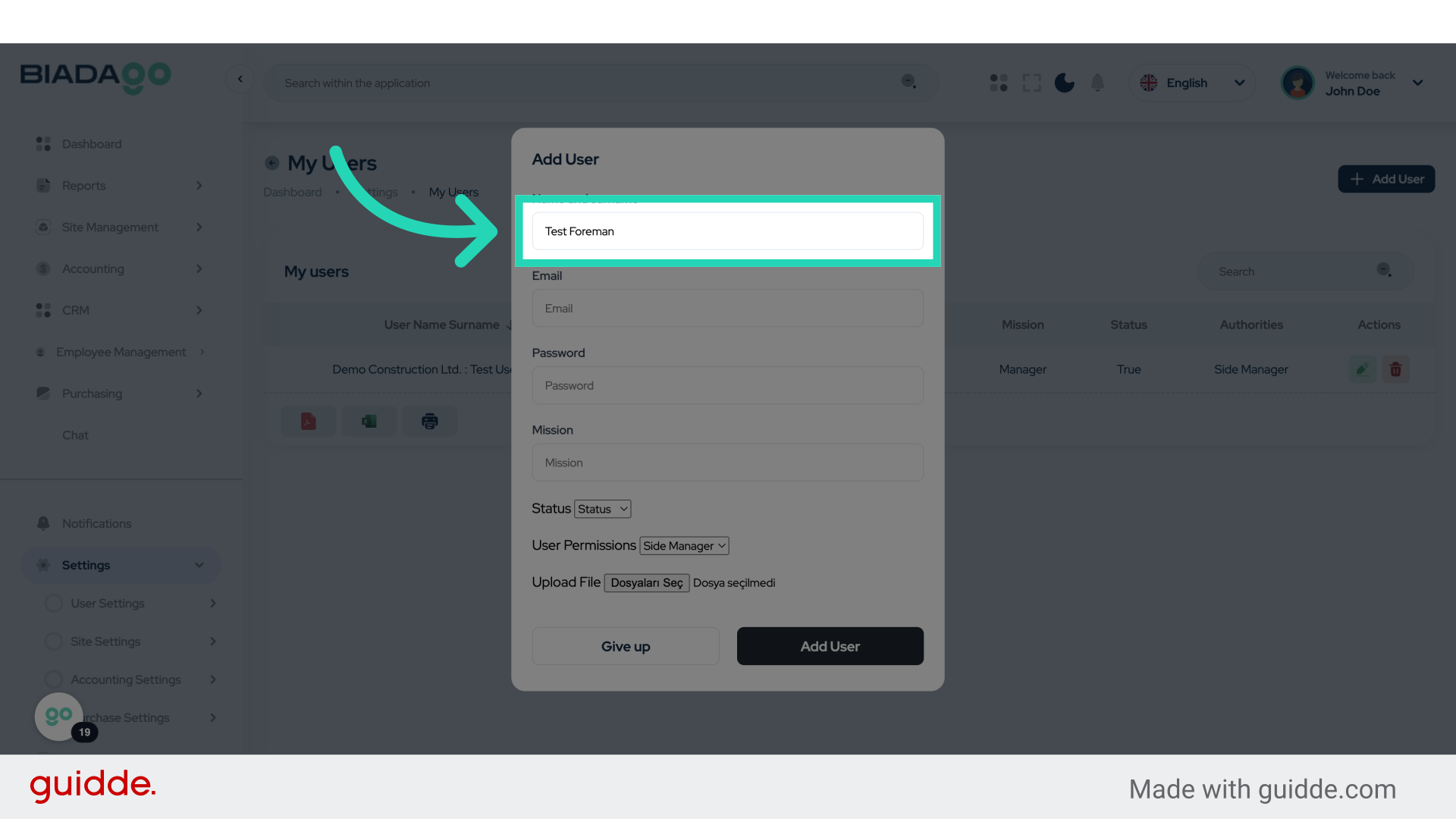
21. Go here
Navigate to the specified location.
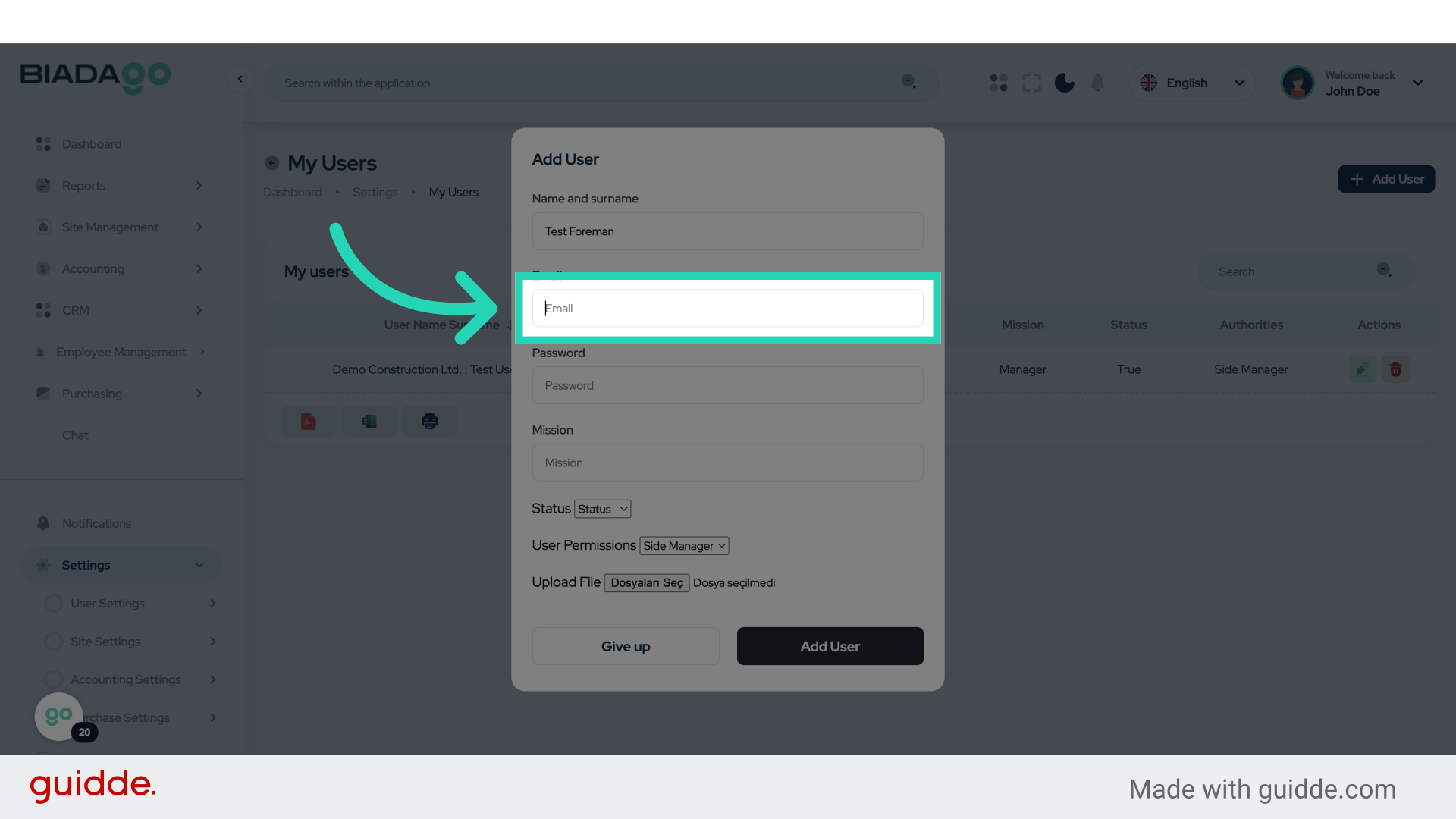
22. Fill “foreman”
Enter “Foreman” in the field.
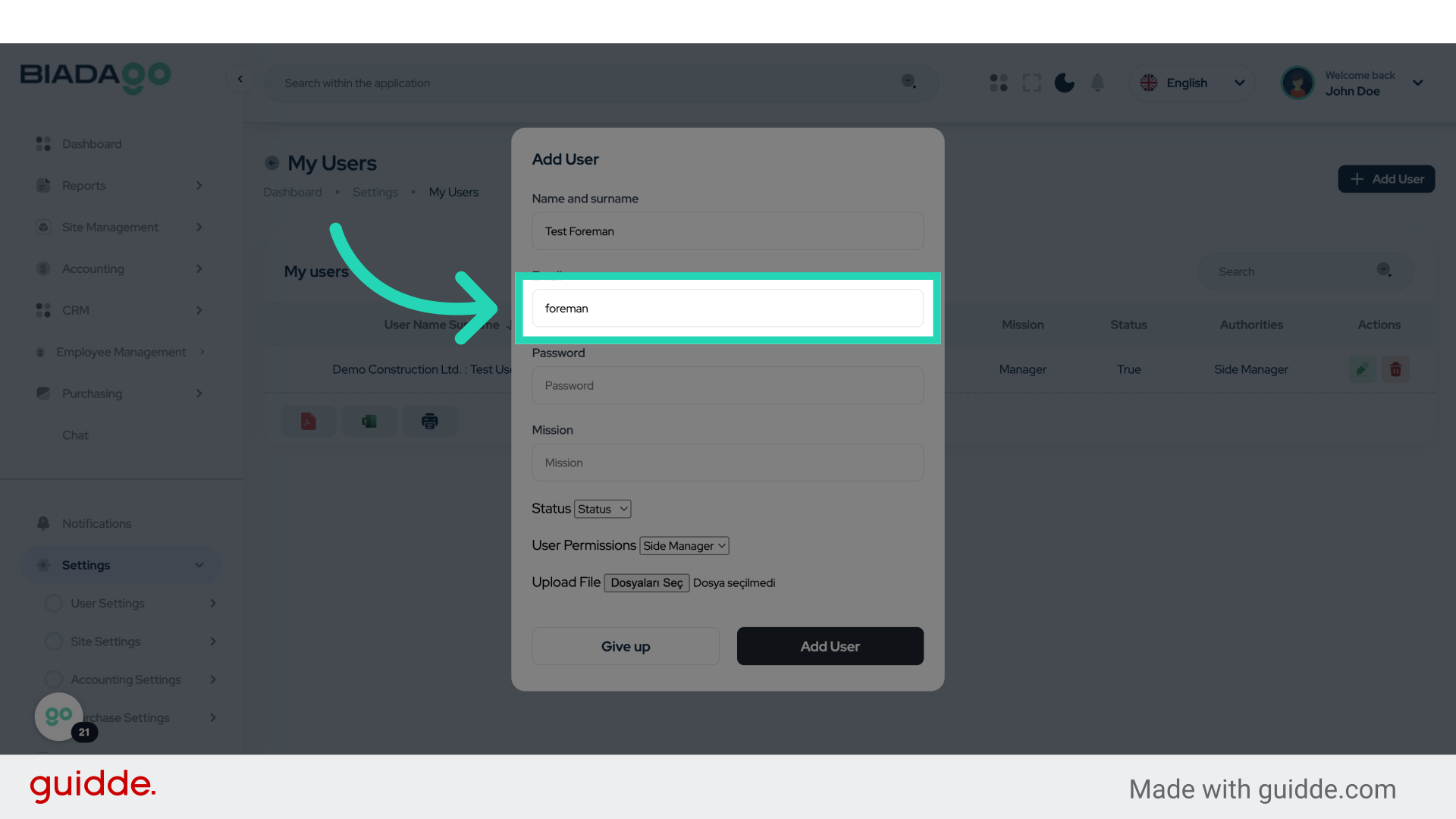
23. Fill “foreman@mail.com”
Enter “foreman@mail.com” as the email.
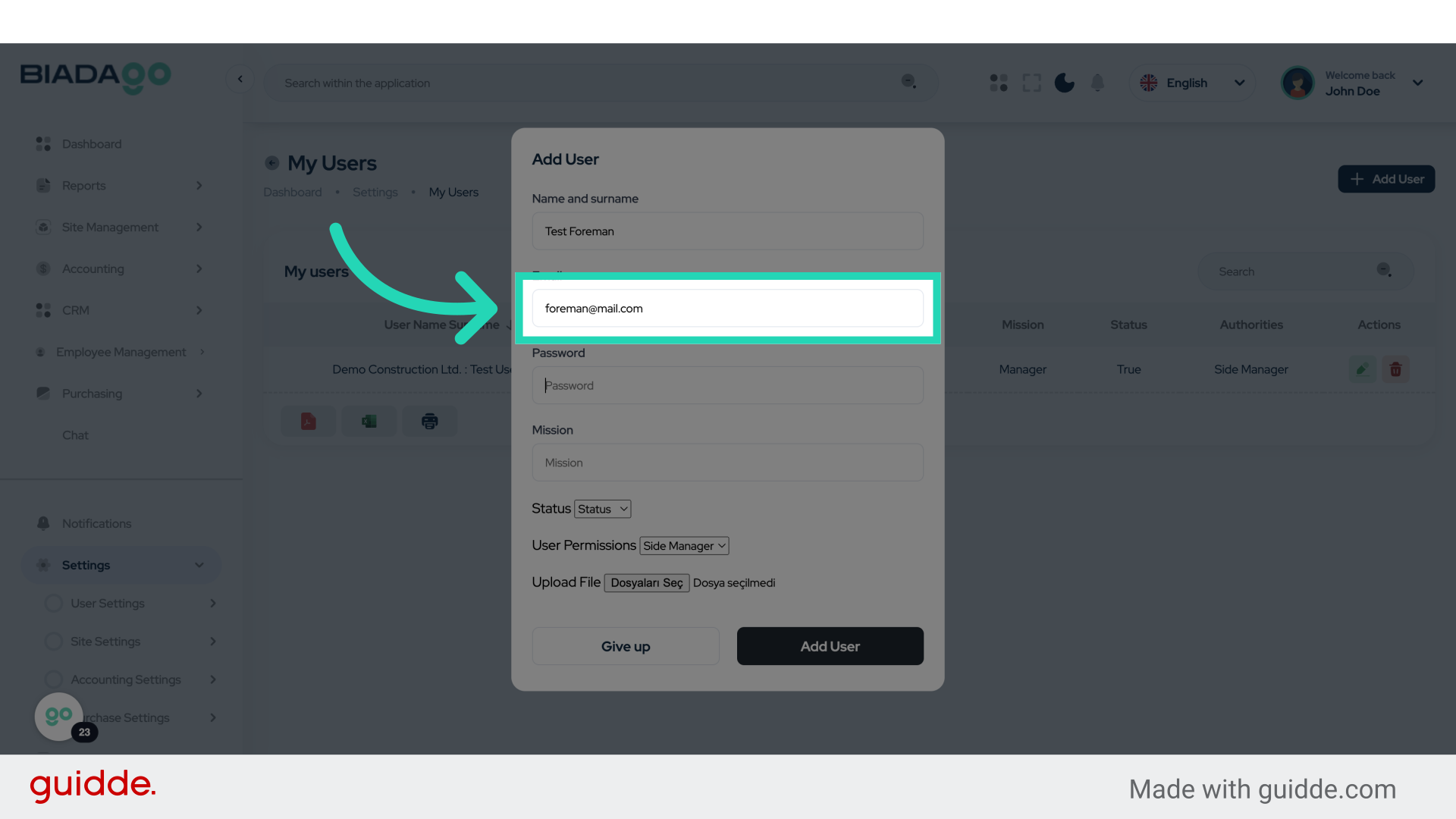
24. Go here
Navigate to the indicated location.
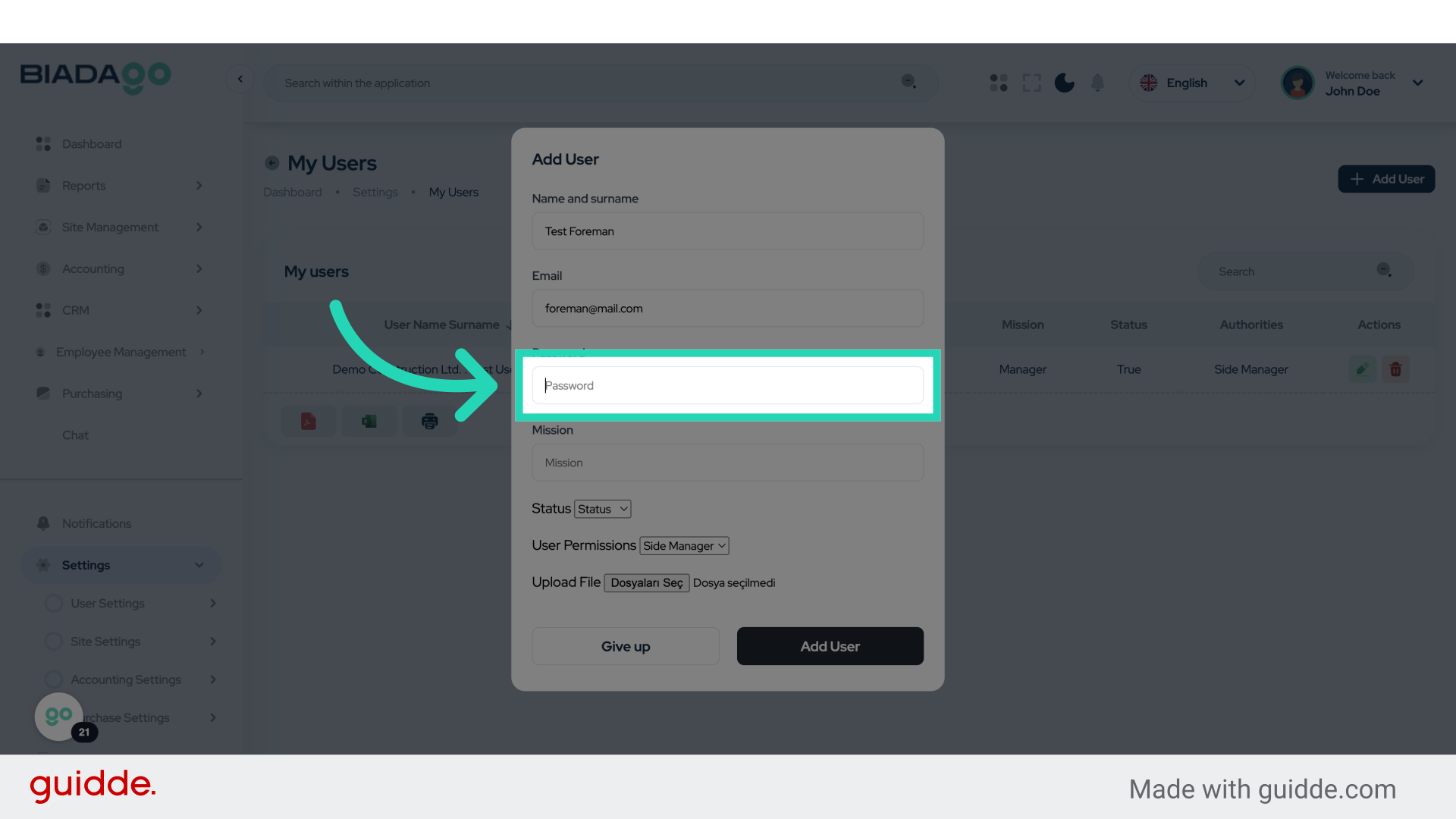
25. Fill “123456”
Enter “123456” as the password.
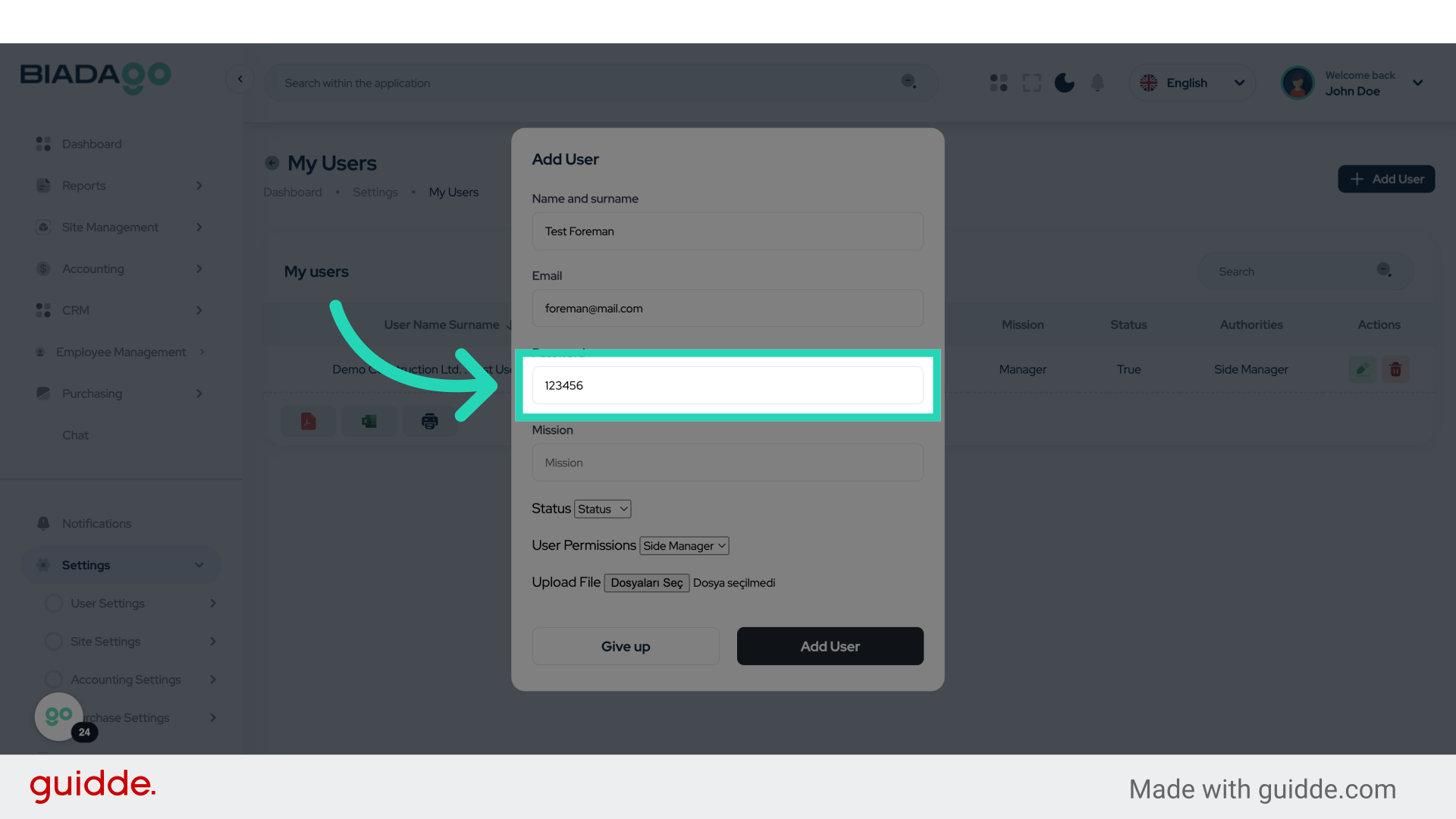
26. Click “Mission”
Select the “Mission” option.
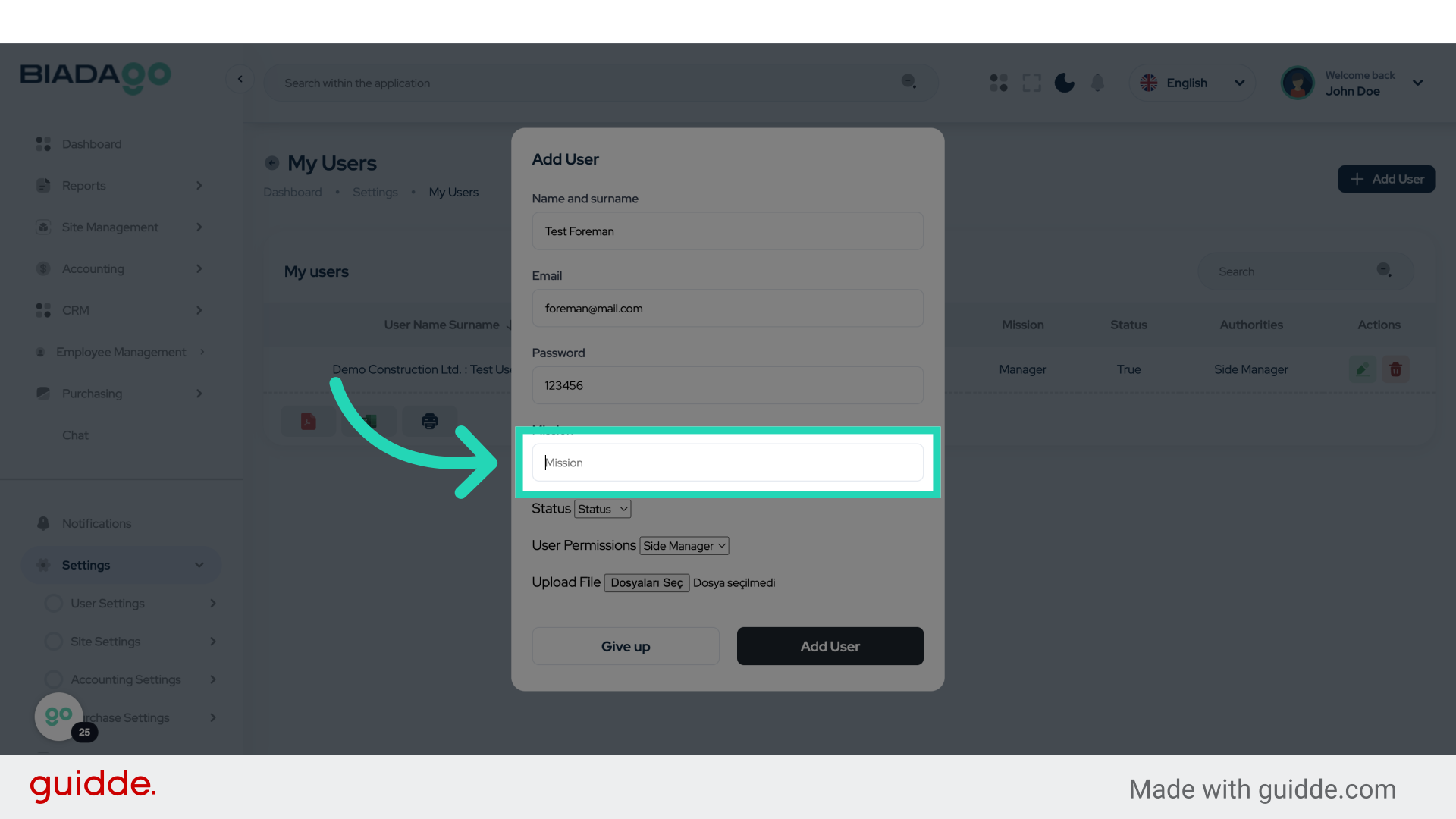
27. Fill “Foreman”
Enter “Foreman” in the field.
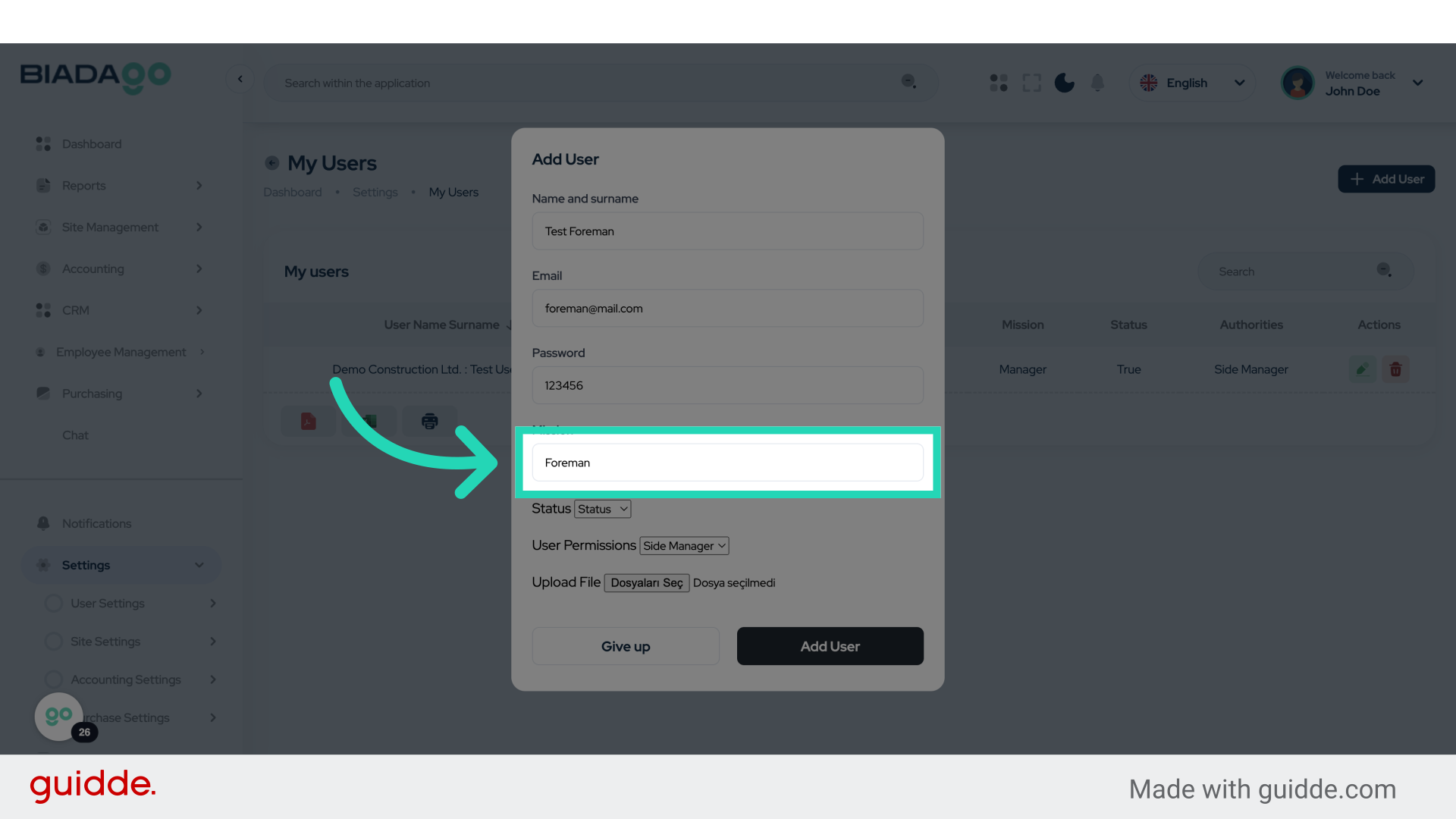
28. Click “Status
Active
Passive”
Choose either “Active” or “Passive” for the status.
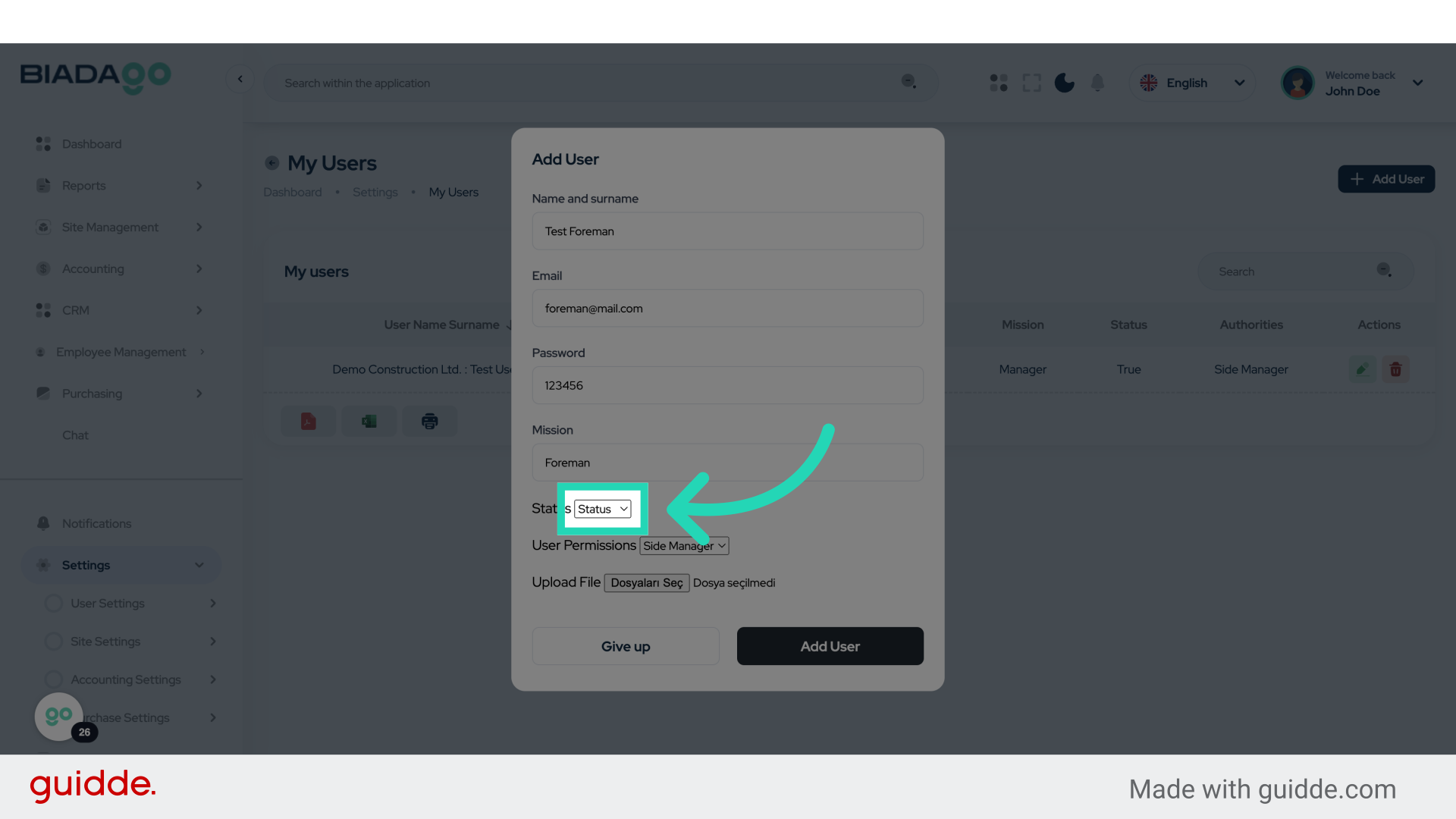
29. Click “Side Manager
Foreman”
Select either “Side Manager” or “Foreman”.
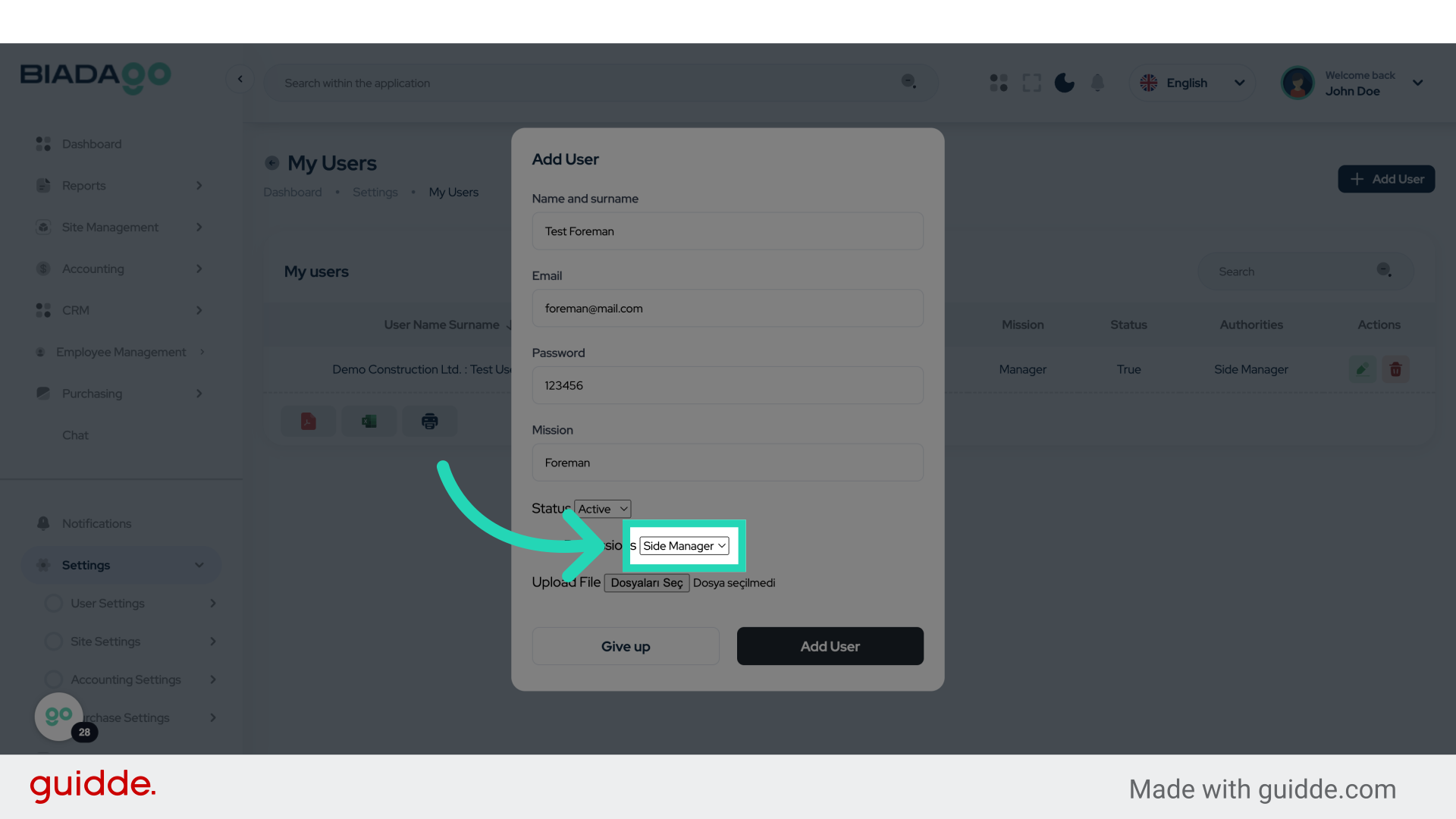
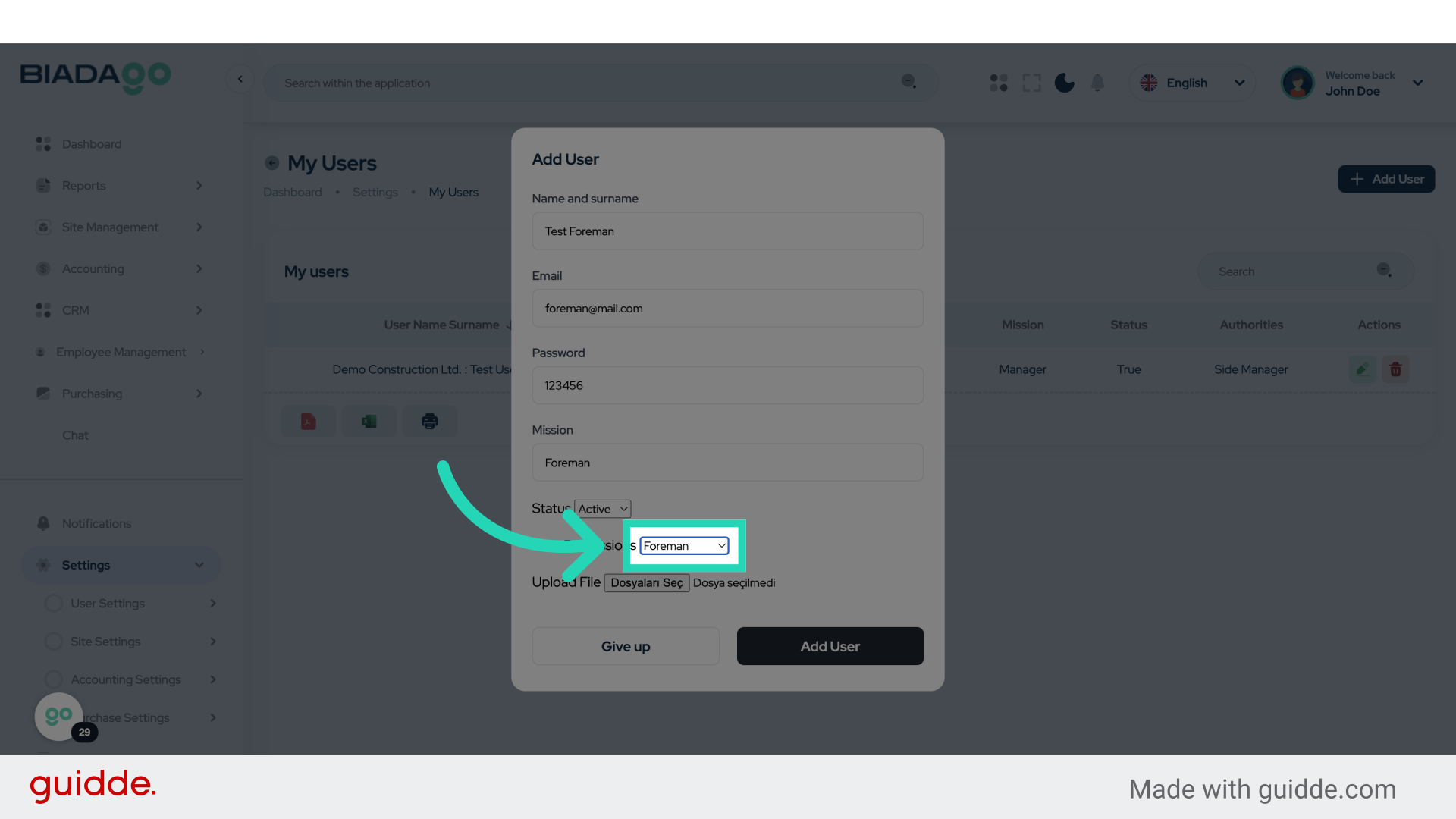
30. Fill “Side Manager
Foreman”
Choose either “Side Manager” or “Foreman”.
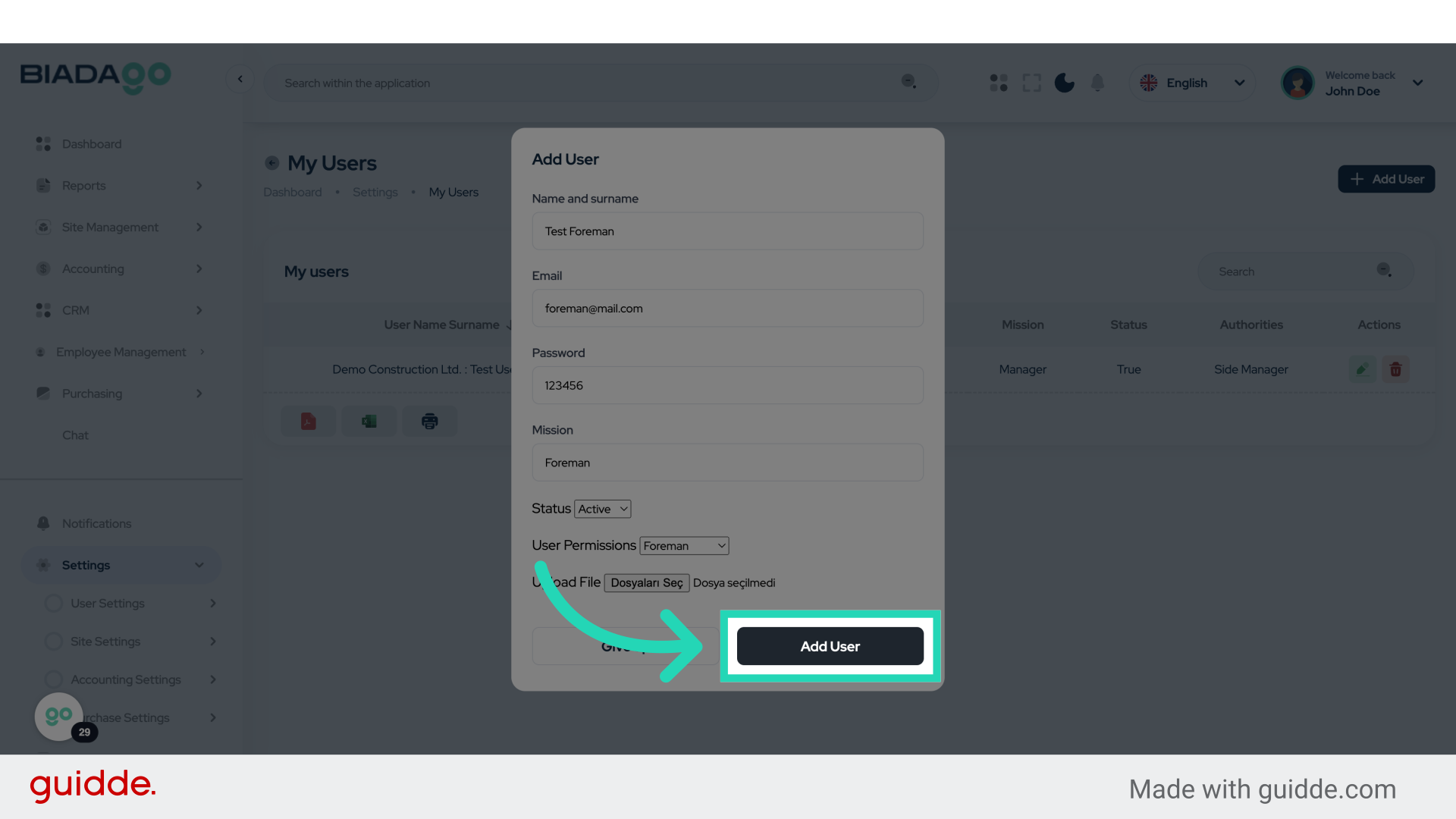
31. Click “Add User”
Click on “Add User” to complete the process.
The guide covered the process of adding users in BiadaGO. From accessing settings to filling in user details and setting permissions, you have been guided through each step to successfully add new users to the application.