Track Construction Progress and Generate Reports in BiadaGO
Track Construction Progress and Generate Reports in BiadaGO
Efficiently track construction progress and generate reports in BiadaGO with these clear and concise instructions
Go to cloud.biadago.com
1. Introduction
From accessing project modules to saving changes and viewing reports, streamline your tasks with this step-by-step guide.
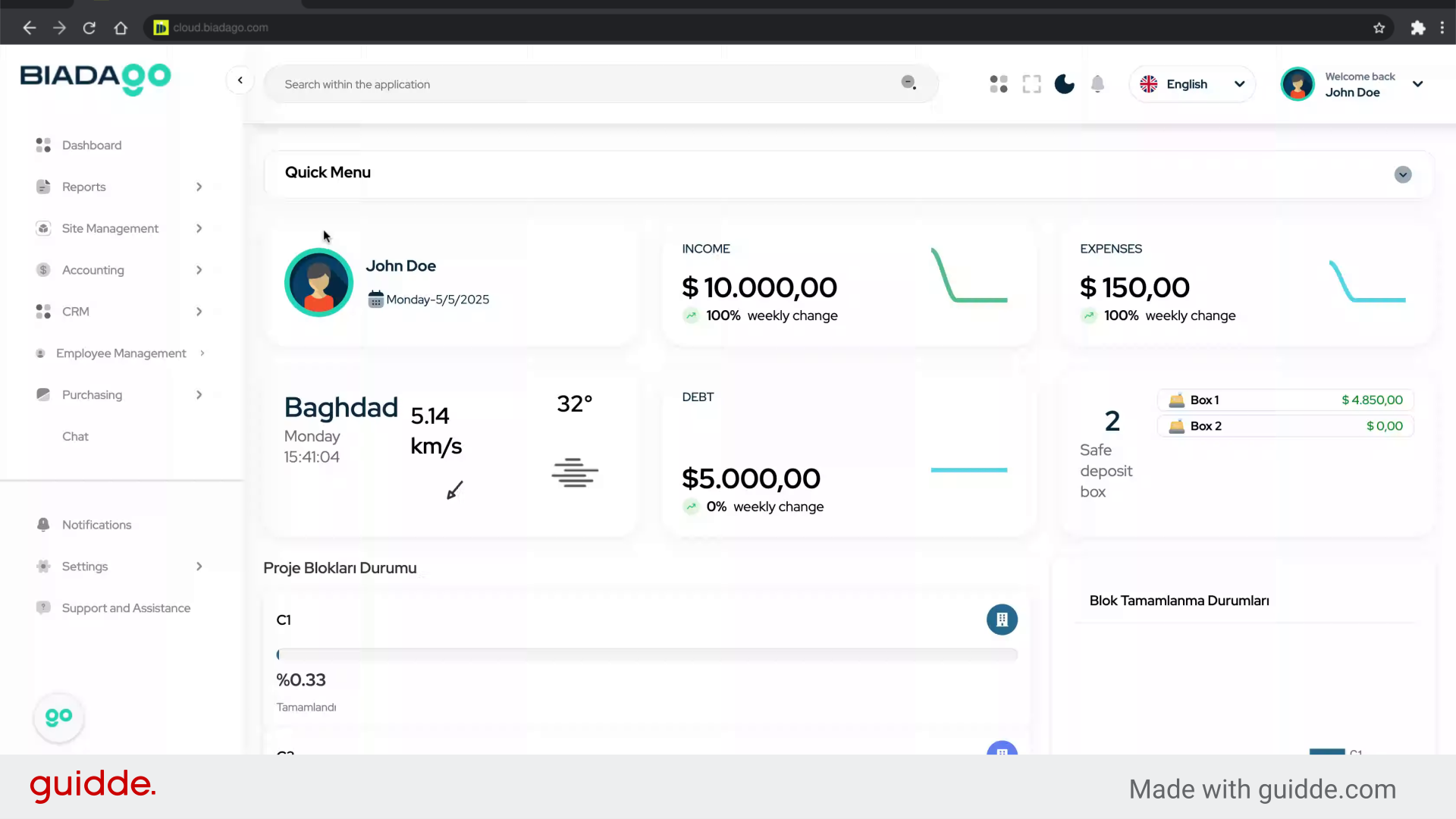
2. Click here
Navigate to the designated section.
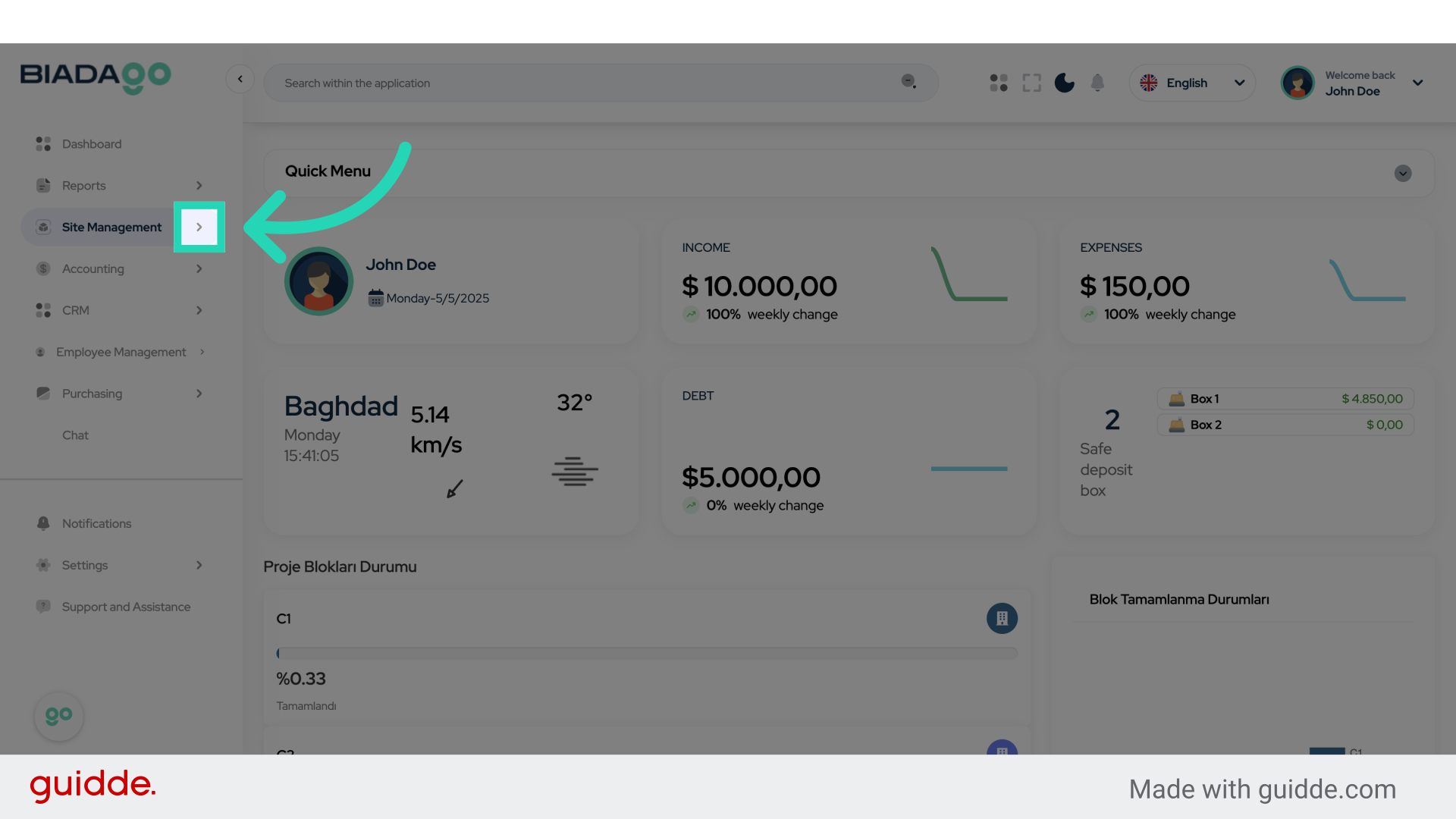
3. Click “Project Management”
Access the Project Management module.
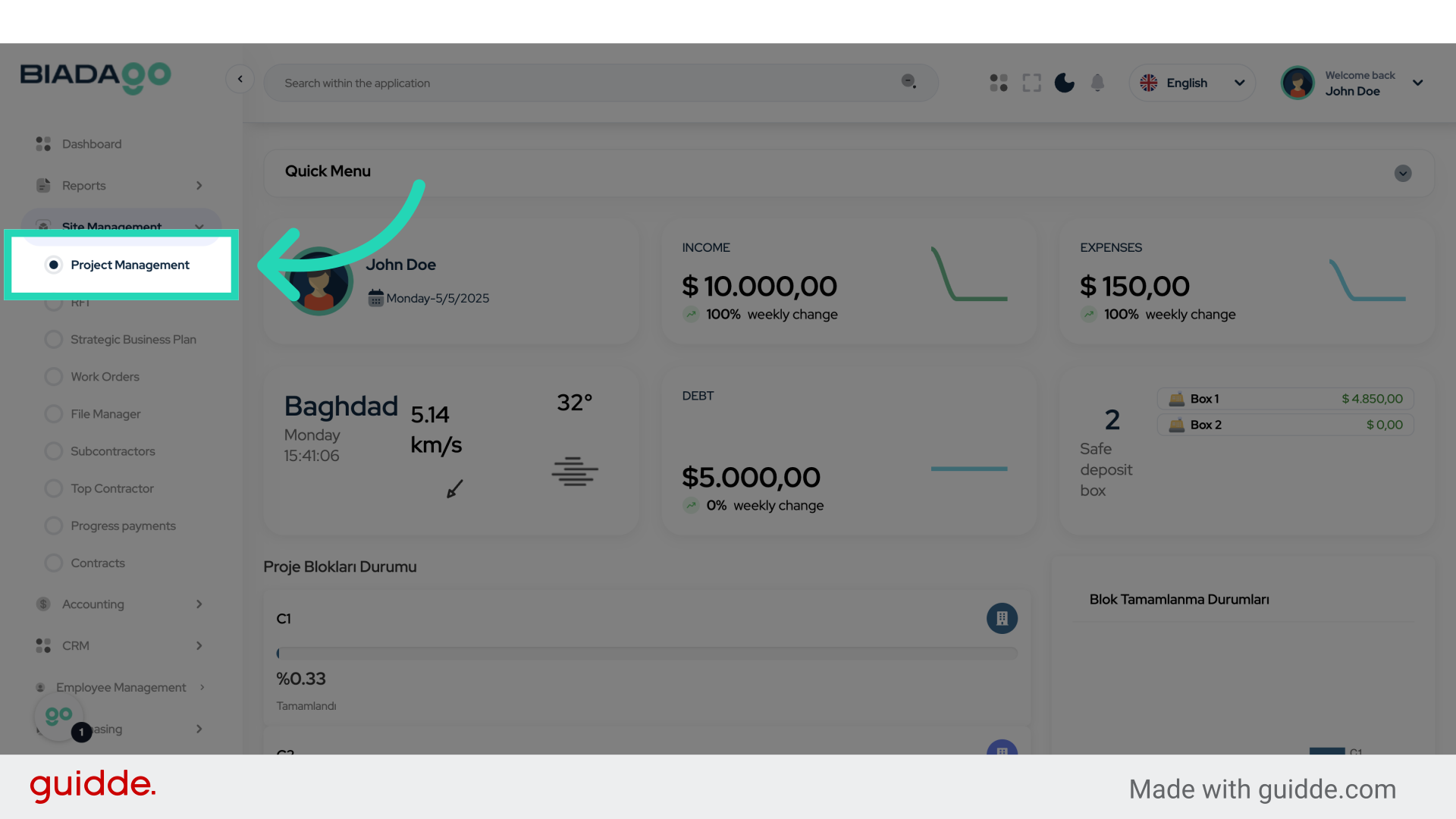
4. Click “Building”
Select the Building option.
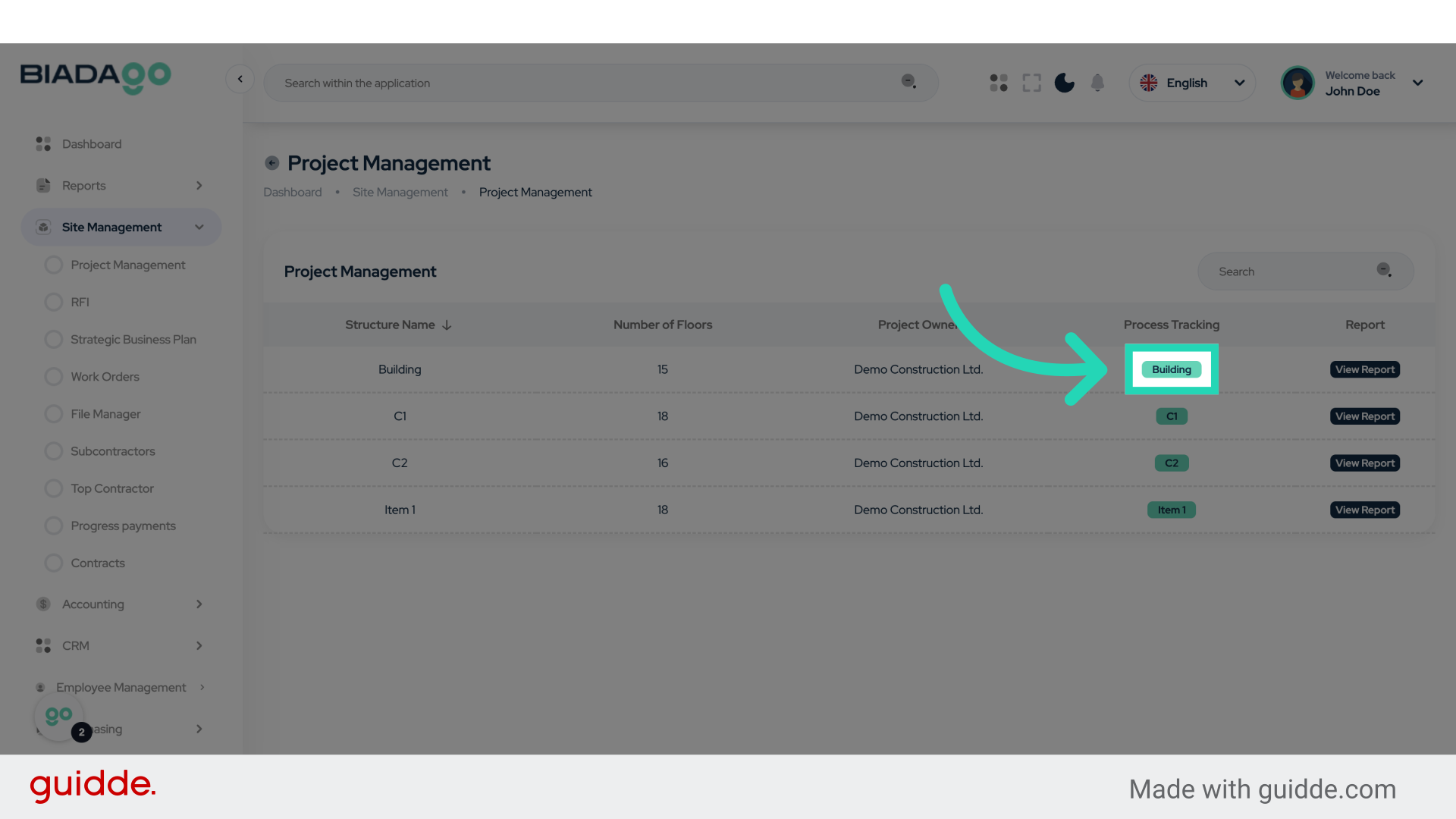
5. Click here
Proceed to the specified location.
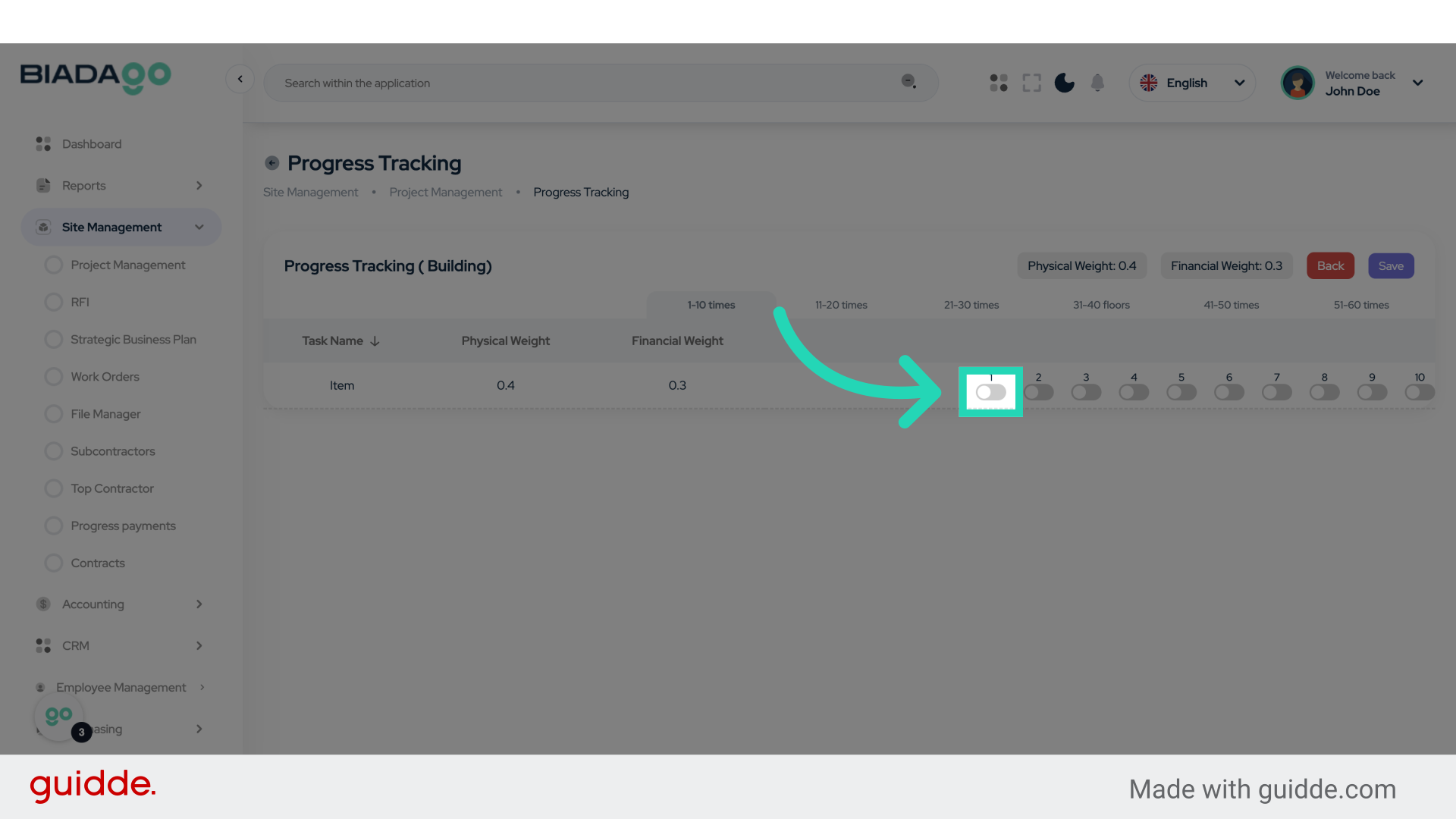
6. Fill “5401”
Fill in “5401”
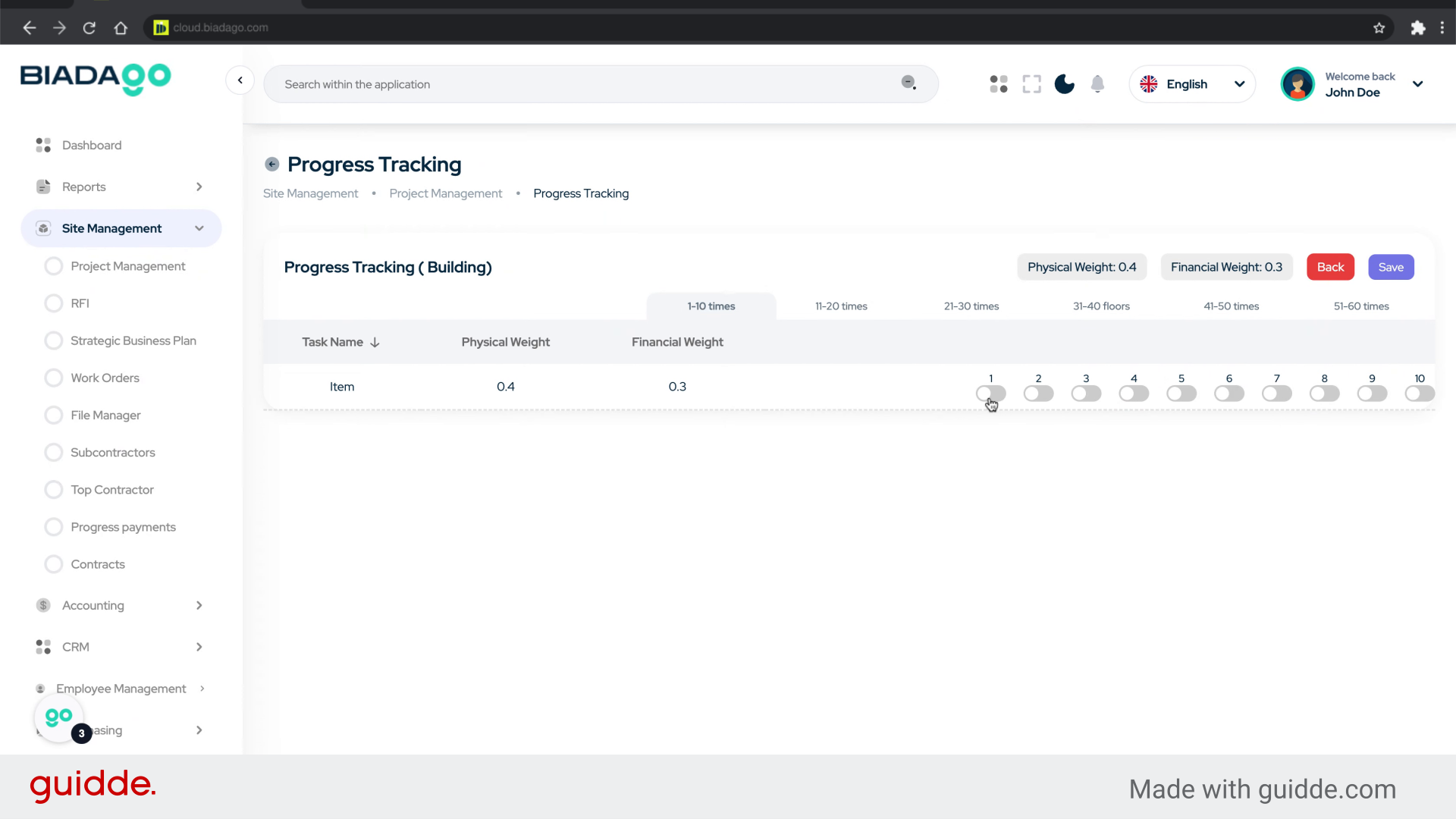
7. Fill “5402”
Enter the code “5402” into the designated field.
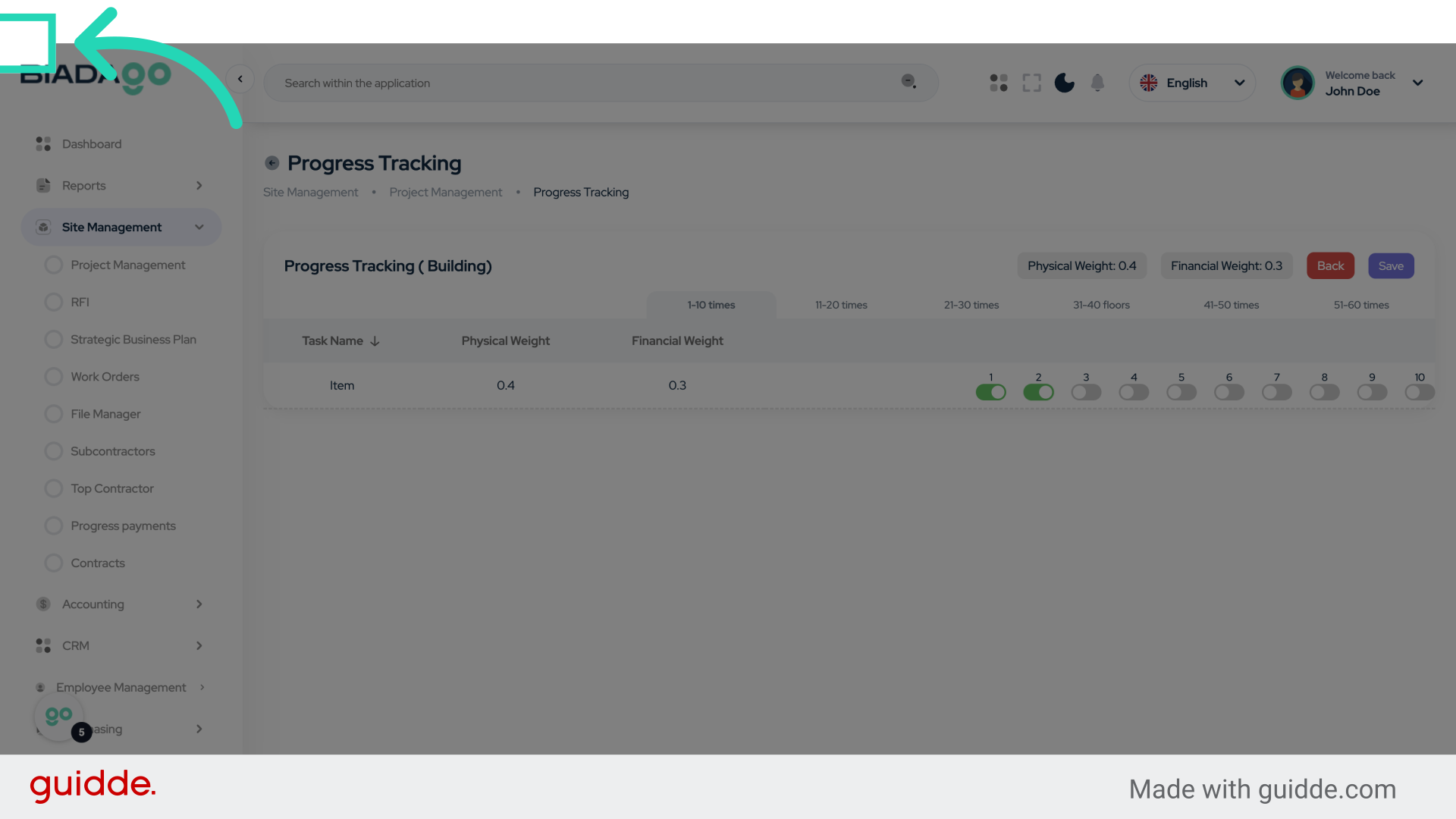
8. Click here
Navigate to the next step.
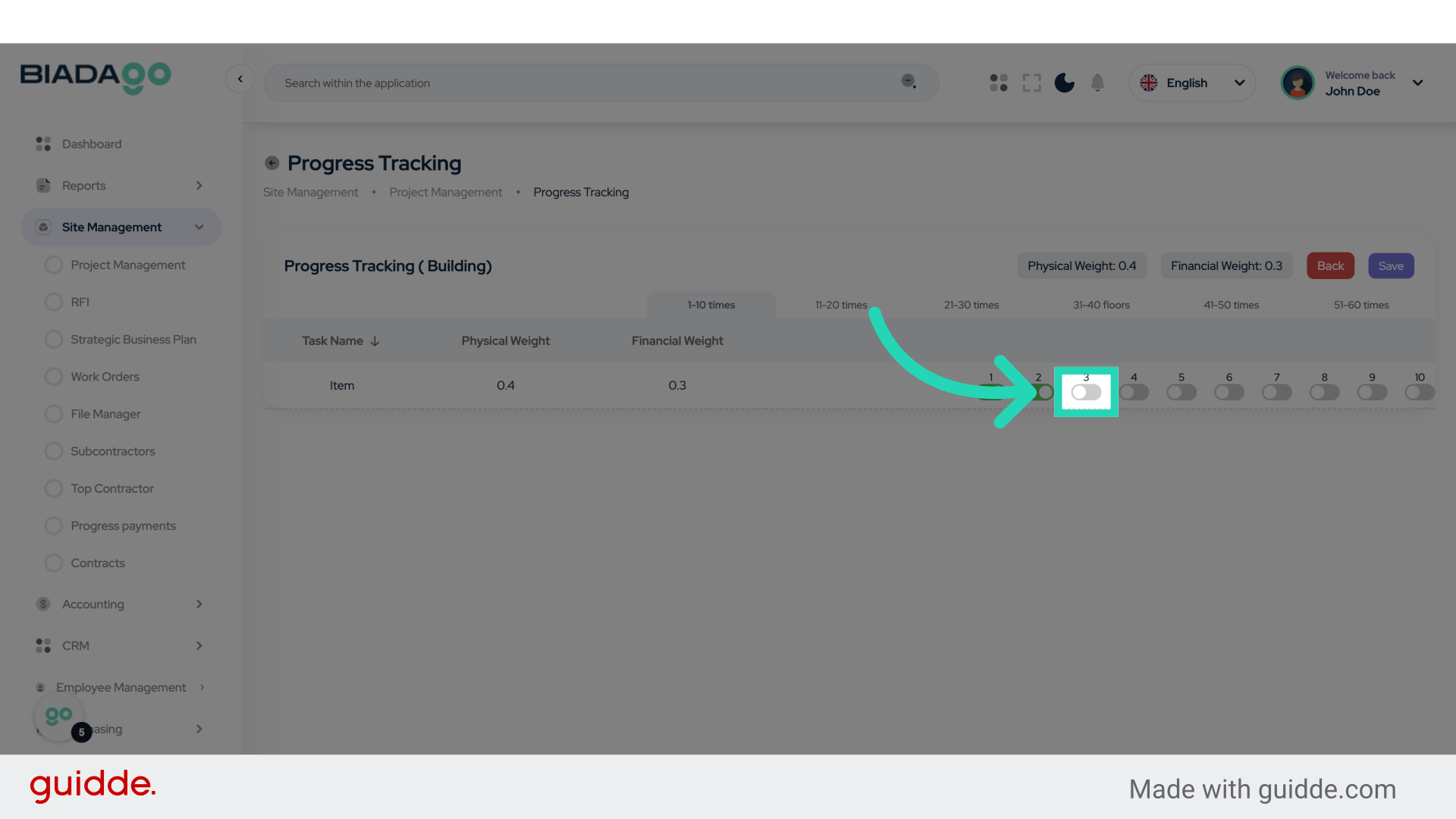
9. Click here
Proceed to the following action.
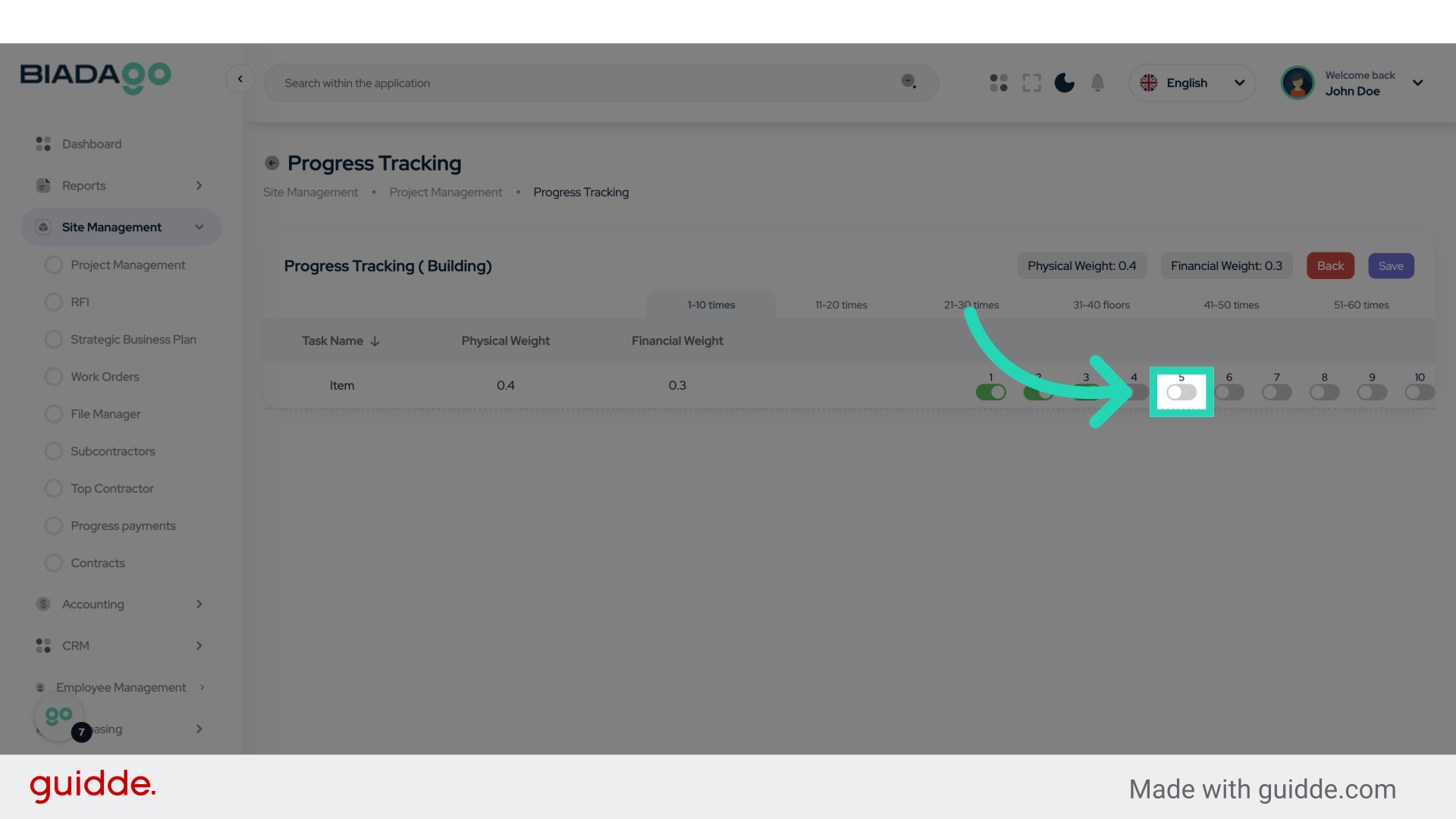
10. Fill “5405”
Fill in the text box with “5405”
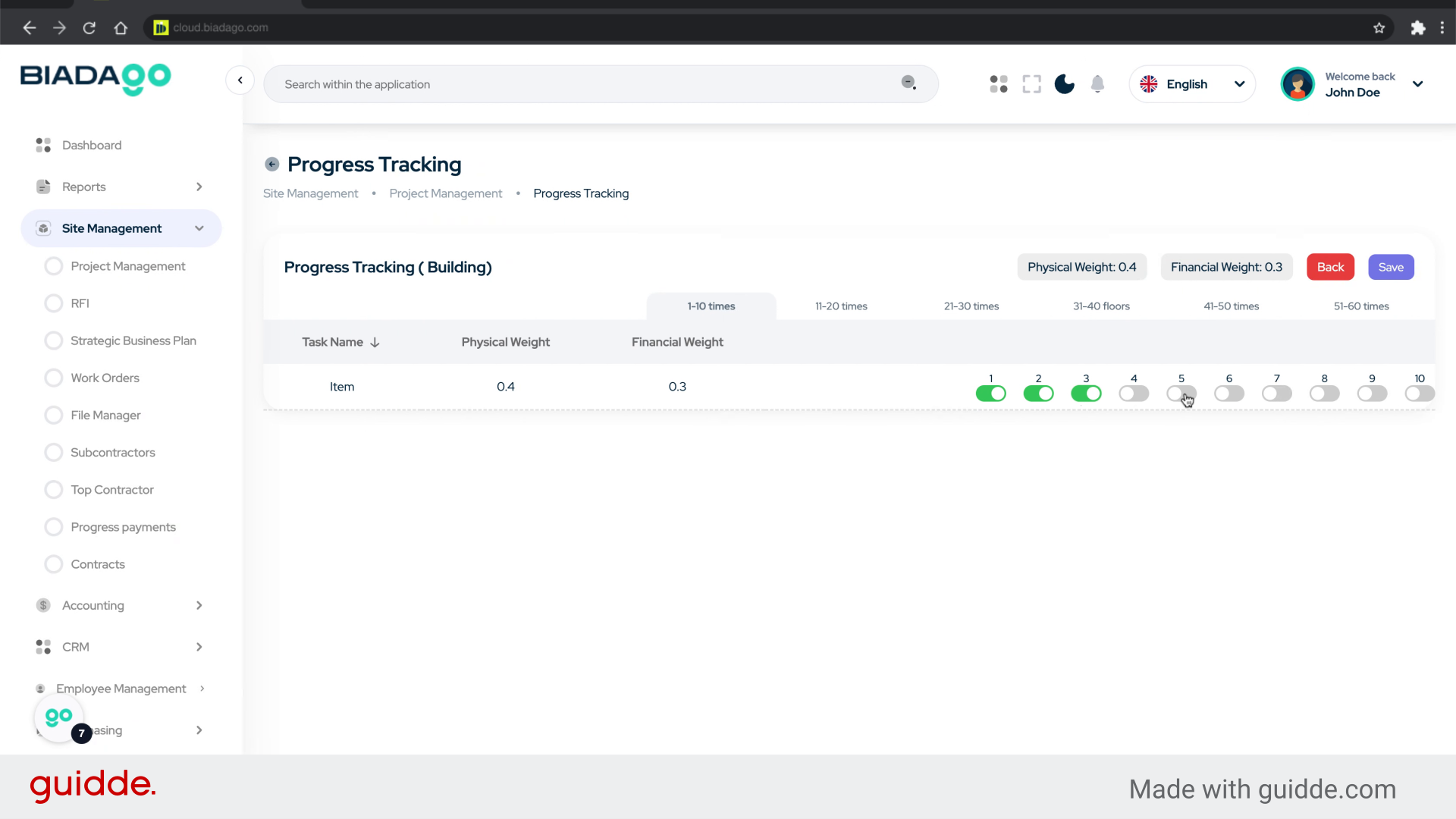
11. Click here
Continue to the next step.
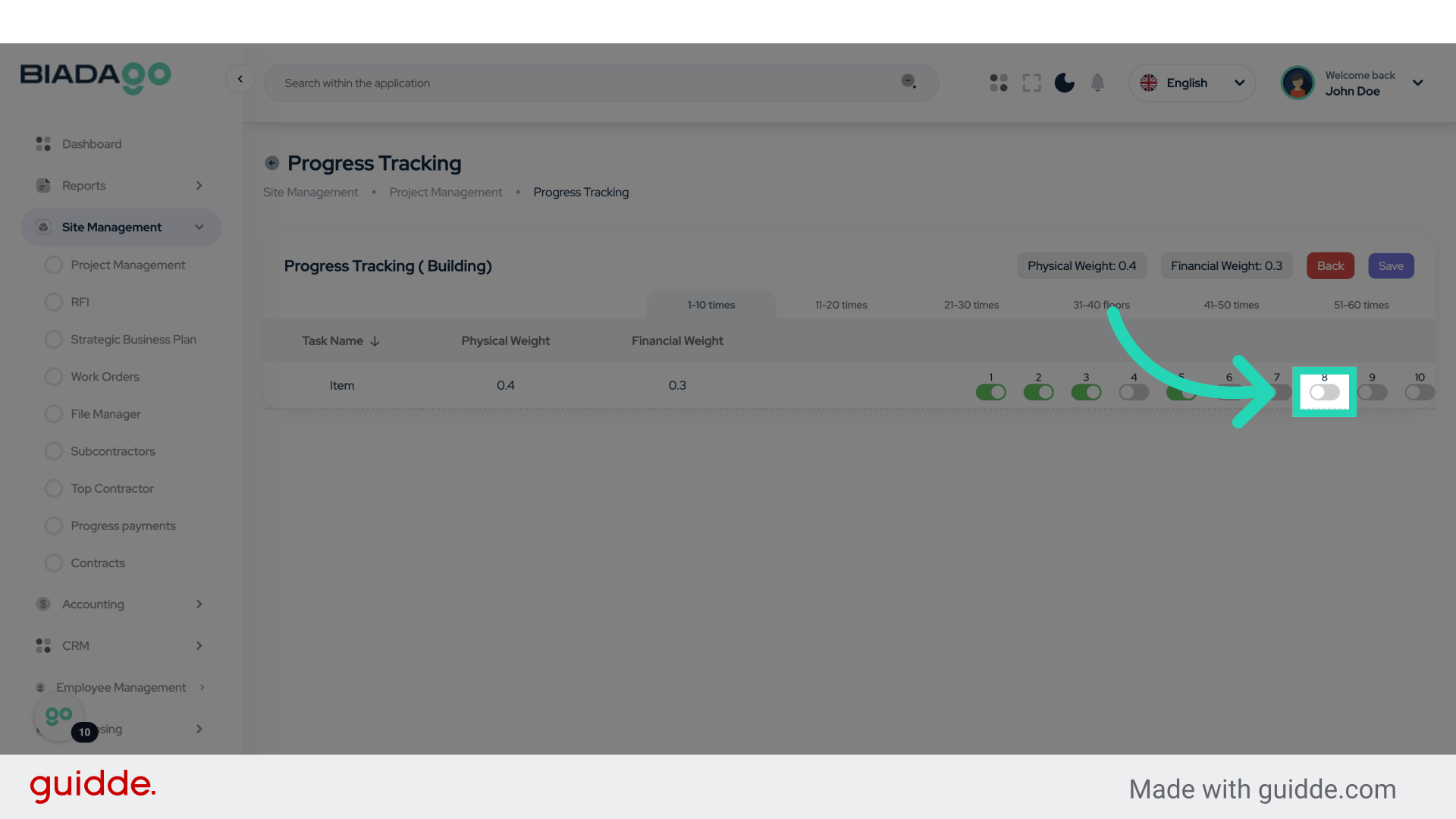
12. Fill “5408”
Enter the desired text.
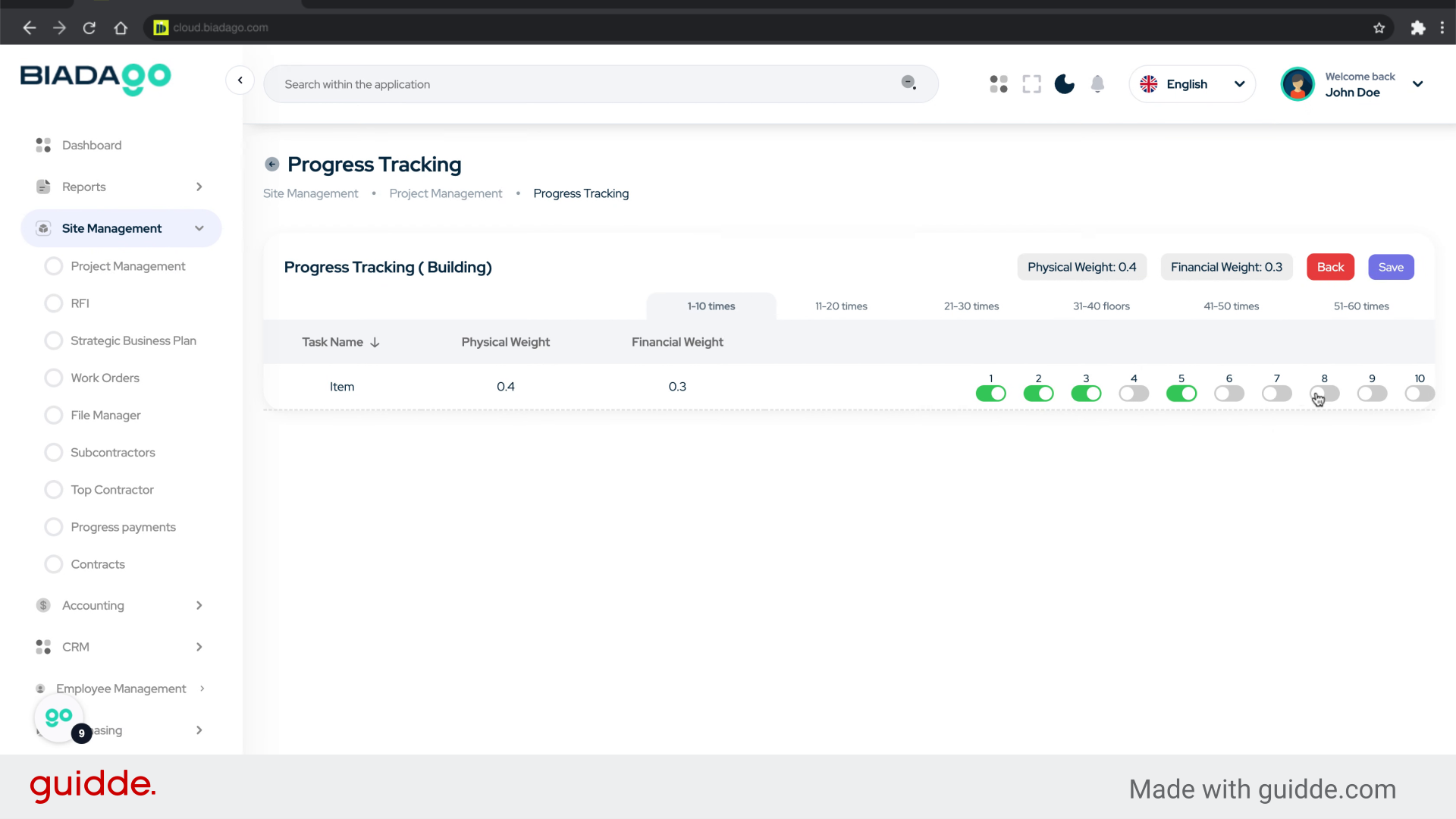
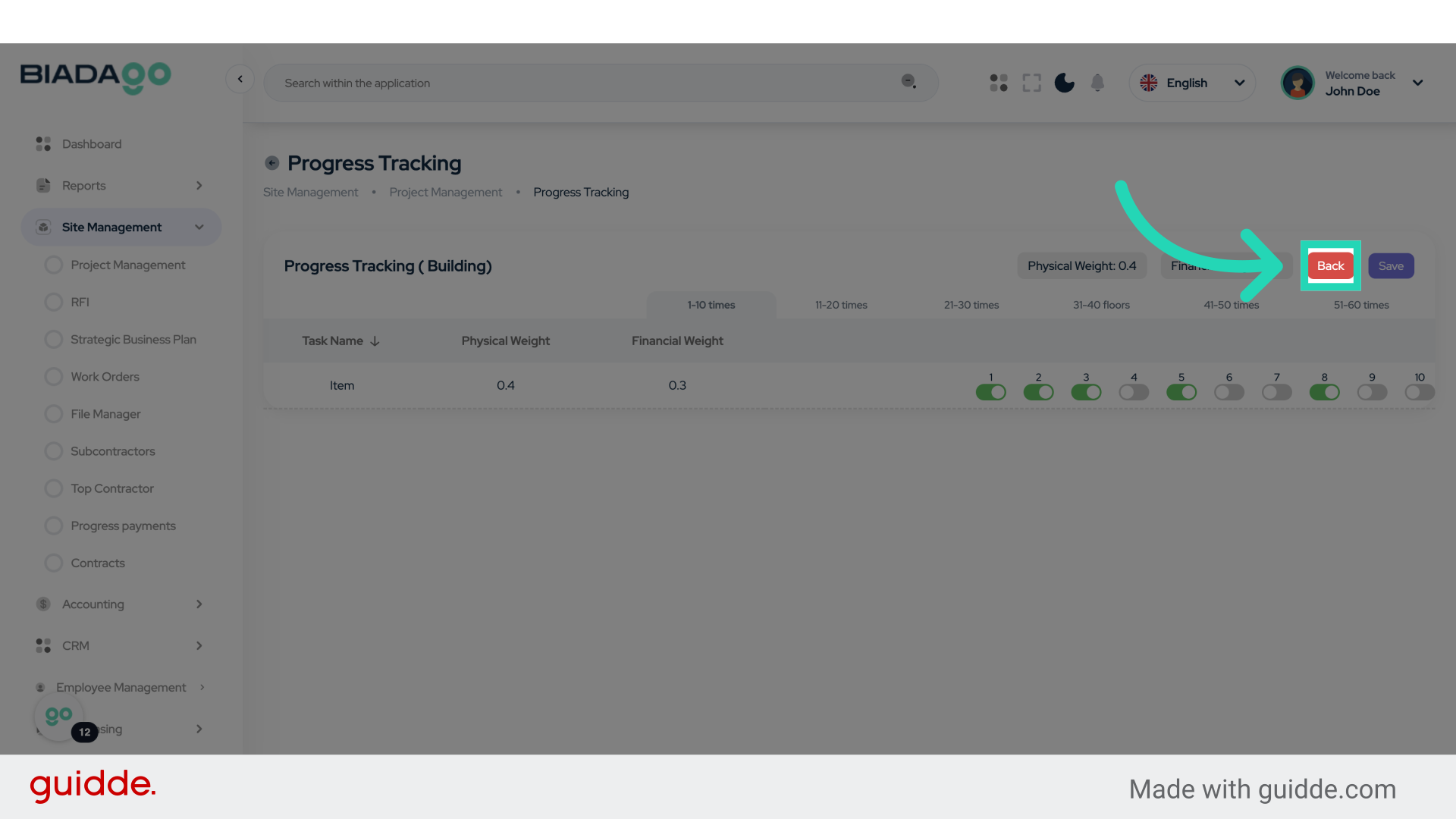
13. Click “Back”
Select the “Back” option.
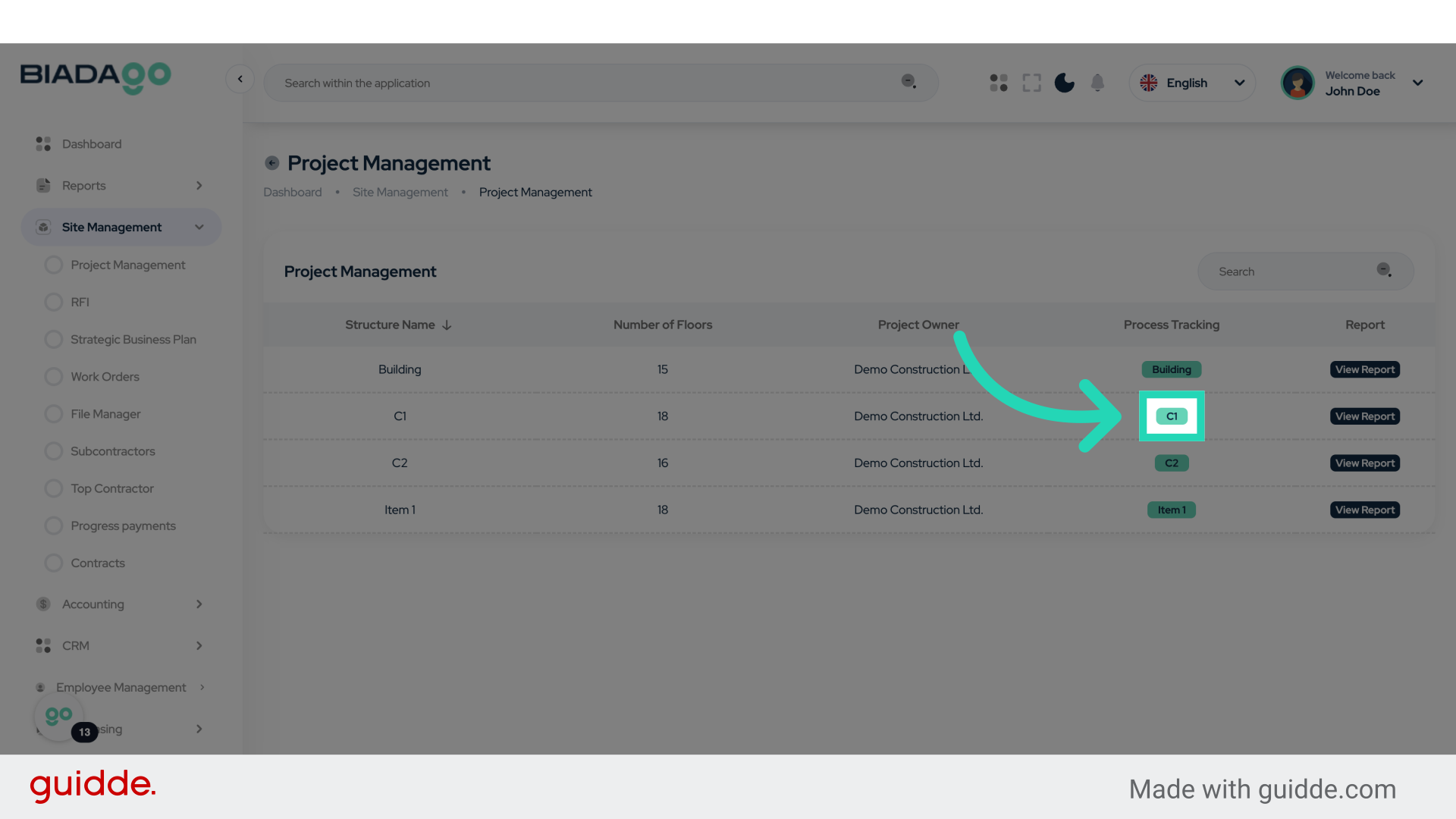
14. Click “C1”
Choose the “C1” section.
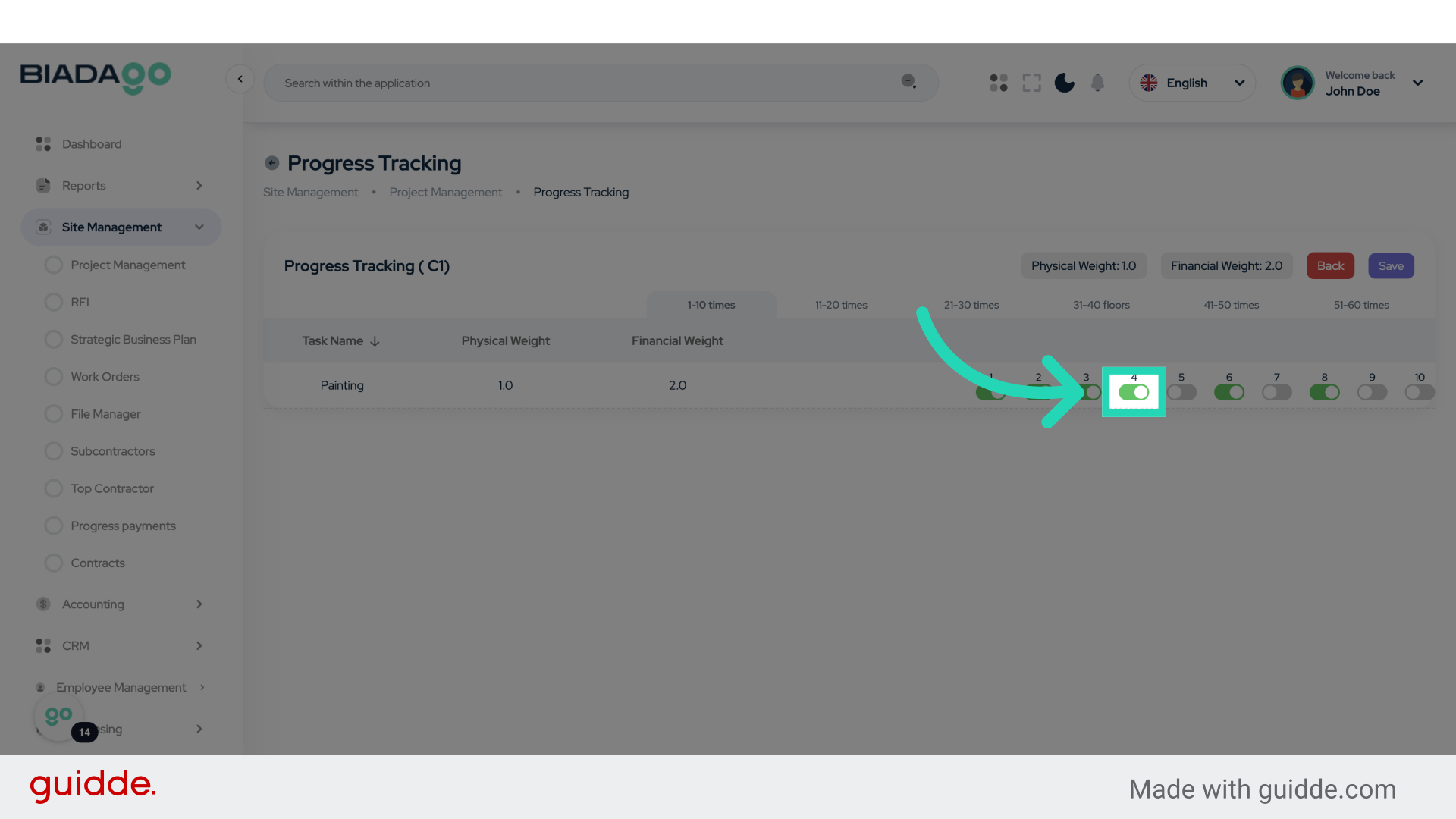
15. Click here
Proceed to the next action.
16. Fill “2837”
Type “2837” in the given field
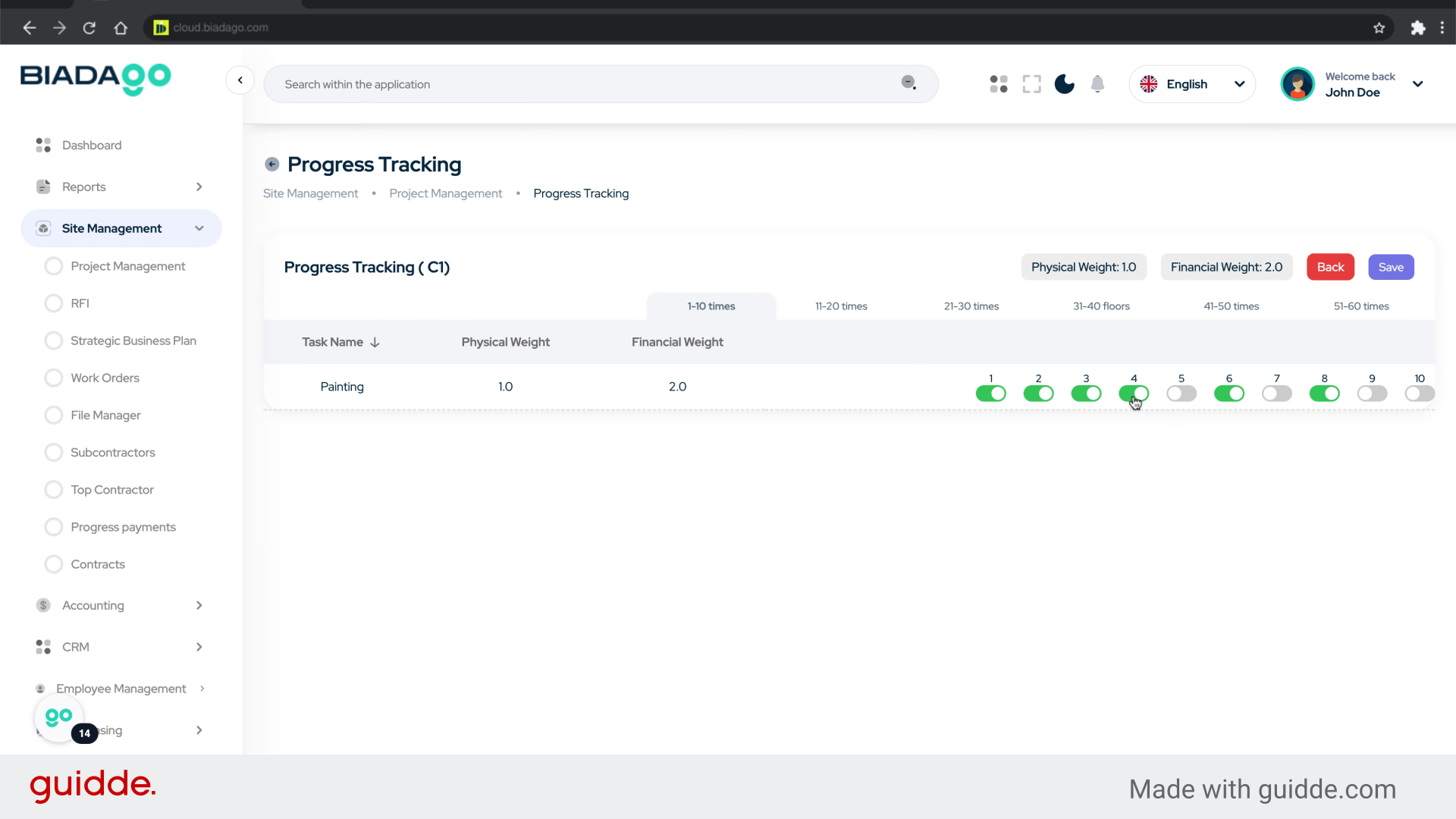
17. Click here
Navigate to the subsequent step.
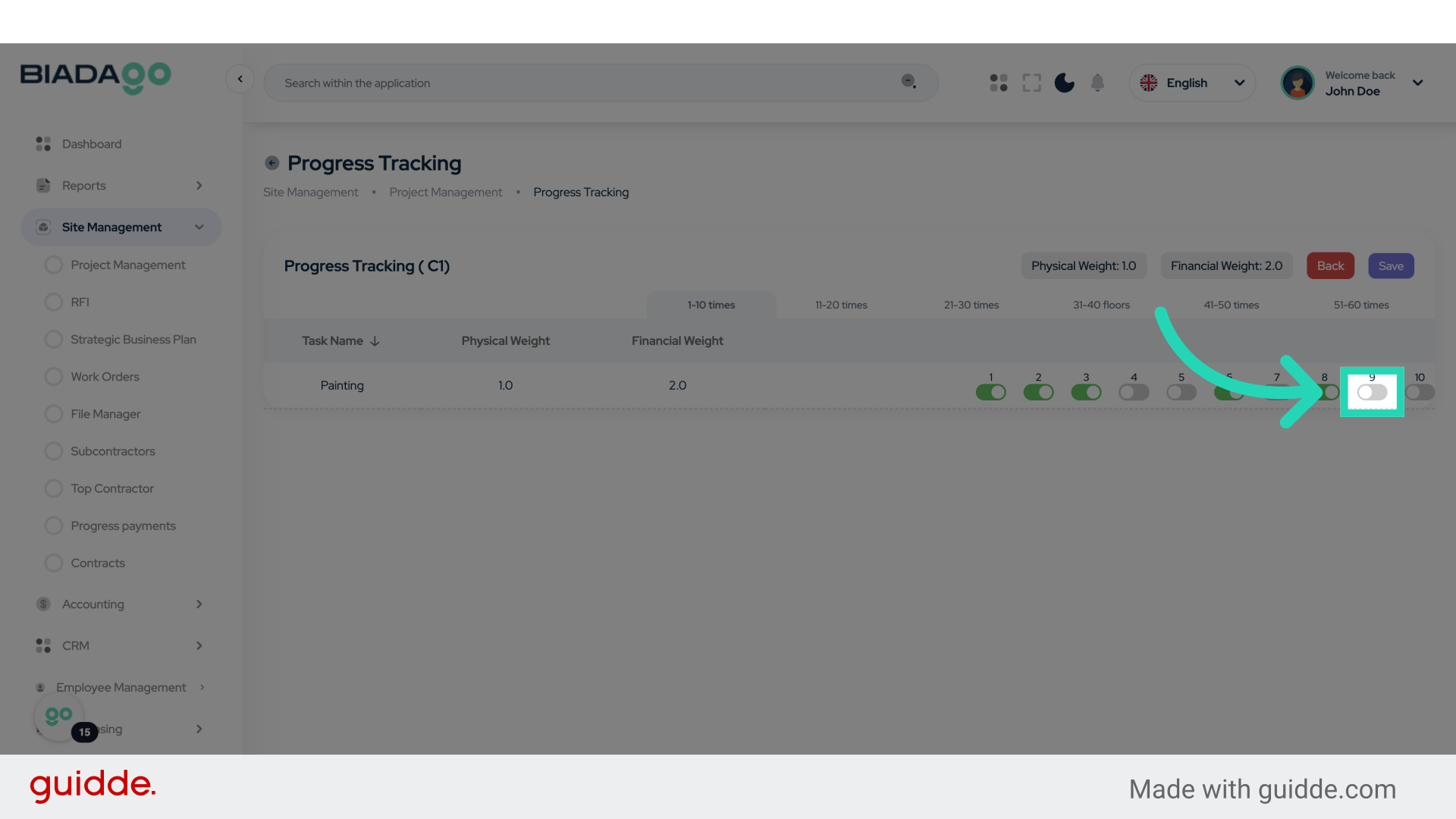
18. Fill “2842”
Input “2842” in the available field
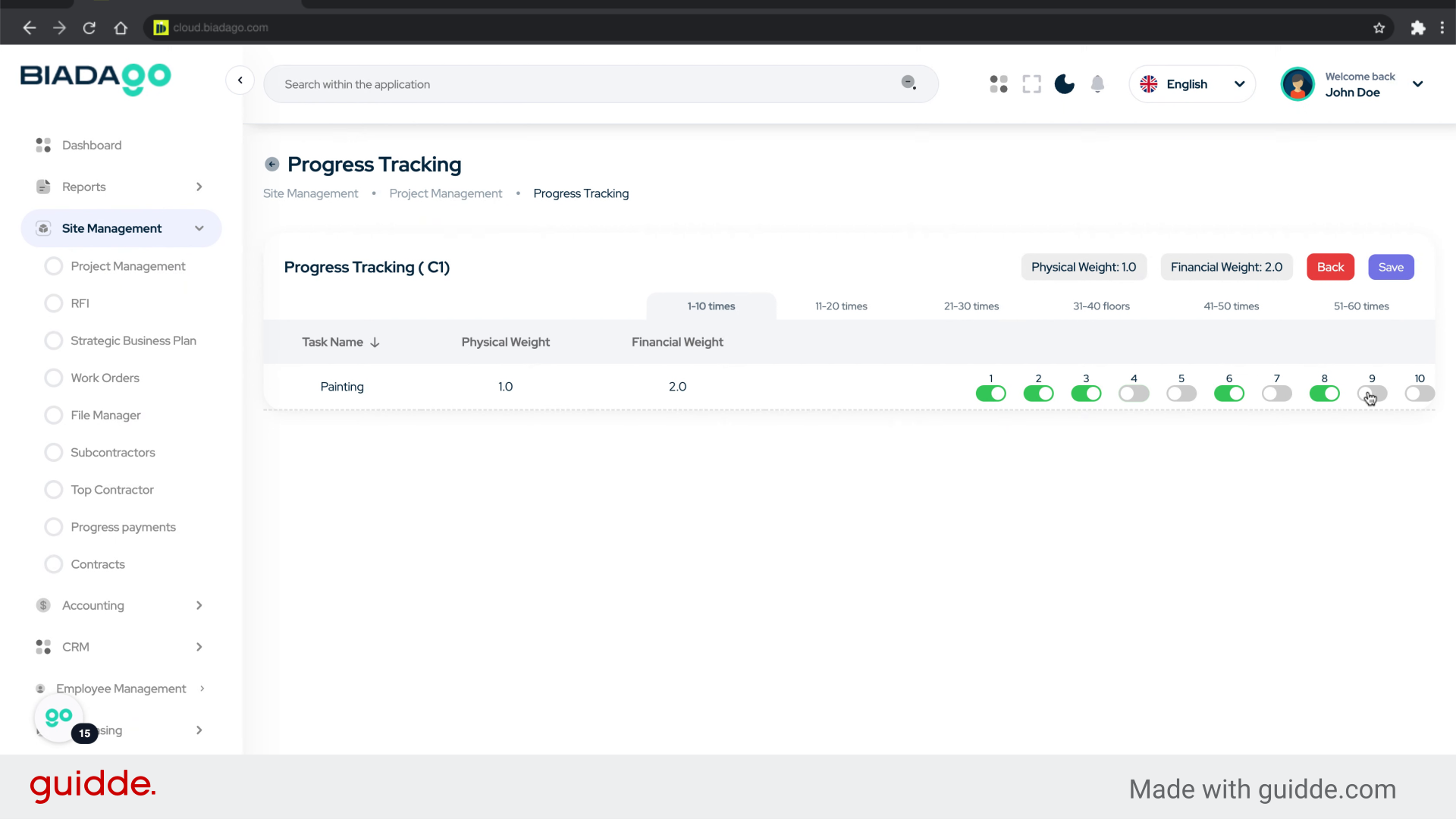
19. Fill “2843”
Input the code “2843” into the specified field.
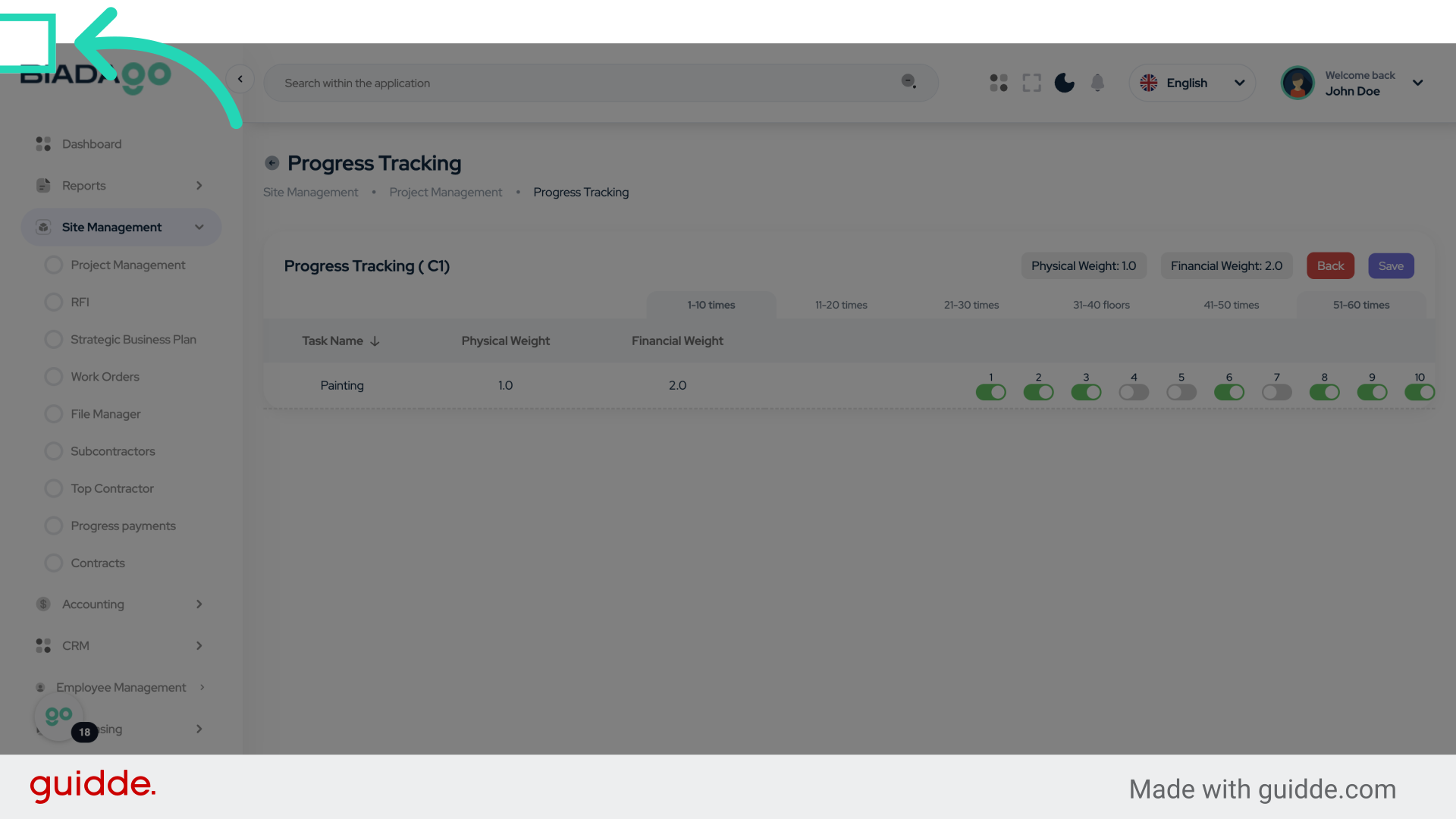
20. Click “Save”
Save the changes made.
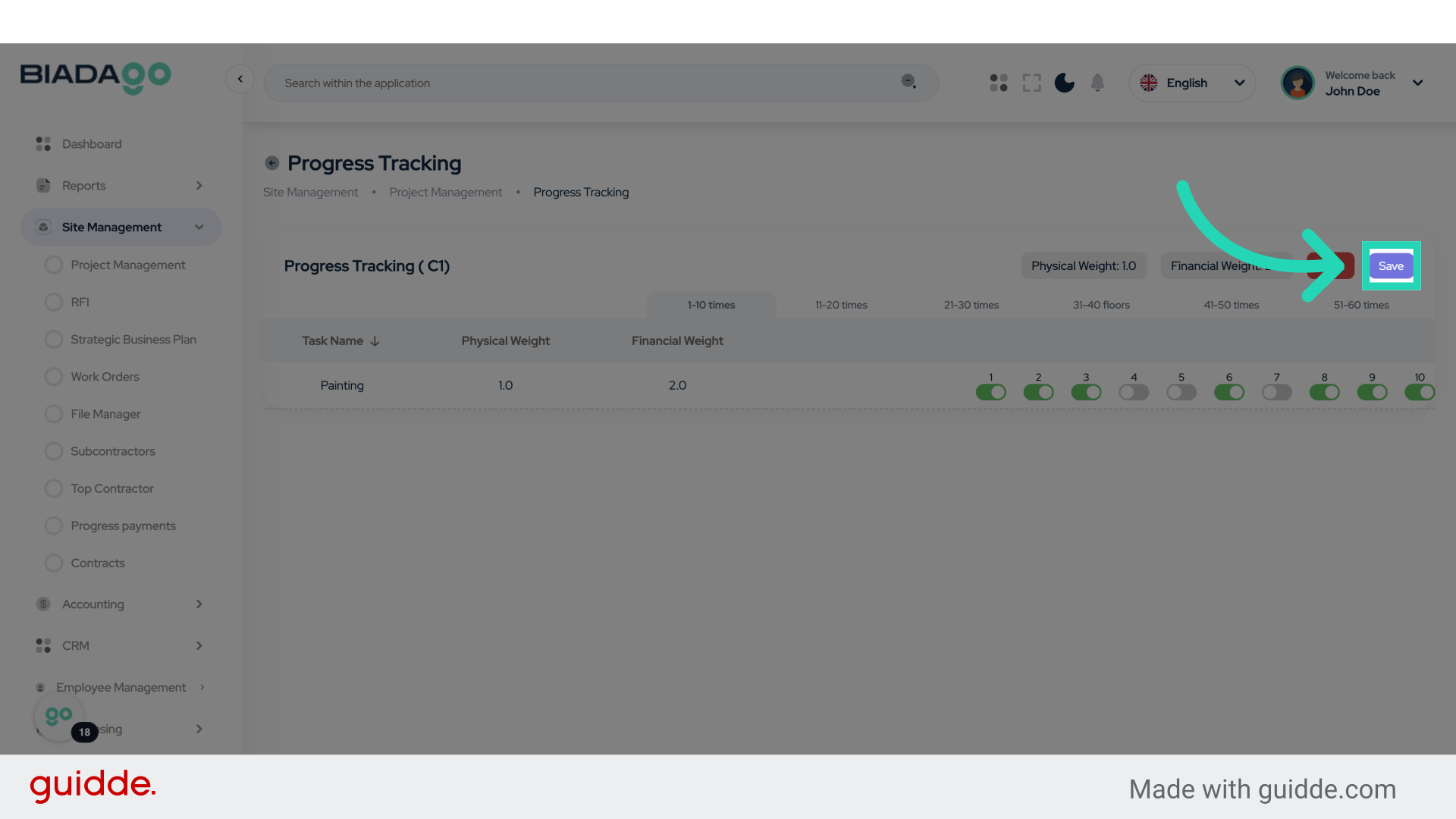
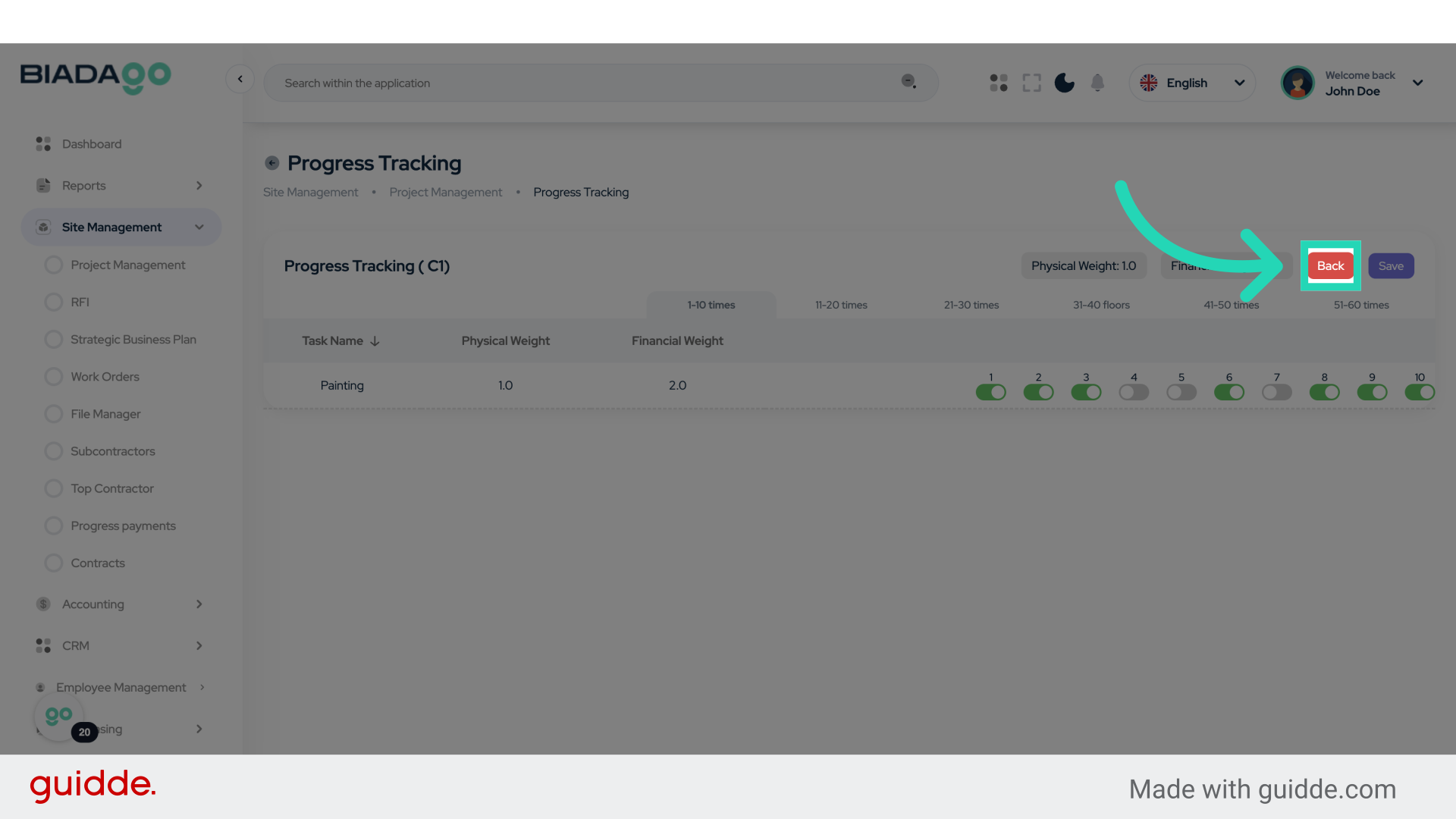
21. Click “Back”
Return to the previous screen.
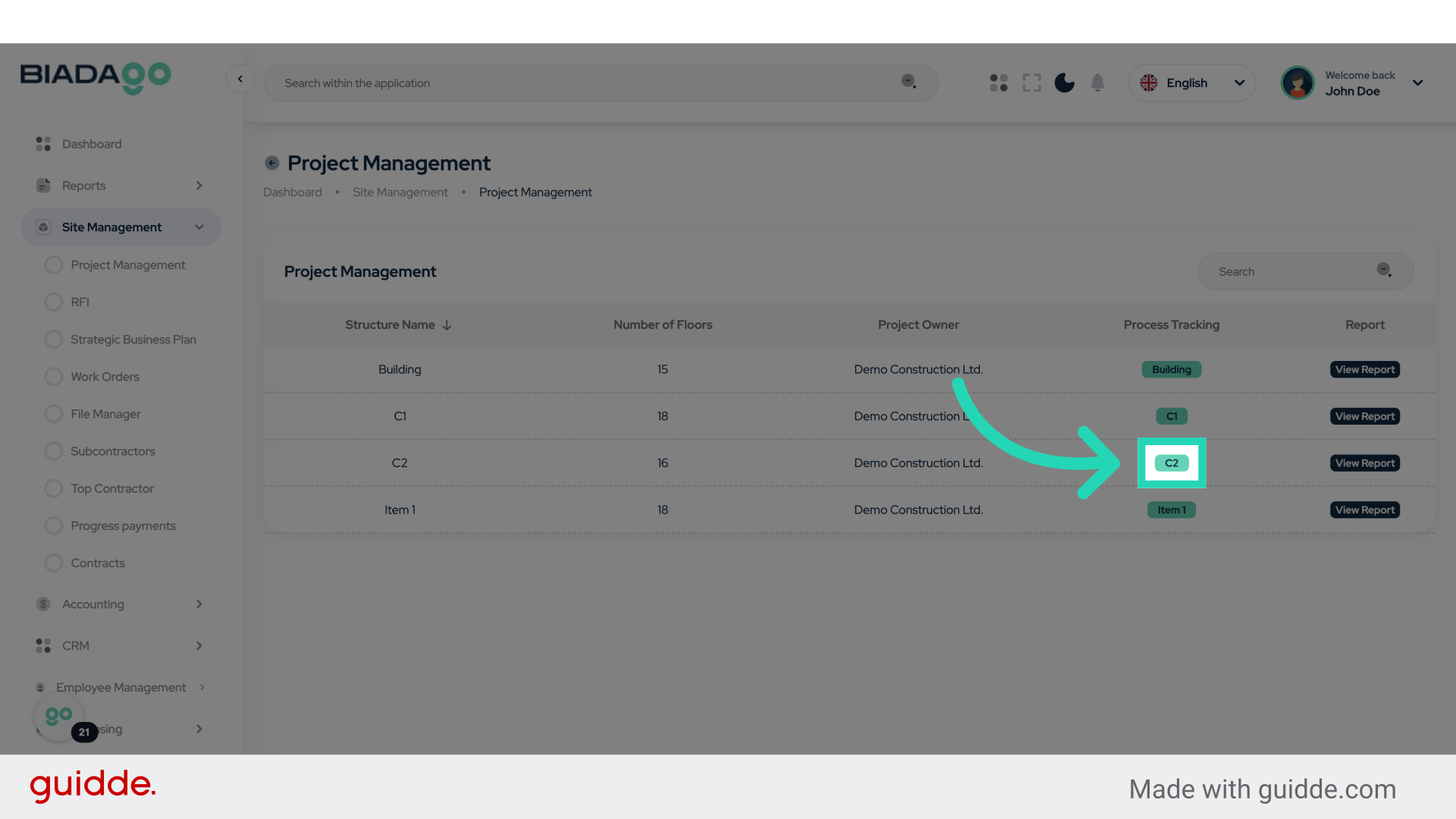
22. Click “C2”
Select the “C2” section.
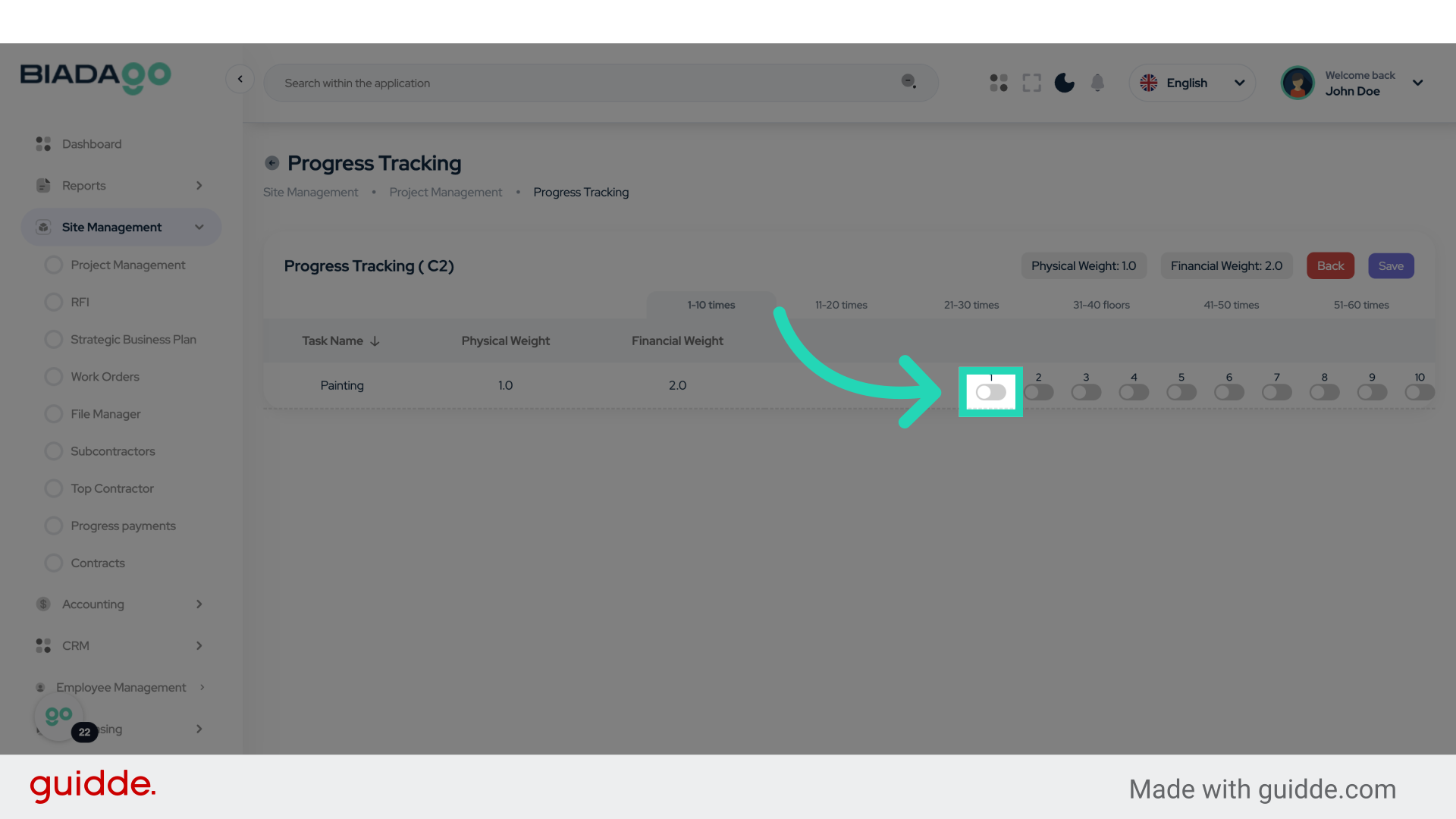
23. Click here
Proceed to the next step.
24. Fill “2852”
Submit “2852” in the appropriate field
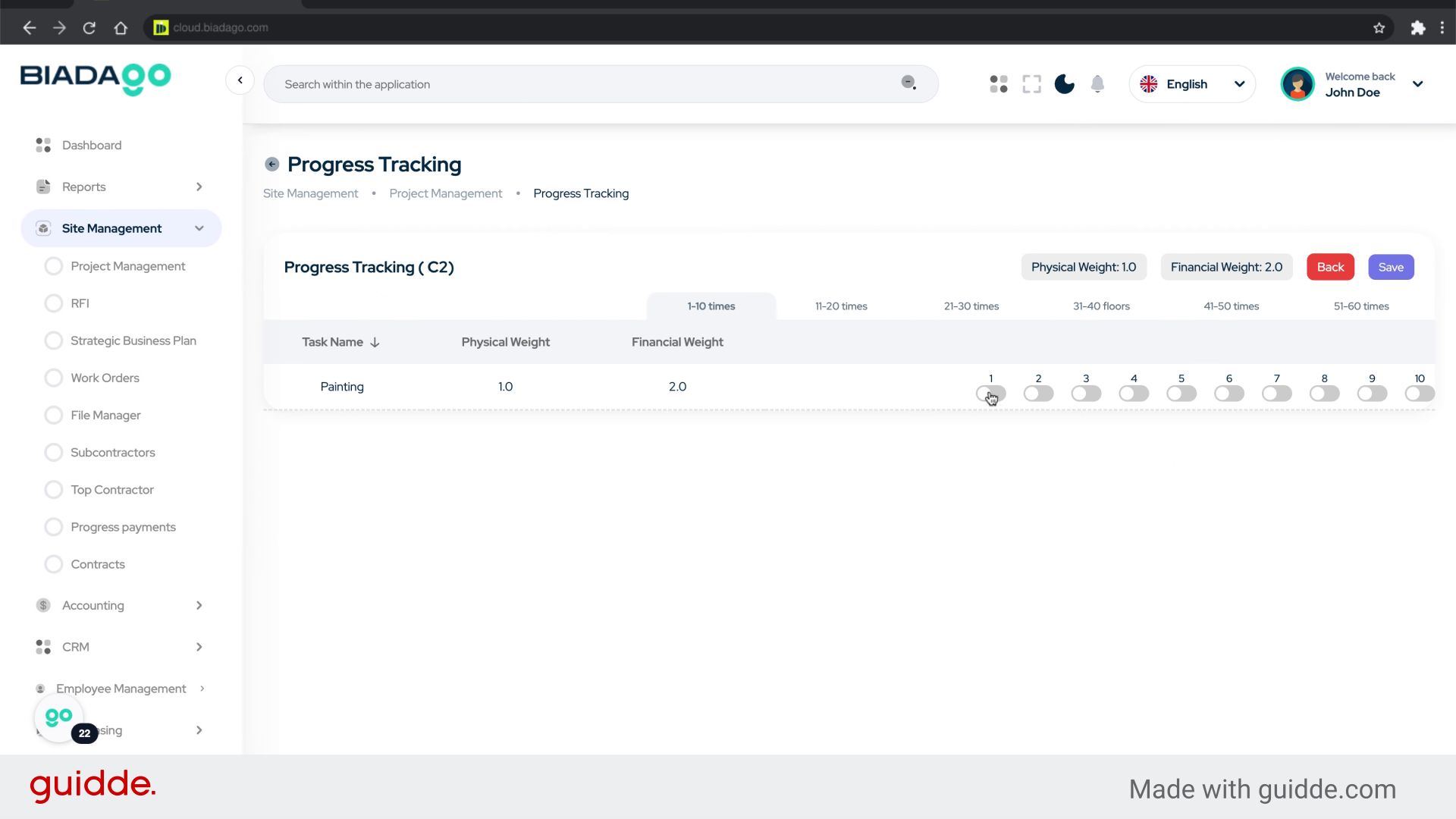
25. Fill “2853”
Enter the code “2853” into the designated field.
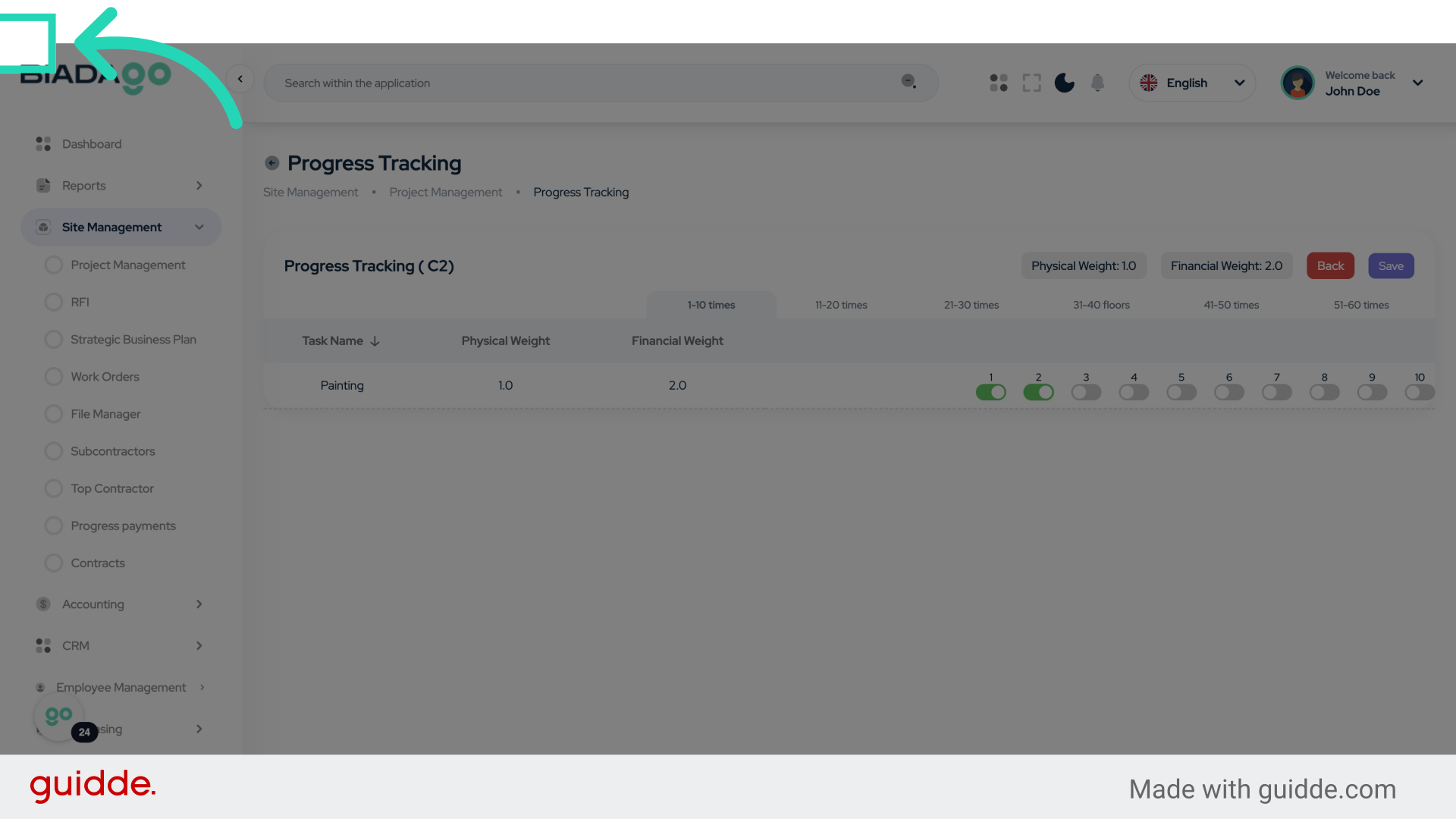
26. Click here
Navigate to the next action.
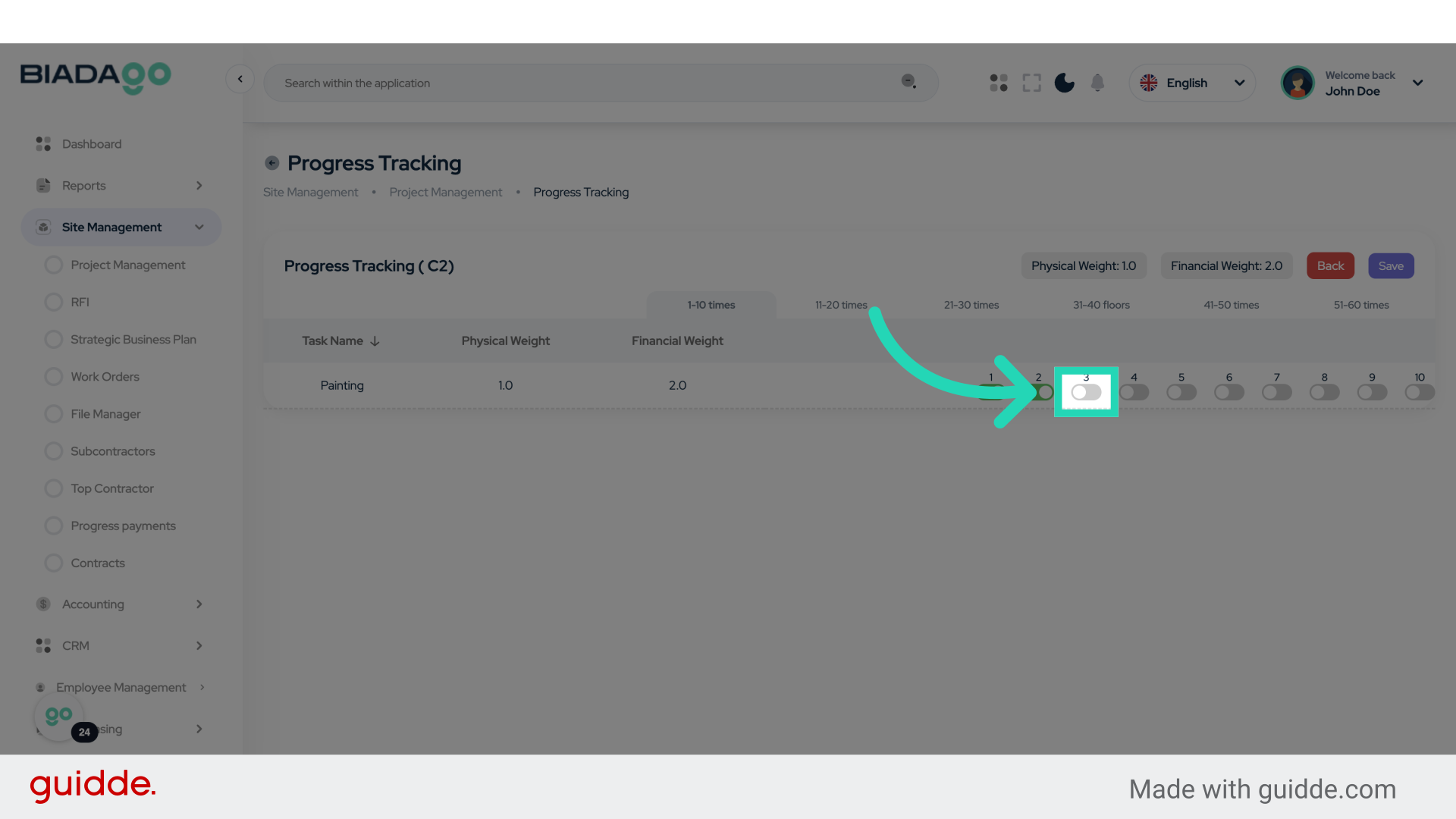
27. Click “Save”
Save the changes.
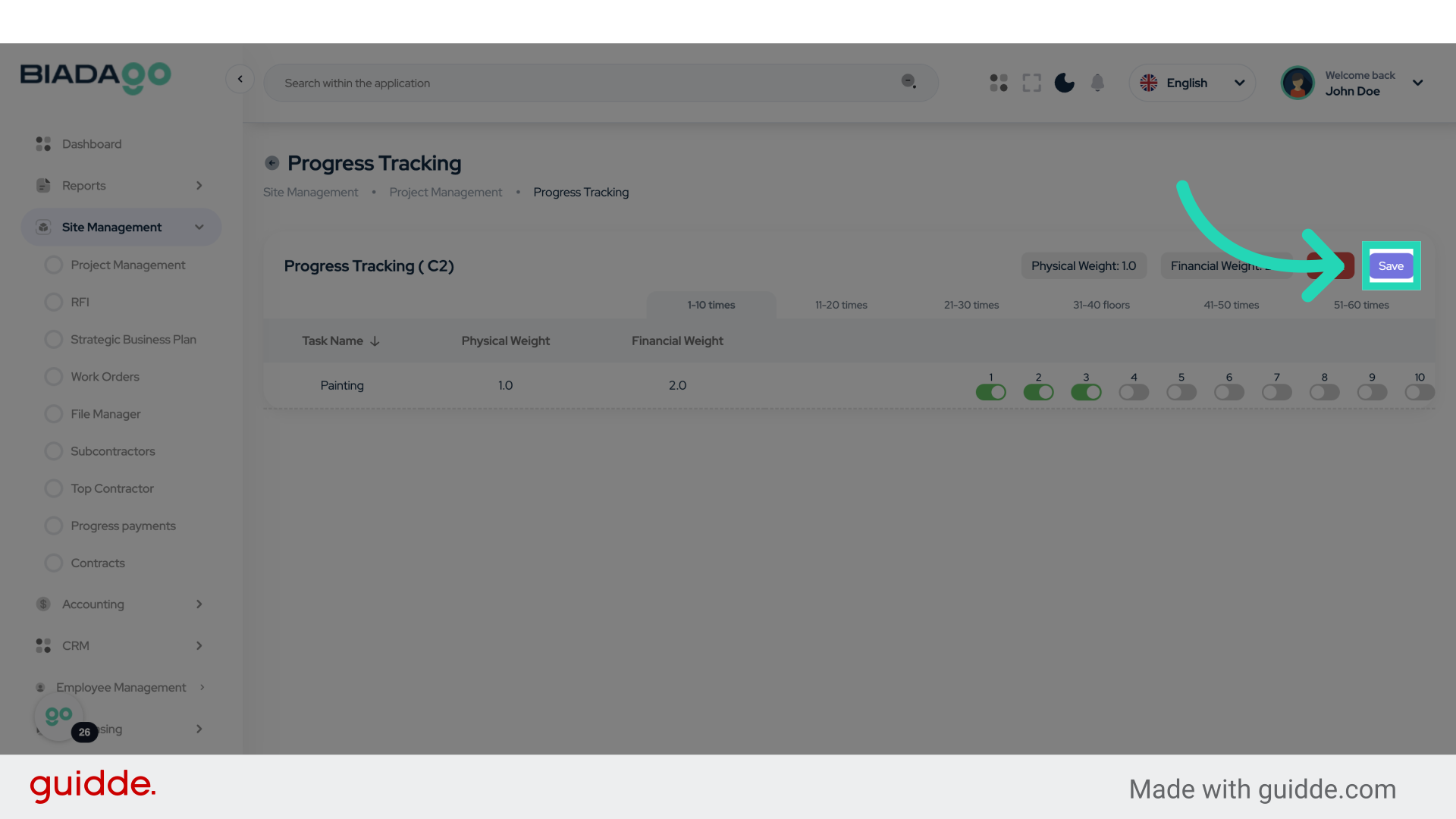
28. Click “11-20 times”
Repeat the action 11-20 times.
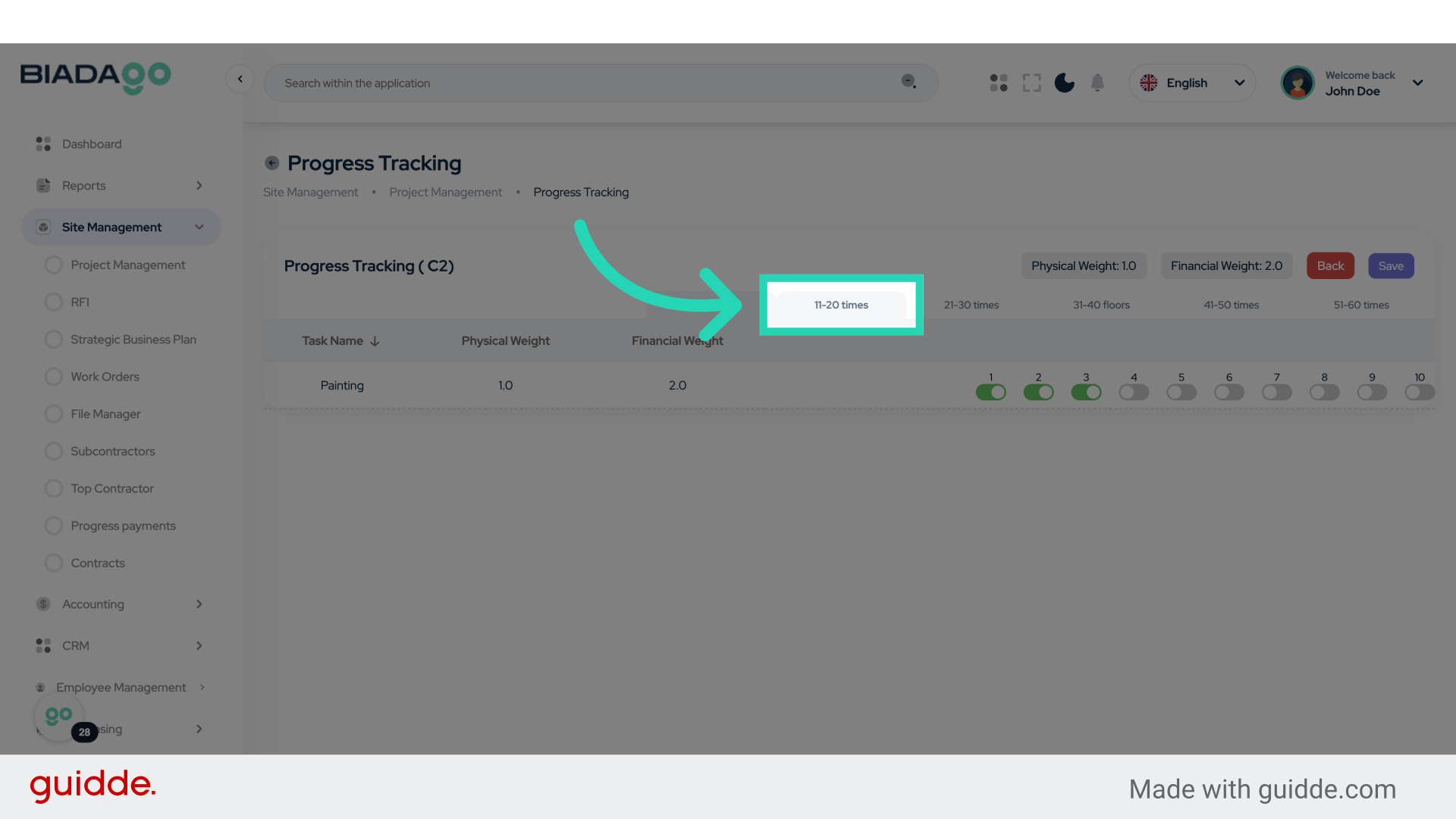
29. Click here
Proceed to the following step.
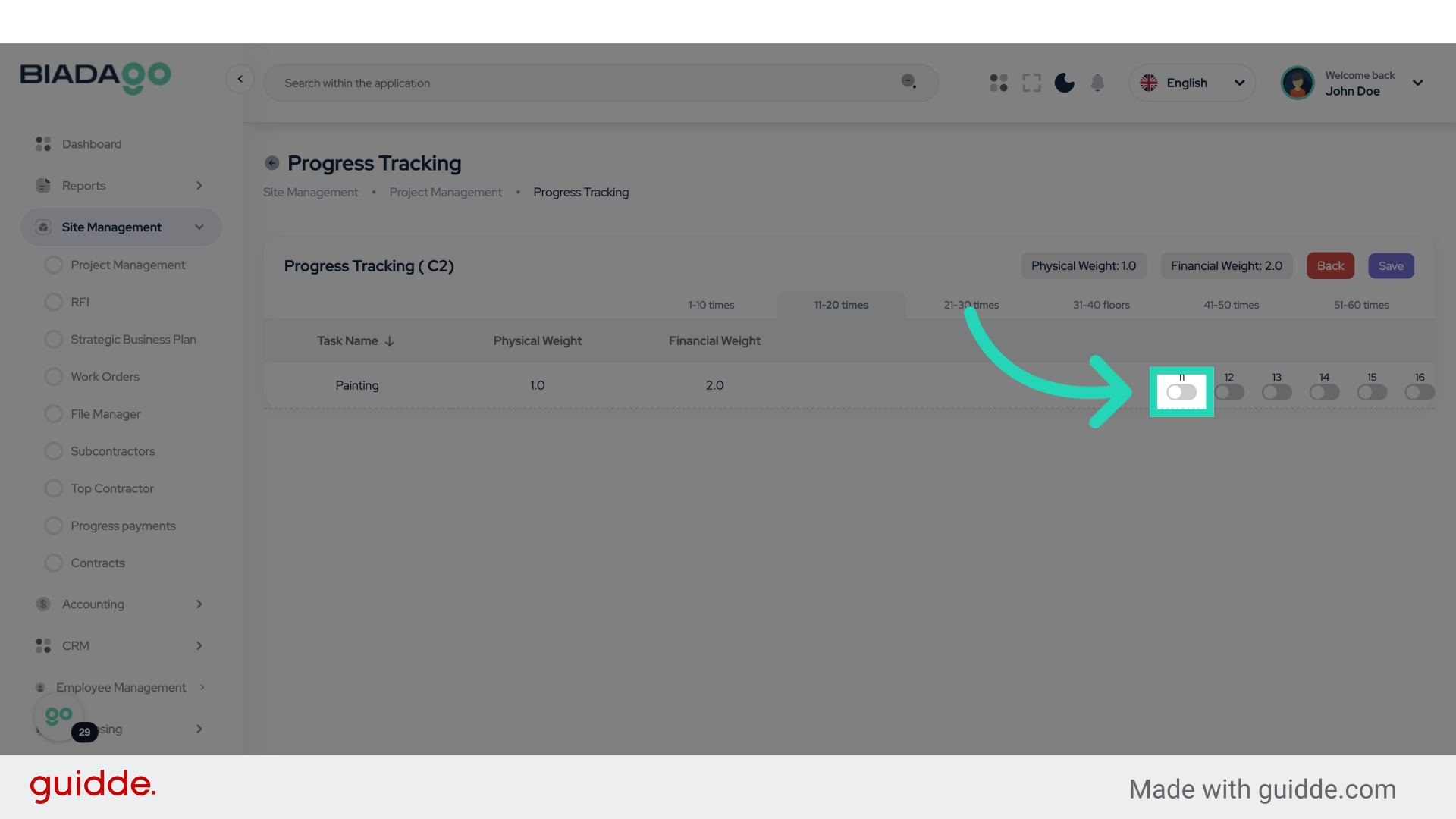
30. Fill “2862”
Write your desired text.
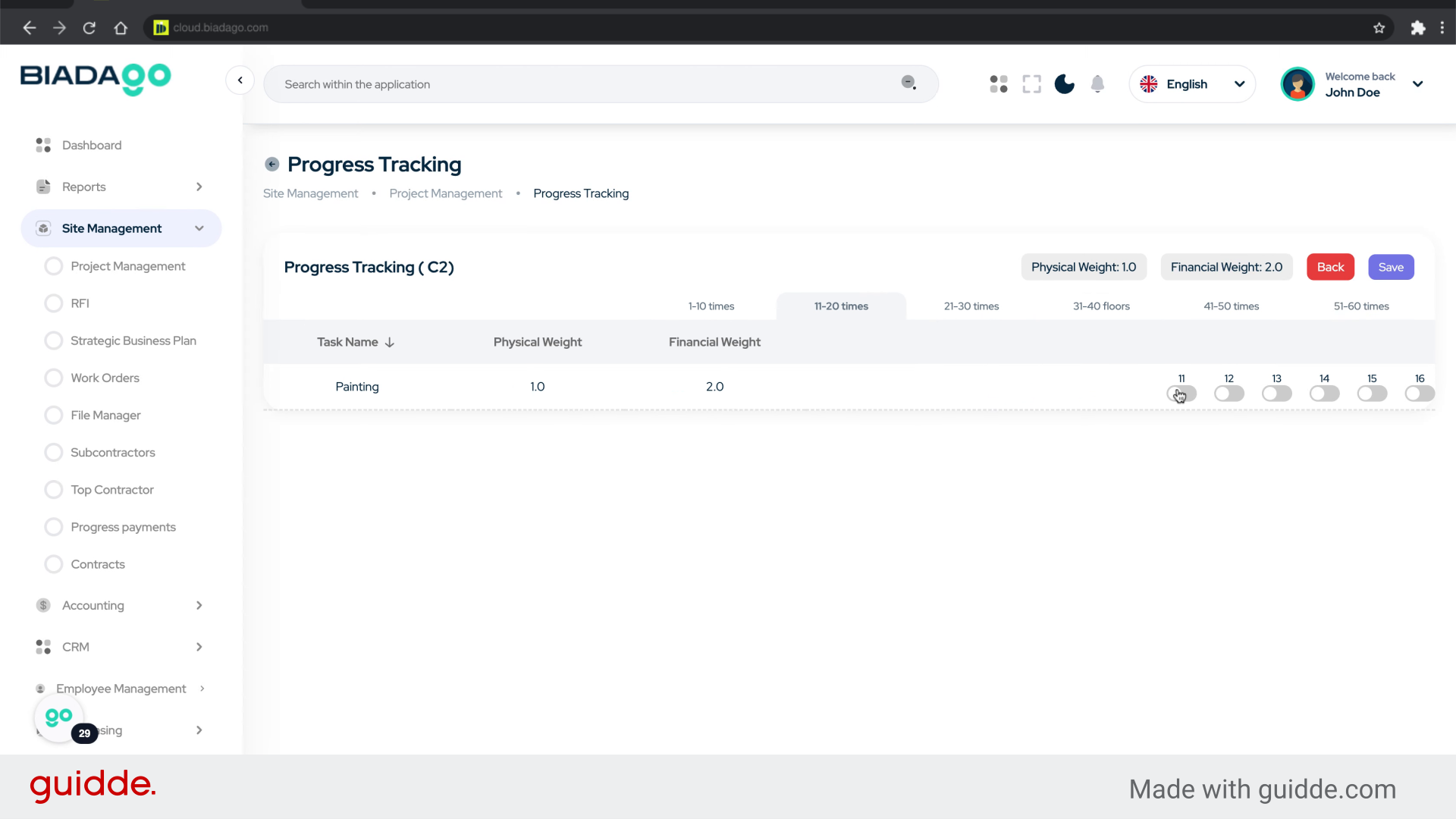
31. Fill “2863”
Input the code “2863” into the specified field.
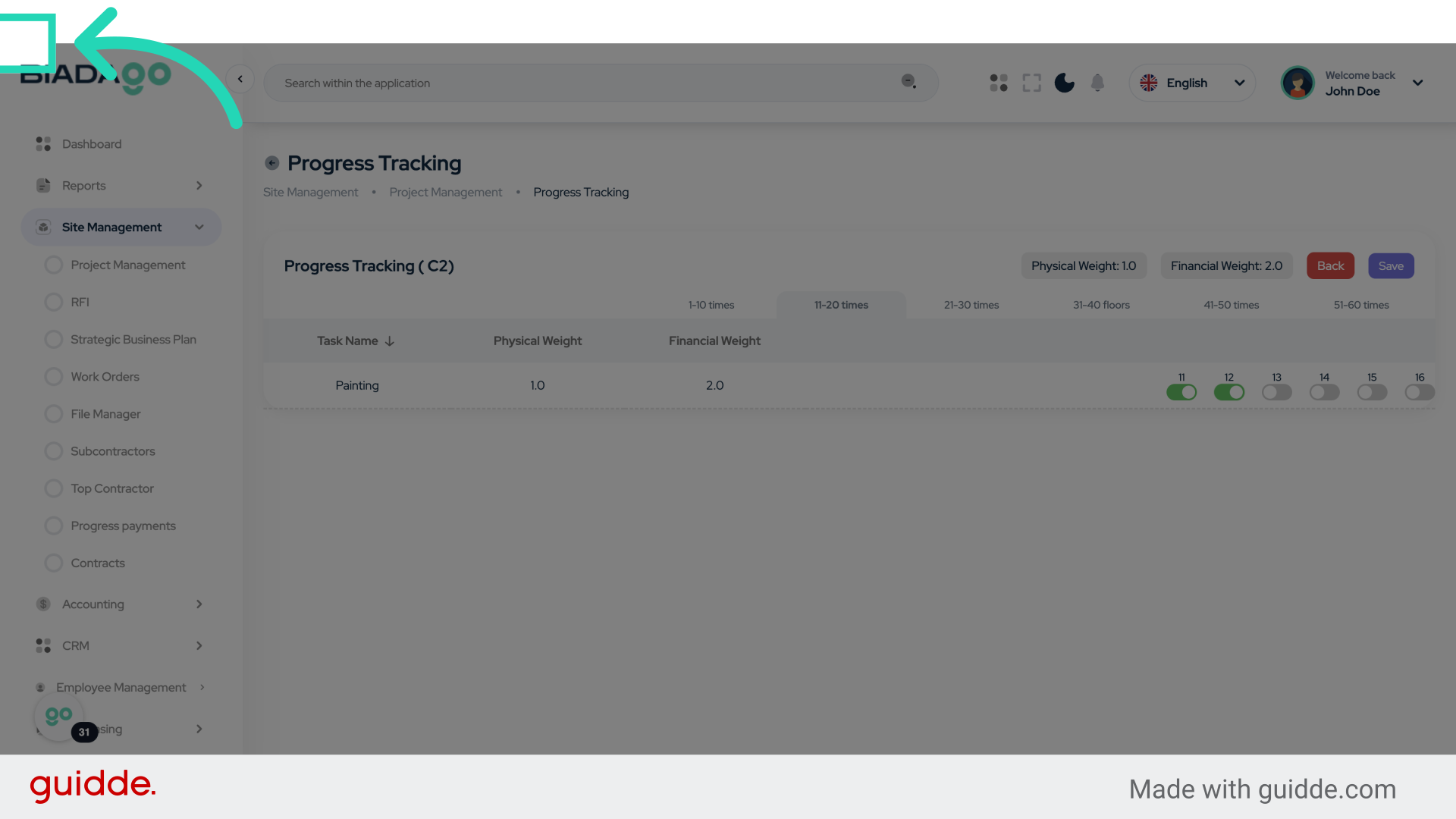
32. Click here
Navigate to the next action.
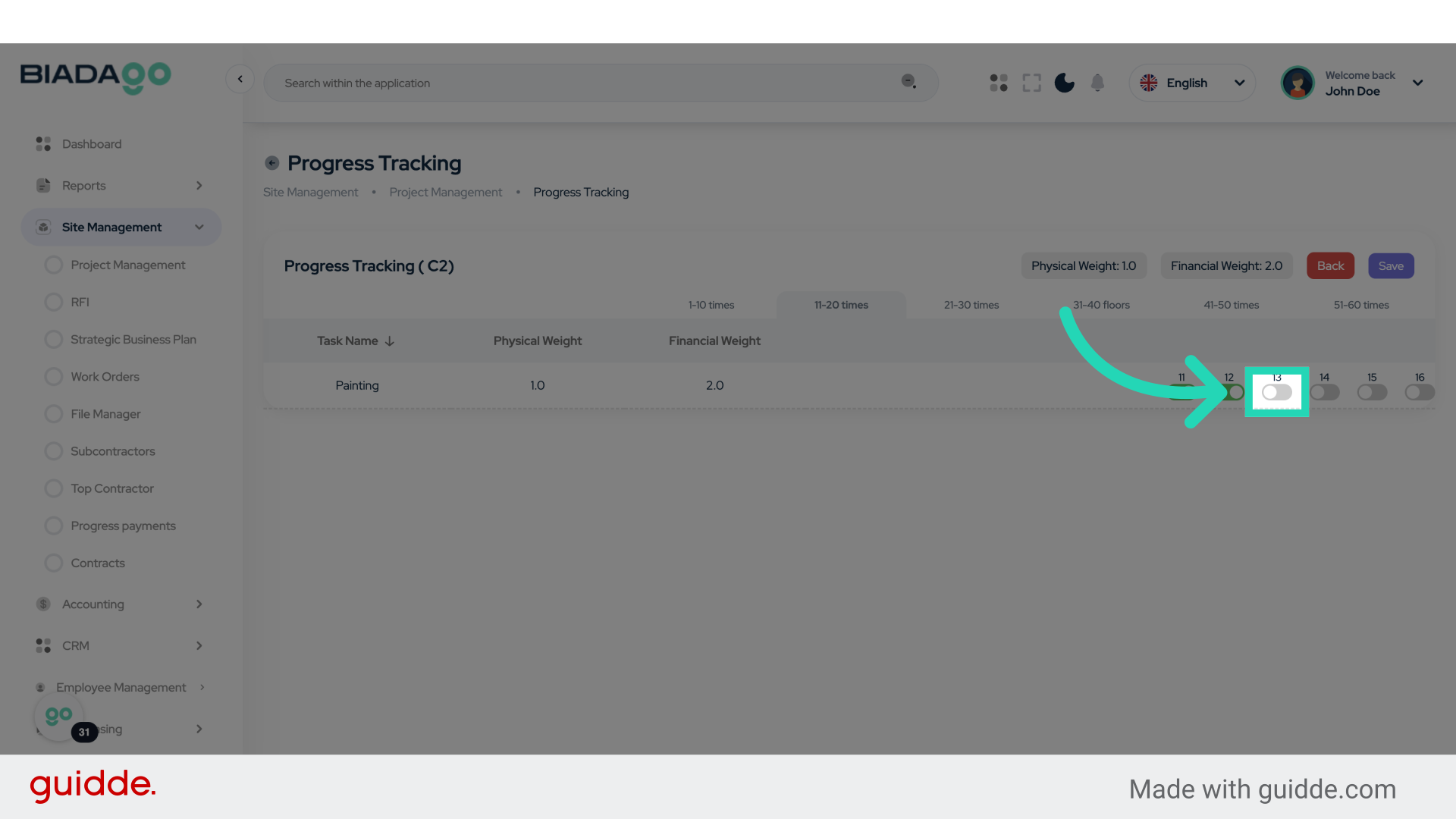
33. Click “Back”
Select the “Back” option.
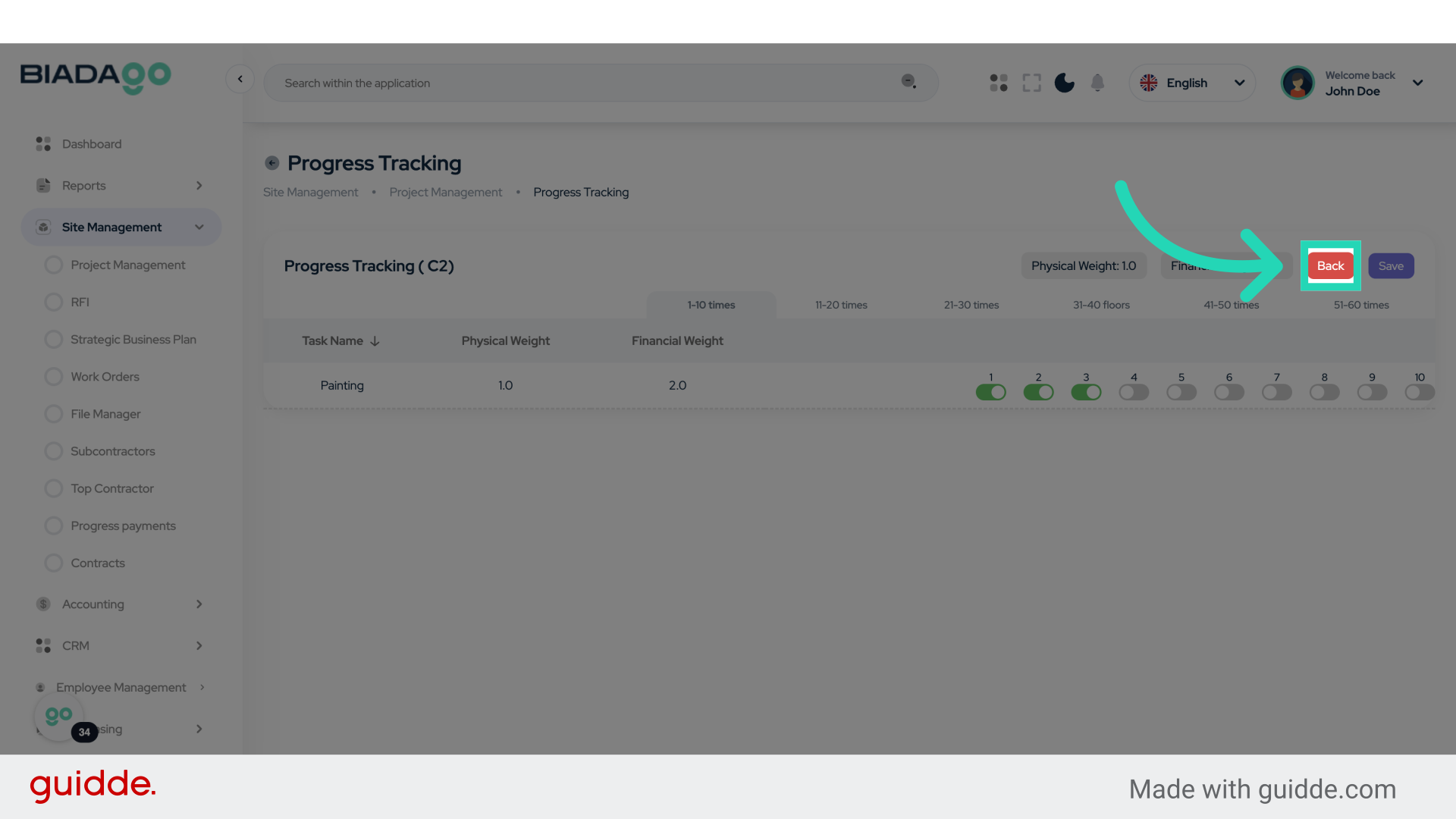
34. Click “View Report”
Access the generated report.
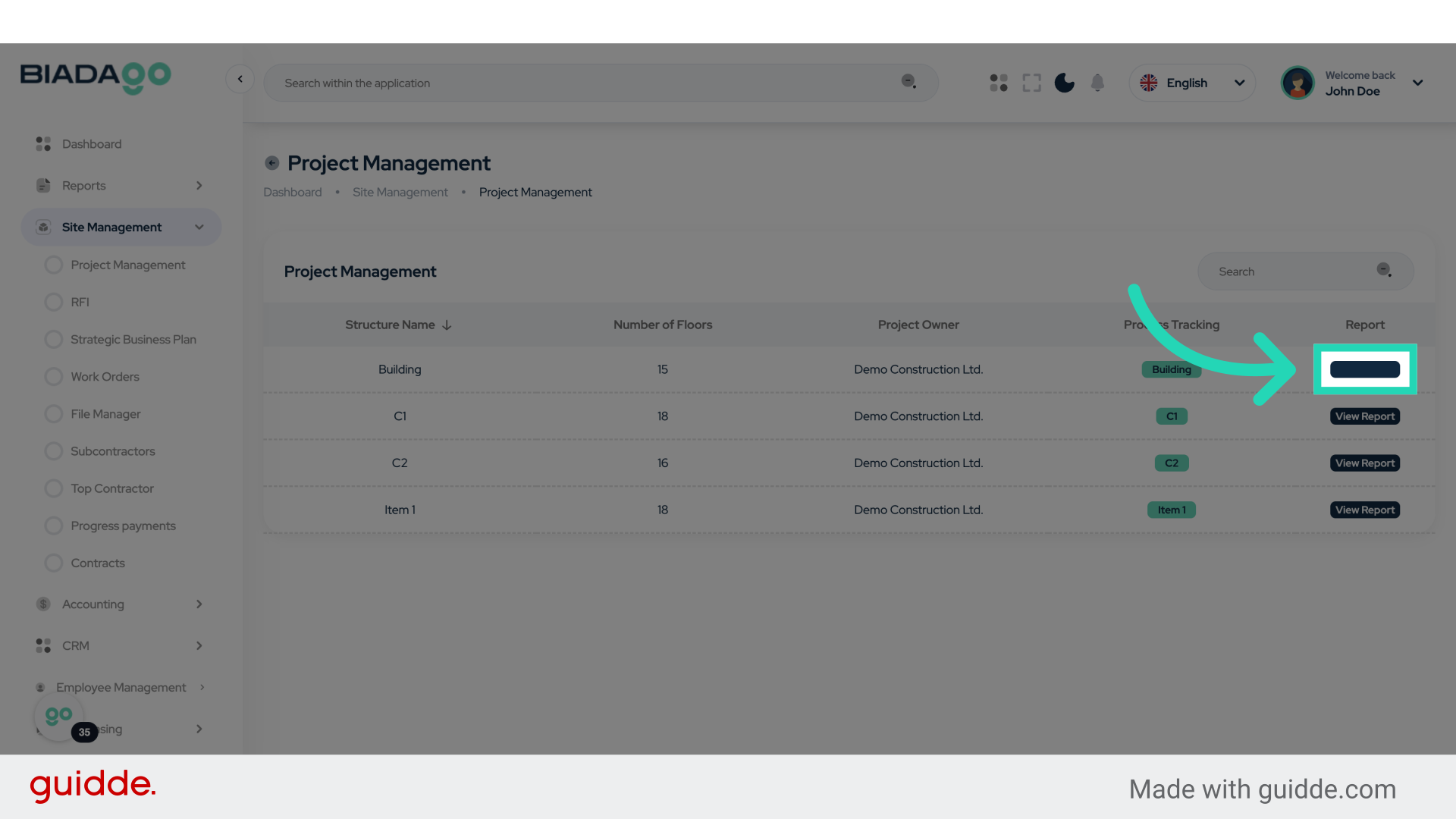
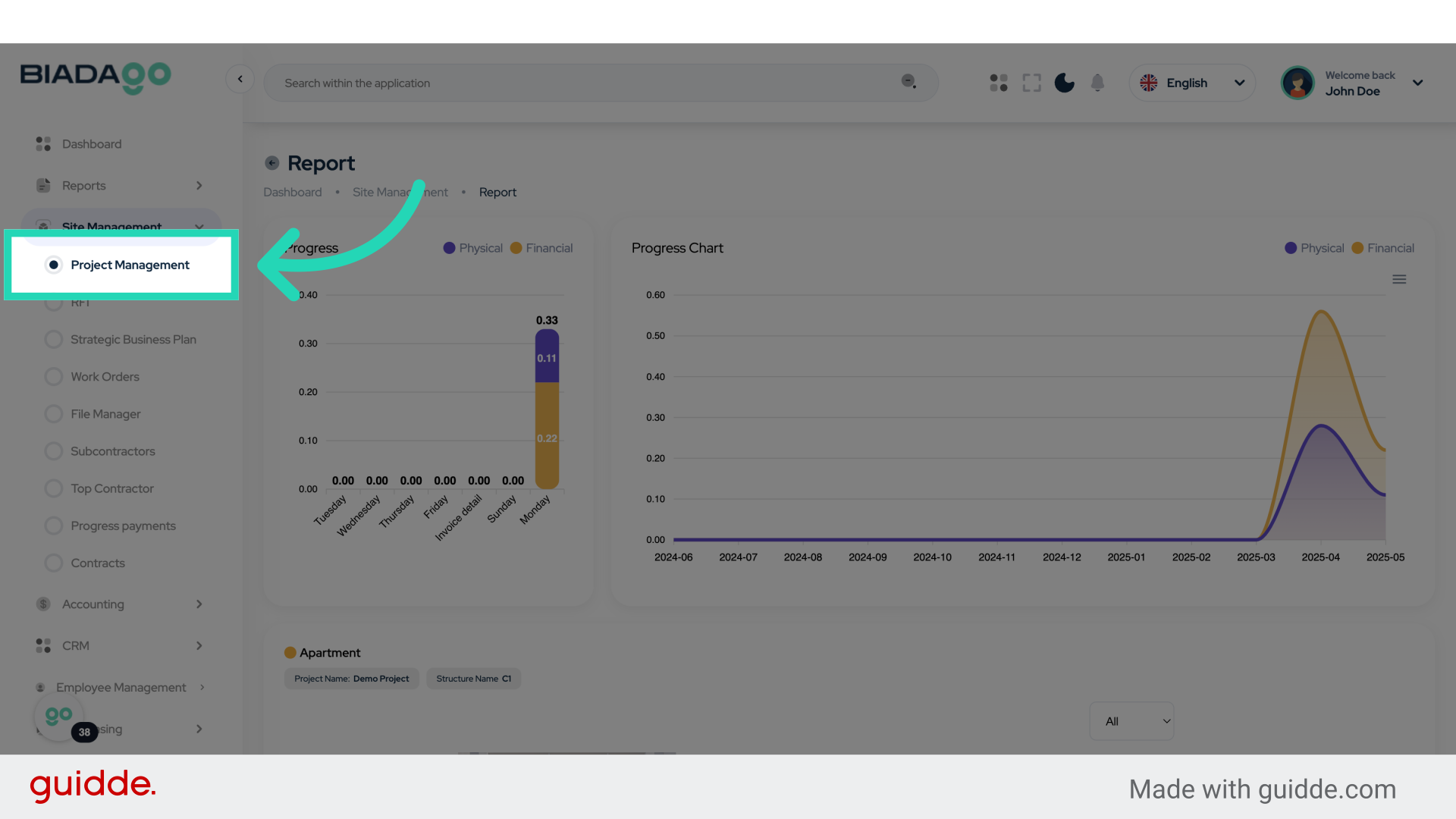
35. Click “Project Management”
Return to the Project Management module.
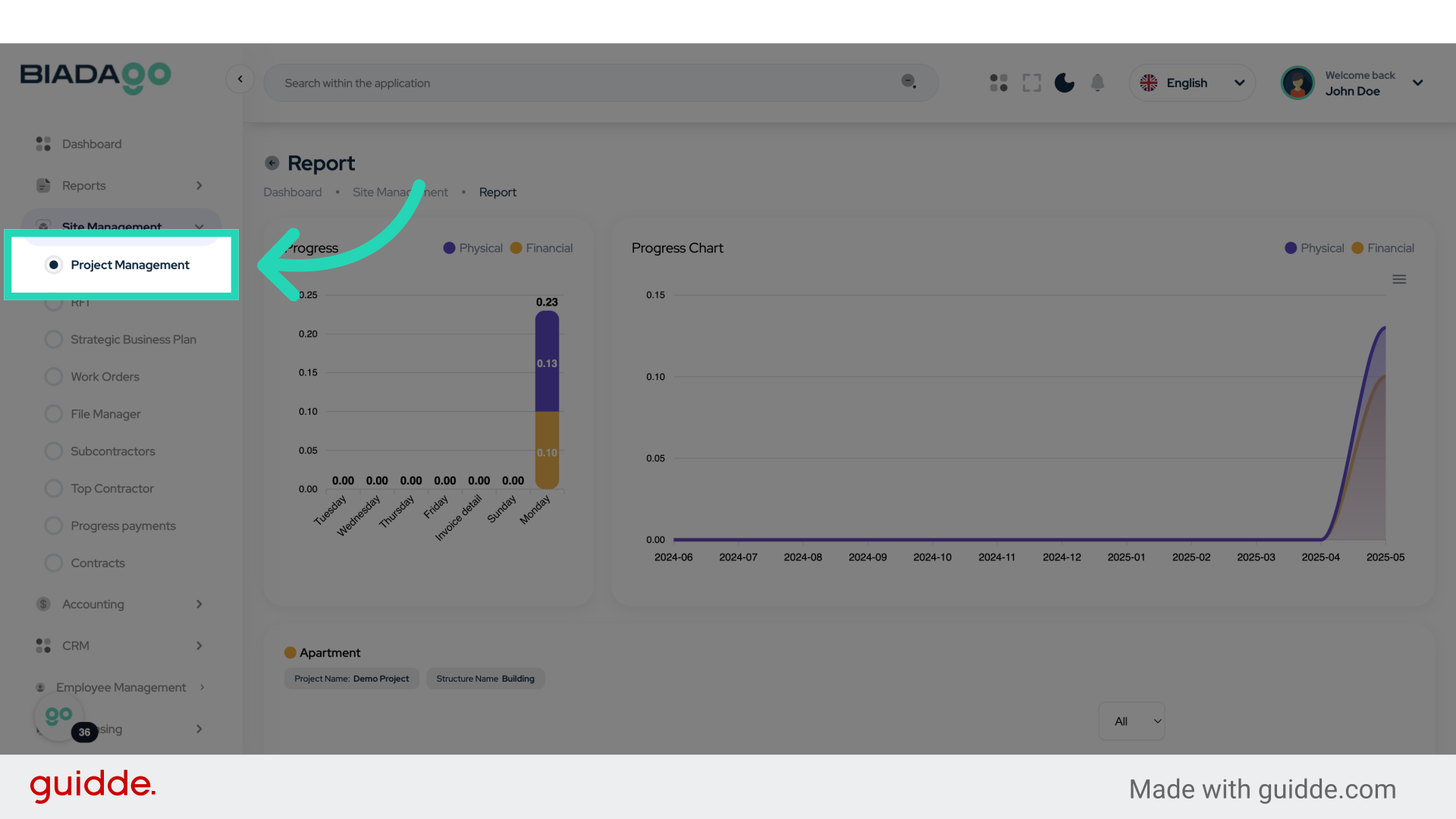
36. Click “View Report”
View the generated report.
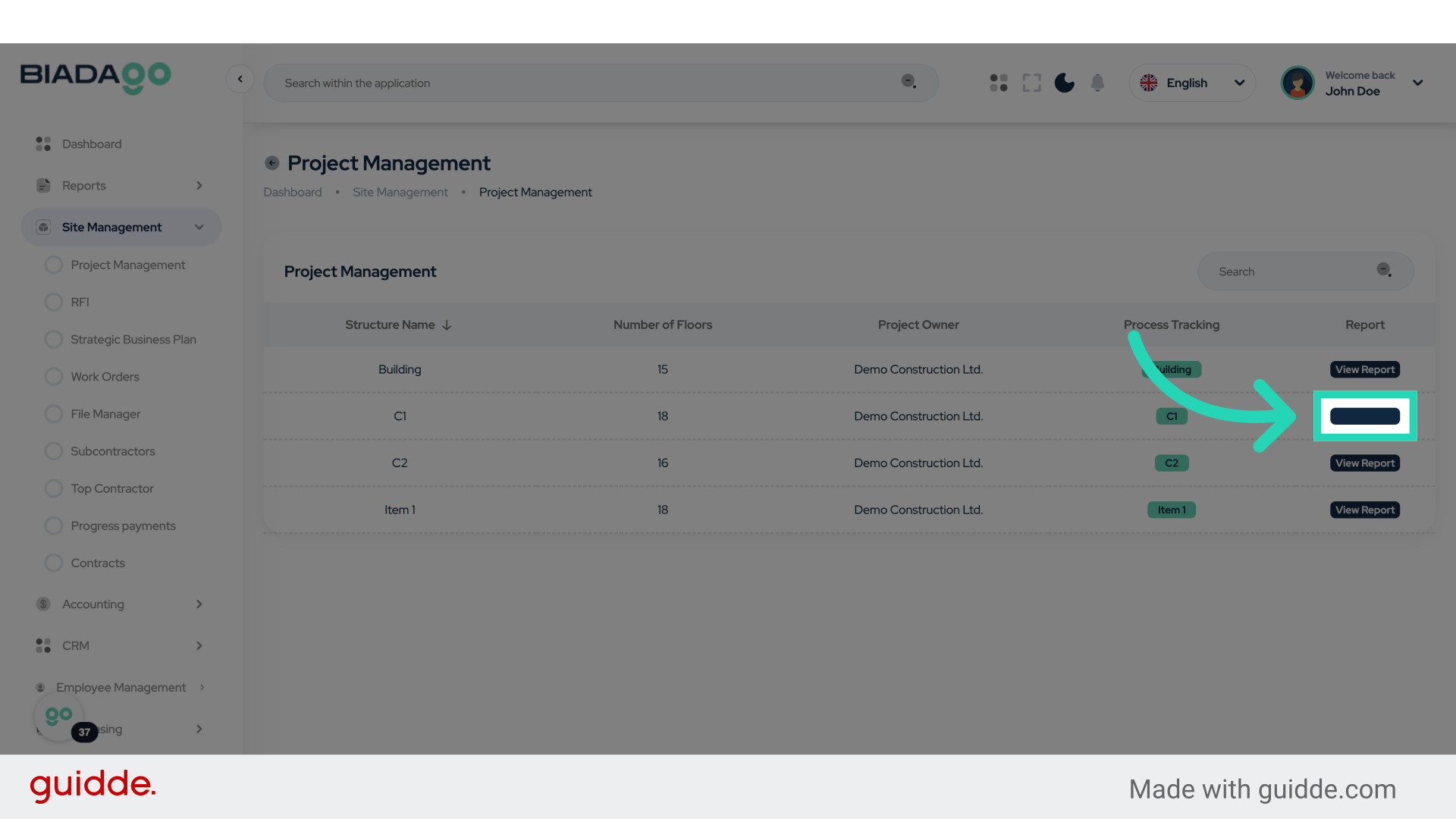
37. Click “Project Management”
Return to the Project Management module.
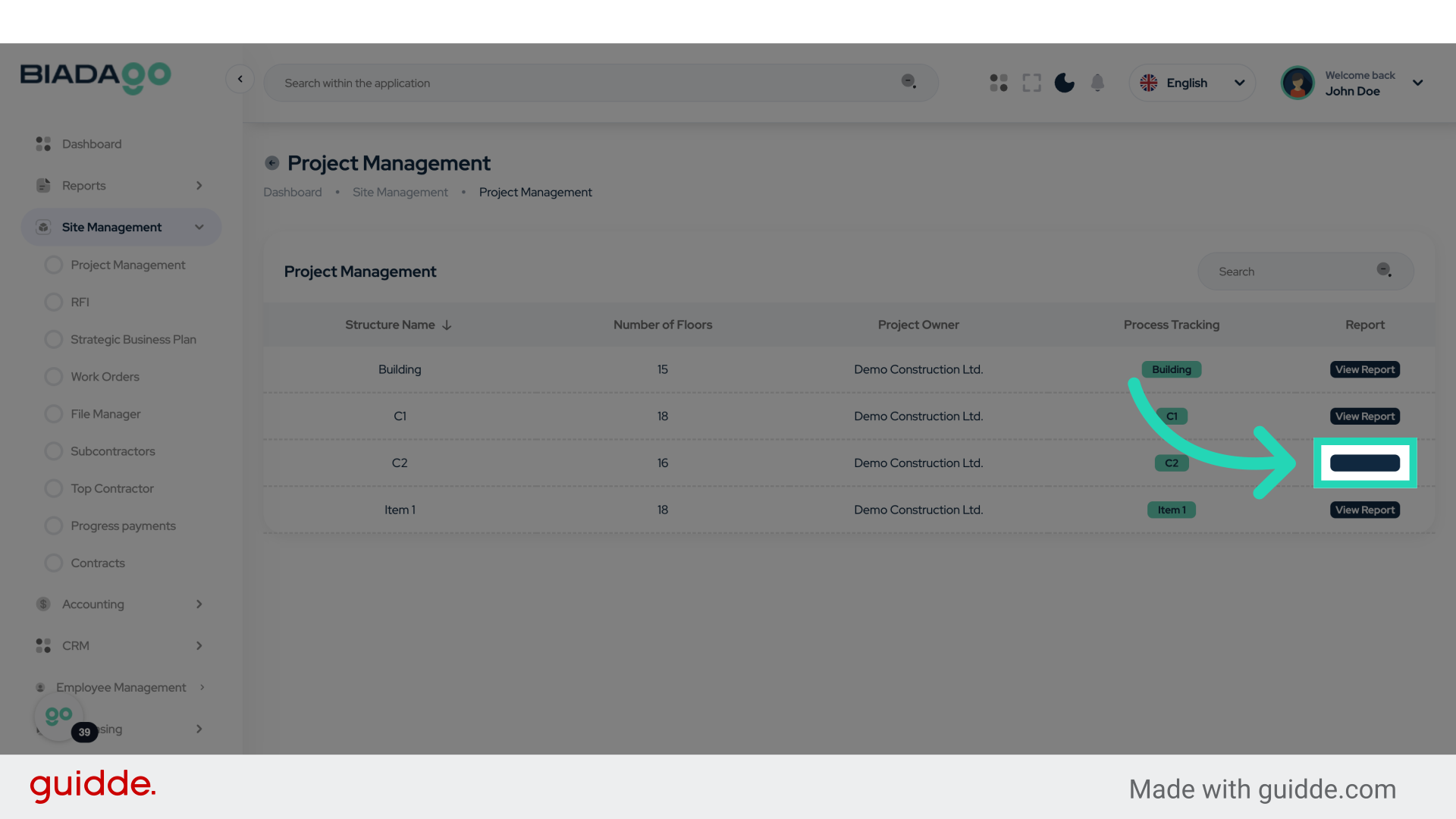
38. Click “View Report”
Access the generated report.
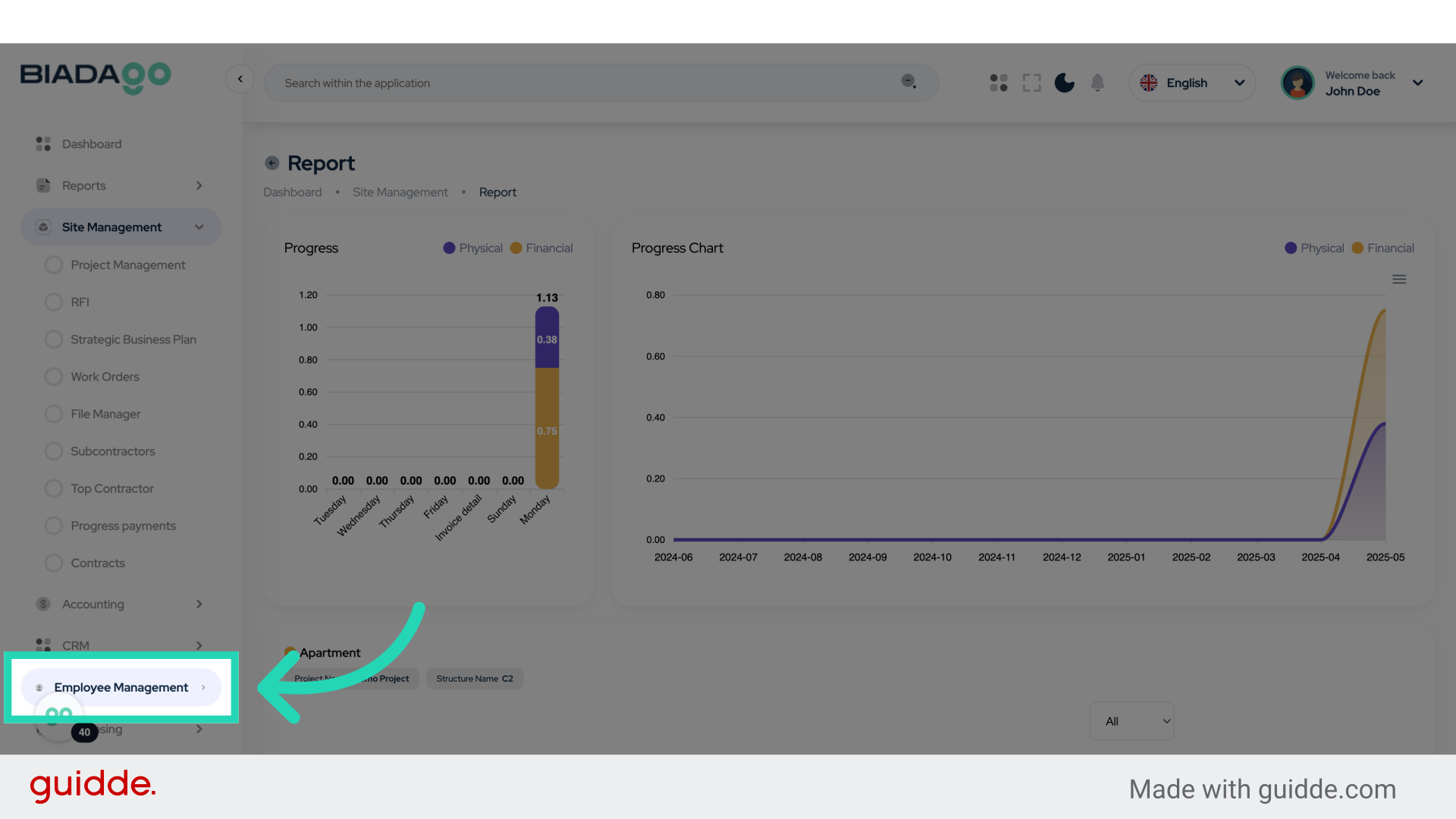
39. Click “Employee Management”
Navigate to the Employee Management section.
This guide simplifies tracking construction progress and report generation in BiadaGO. By following these instructions, users can easily navigate project management, input data, save information, and access generated reports effortlessly.