Tracking Project Progress and Reporting in BiadaGO
Tracking Project Progress and Reporting in BiadaGO
In BiadaGO, efficiently track project progress and generate reports by following these instructions
Go to cloud.biadago.com
1. Introduction
From accessing project management to saving your work, this guide will help you navigate through the necessary steps to streamline your workflow.
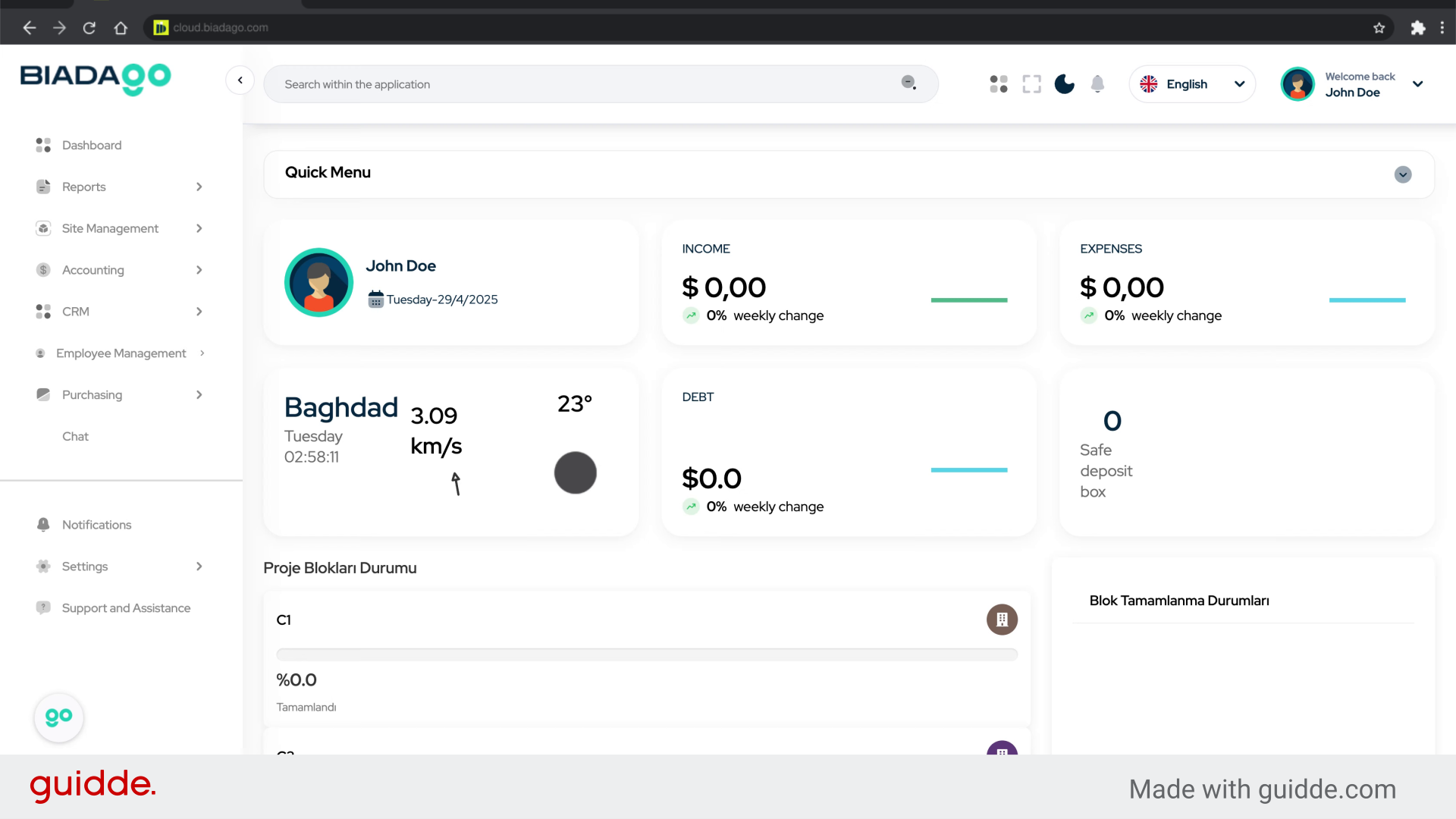
2. Click “Site Management”
Navigate to Site Management.
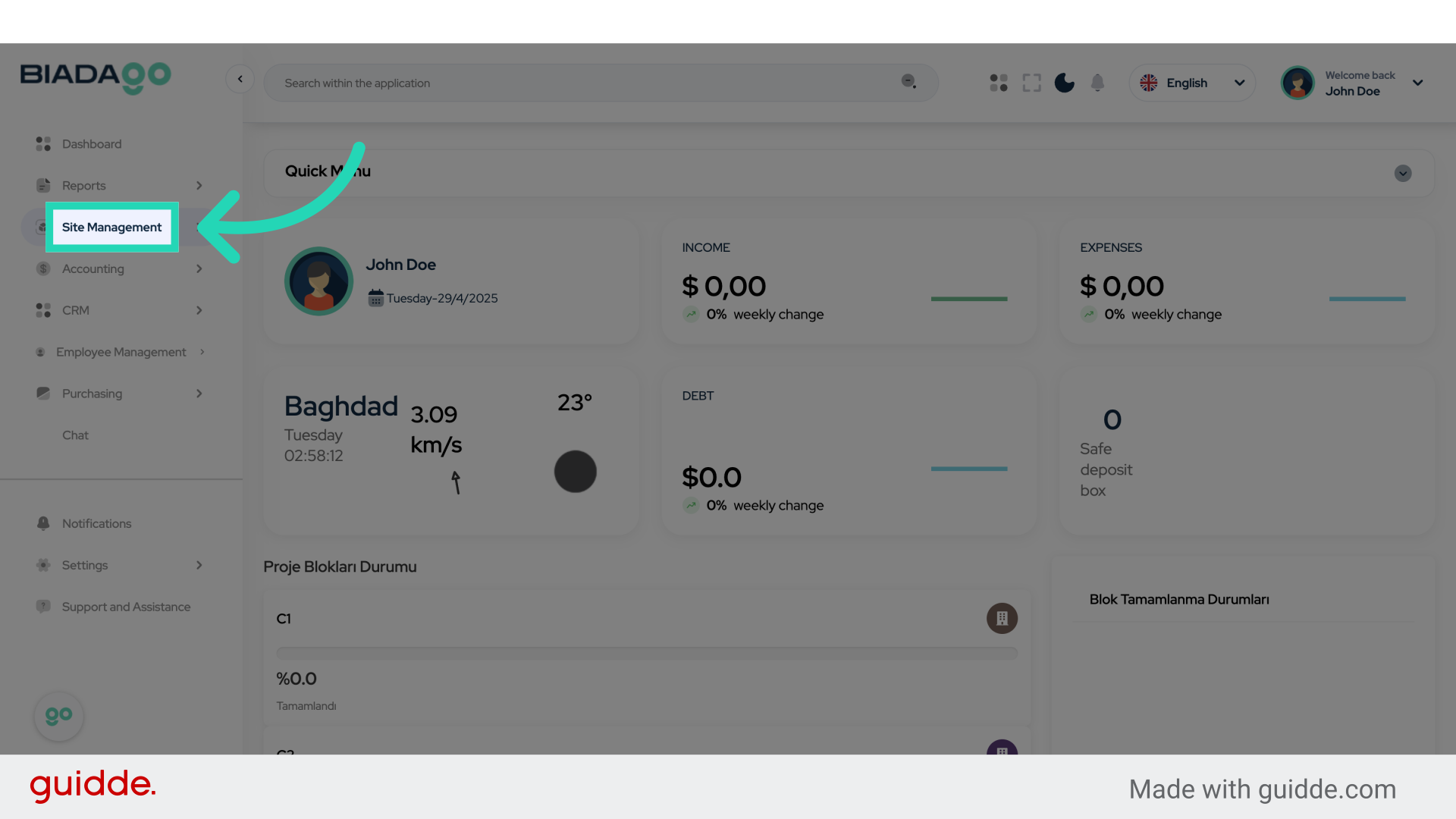
3. Click “Project Management”
Access Project Management section.
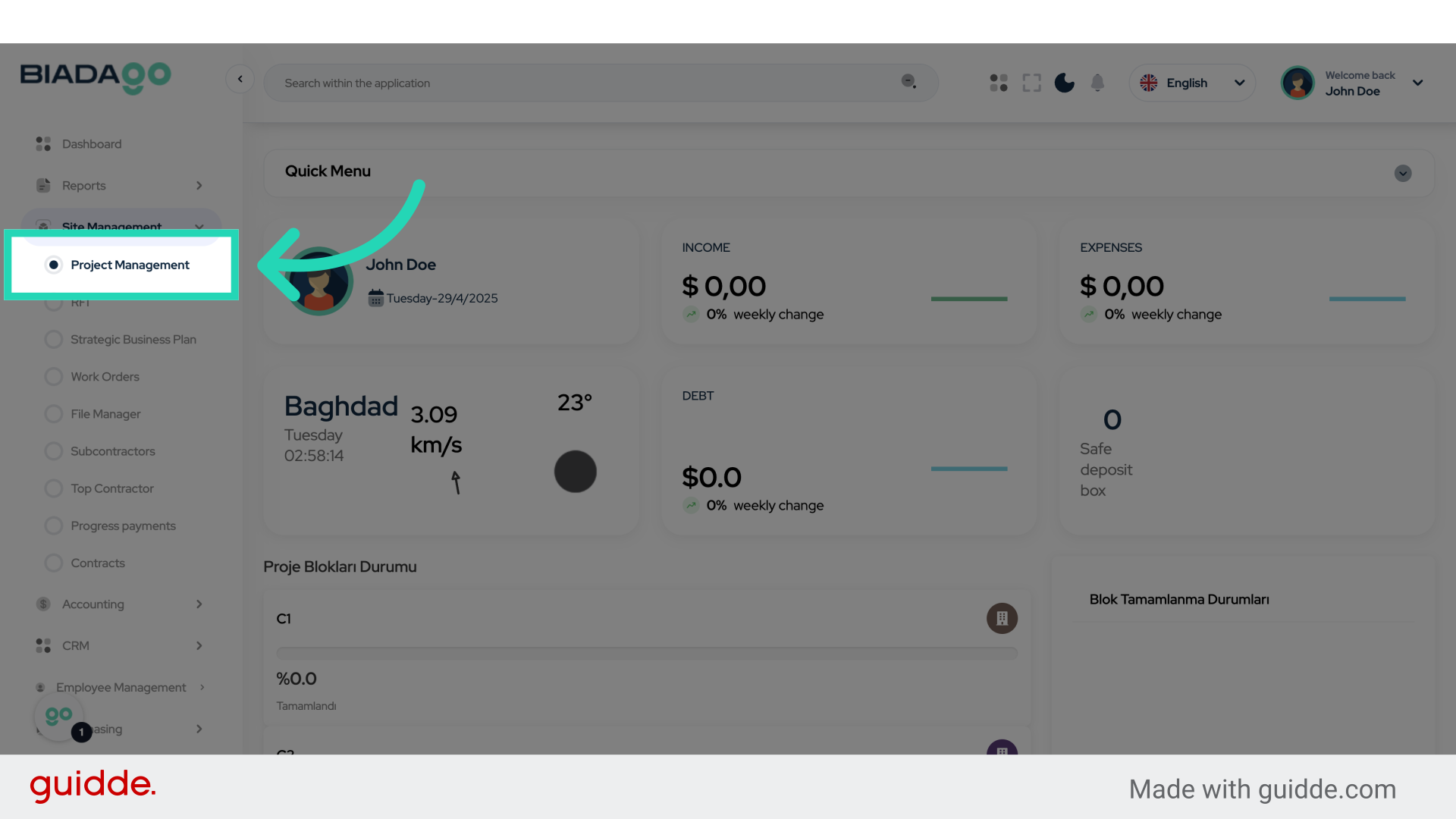
4. Click “C1”
Select the “C1” option.
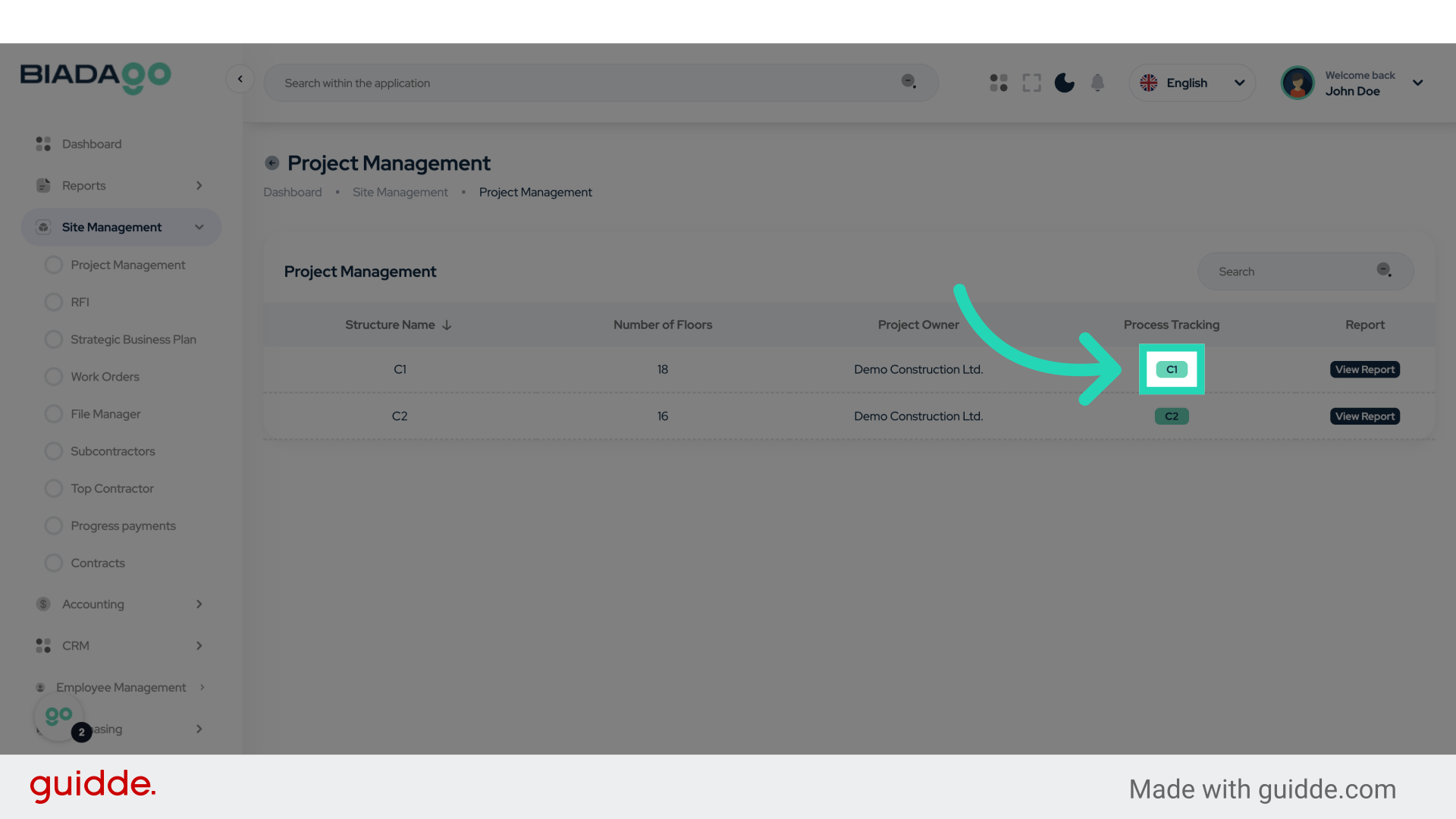
5. Click here
Navigate to the specified location.
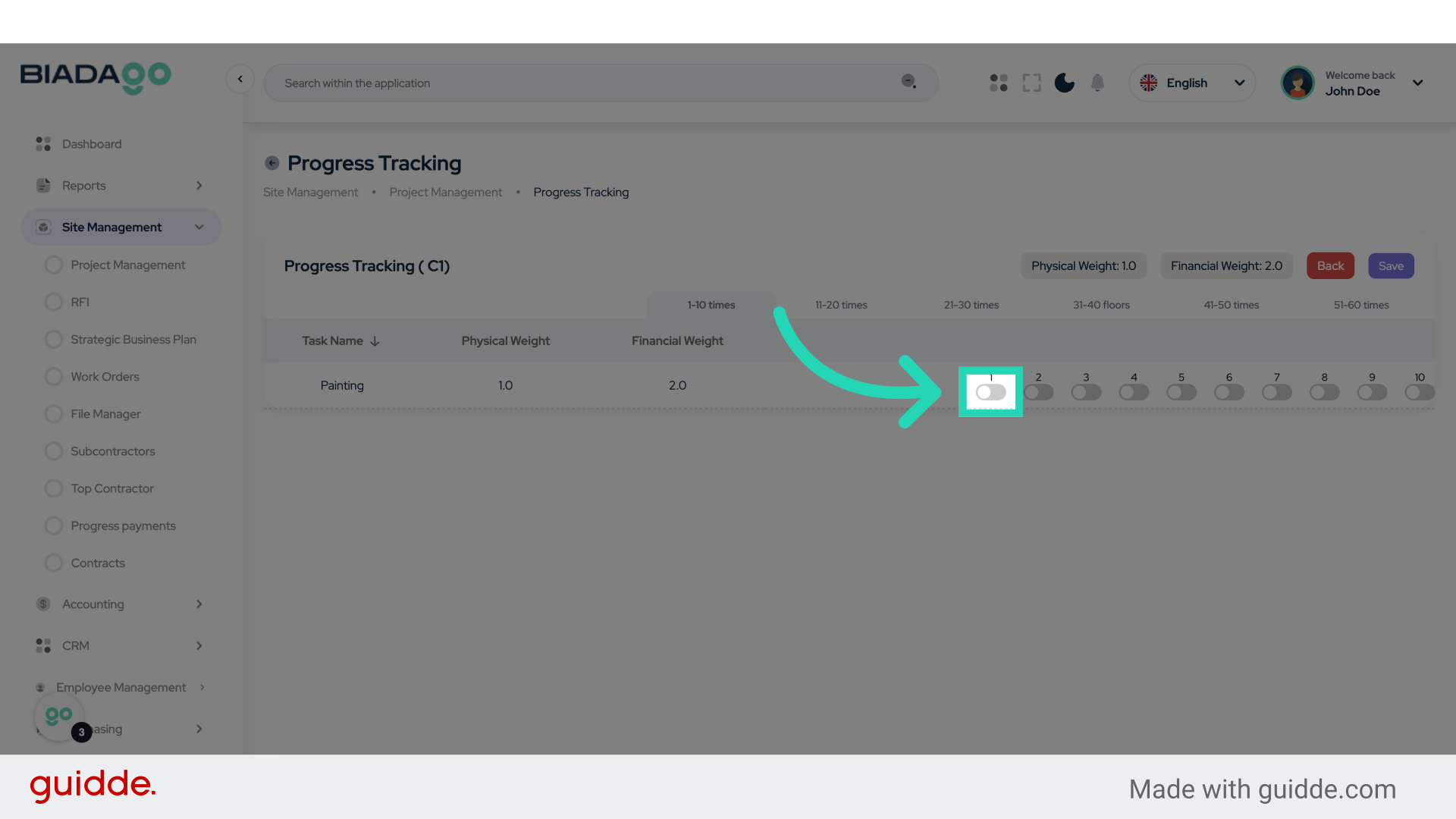
6. Click here
Navigate to the indicated location.
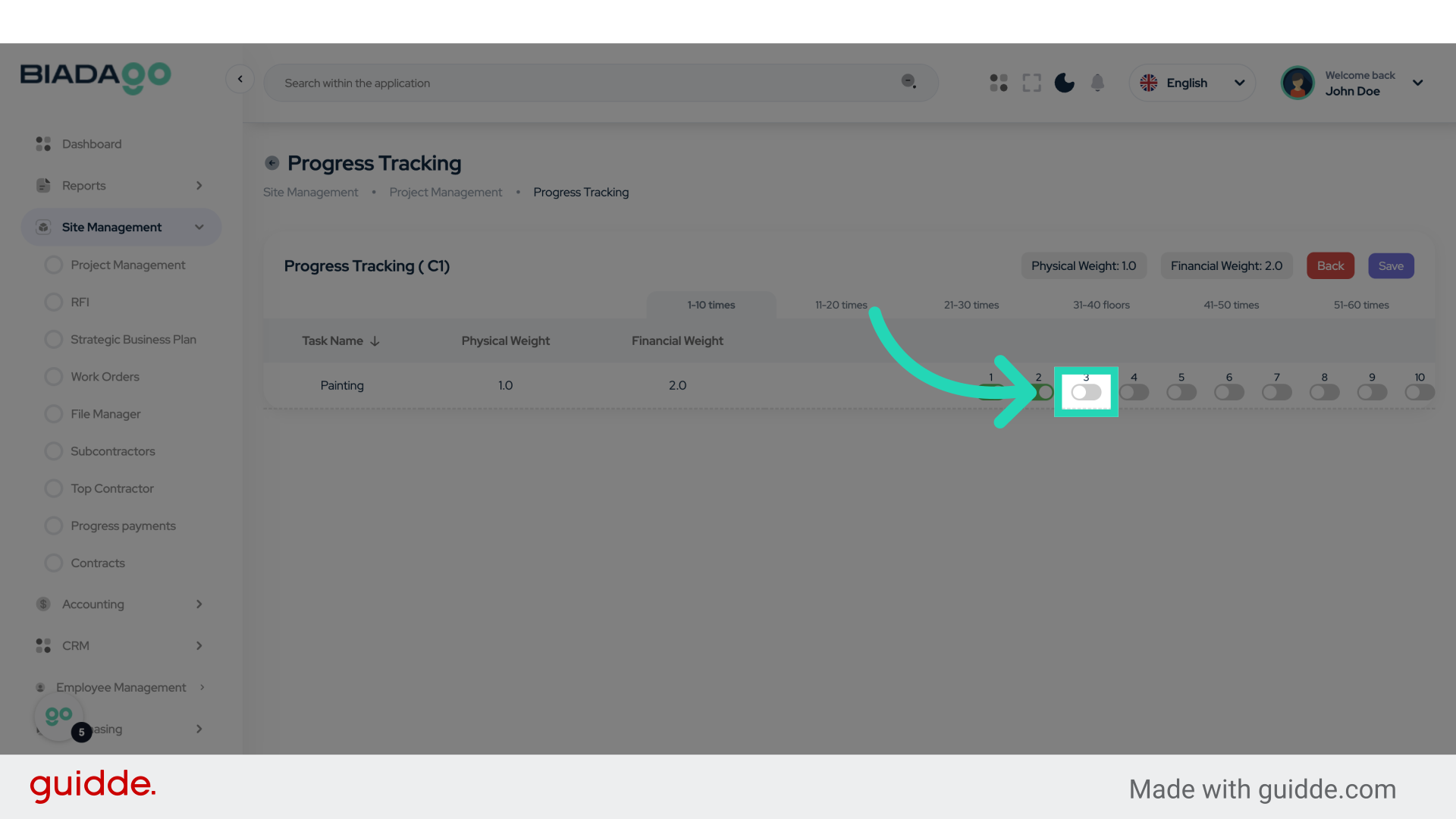
7. Click here
Navigate to the specified area.

8. Click here
Access the designated location.
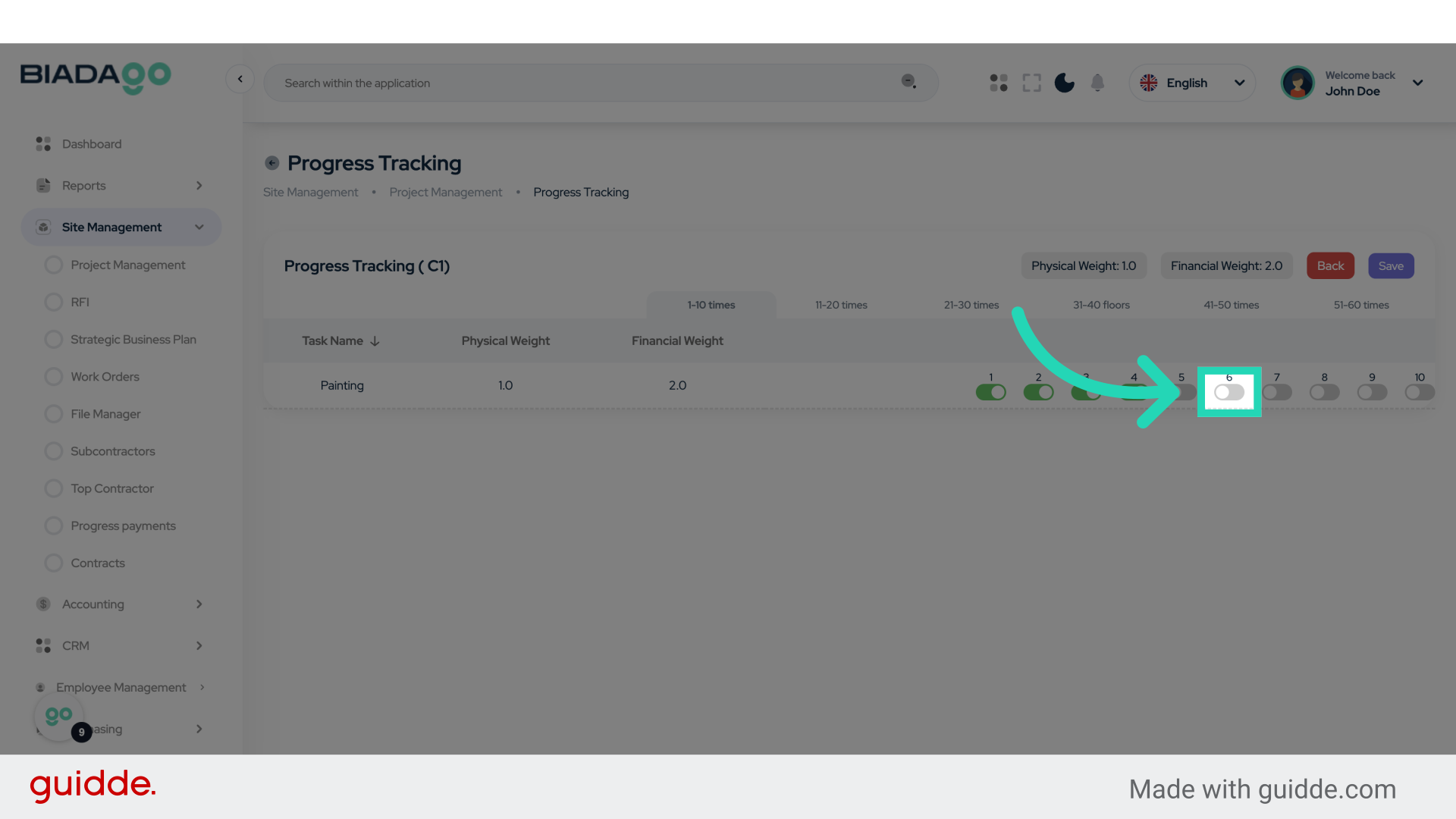
9. Click here
Click on the specified area.

10. Click “Save”
Save the changes made.

11. Click “Save”
Save the progress.
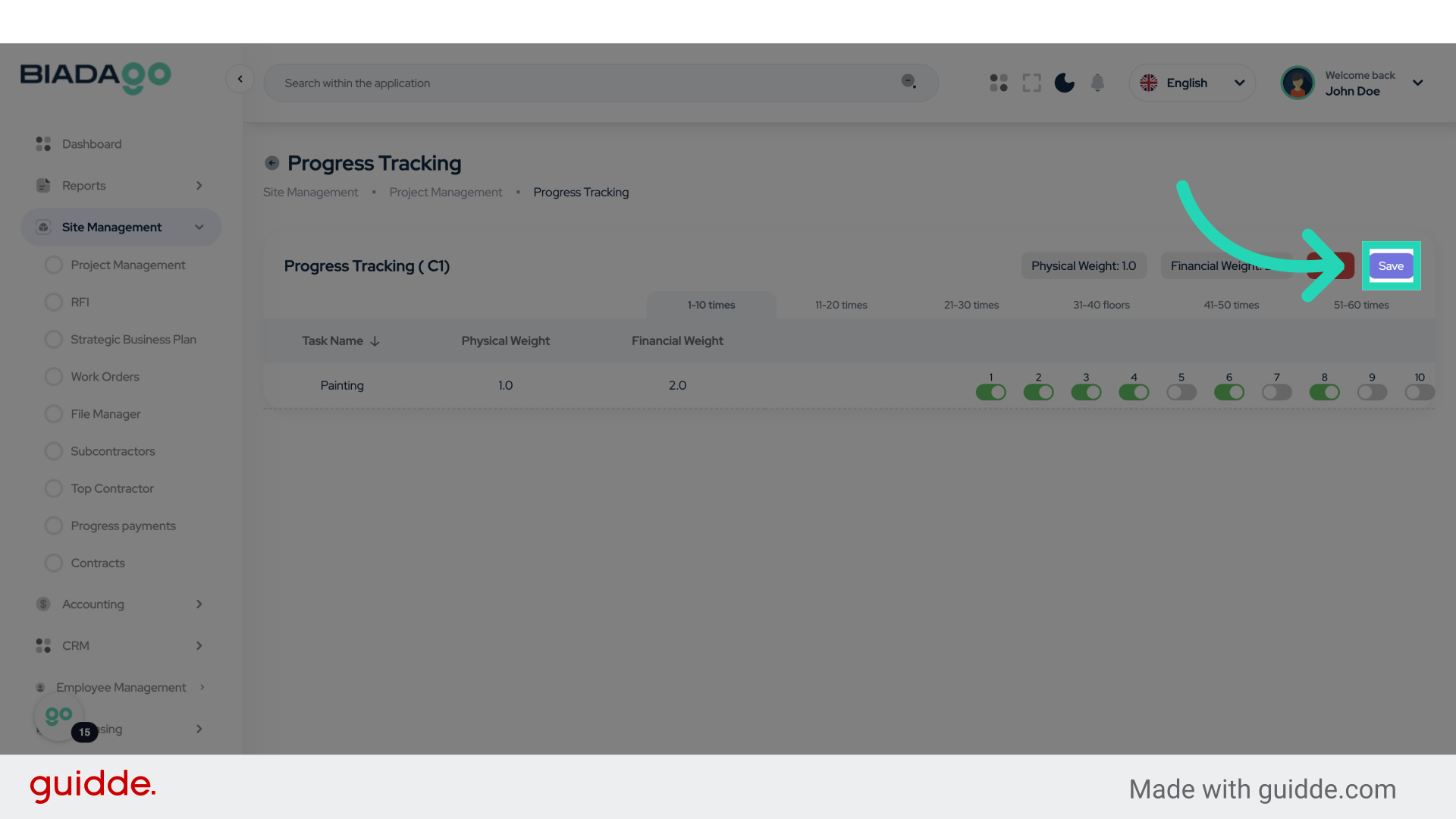
12. Click “Project Management”
Return to Project Management.

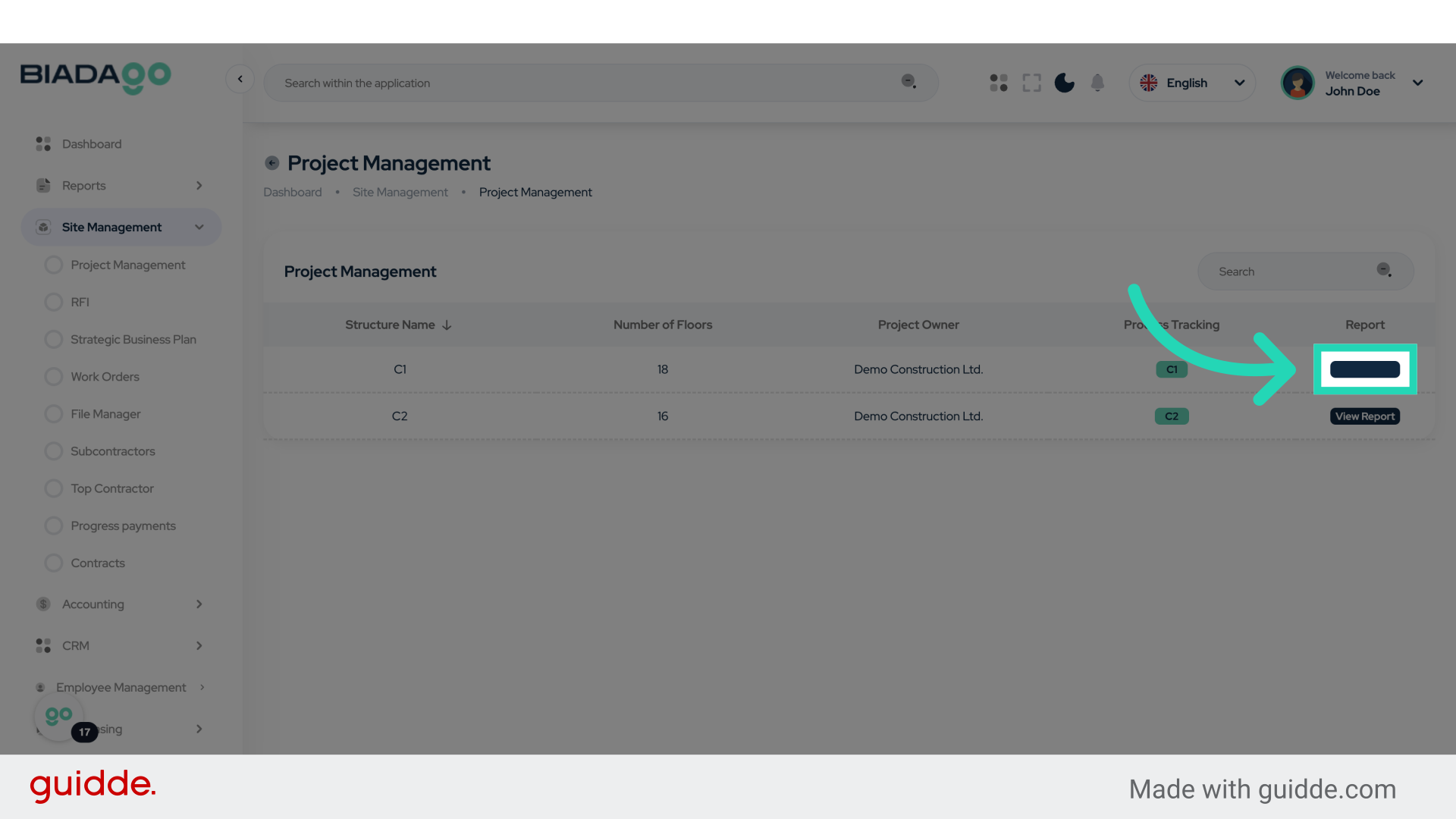
13. Click “View Report”
Open the report viewing option.
14. Fill “All
Painting”
Input “AllPainting” in the available field
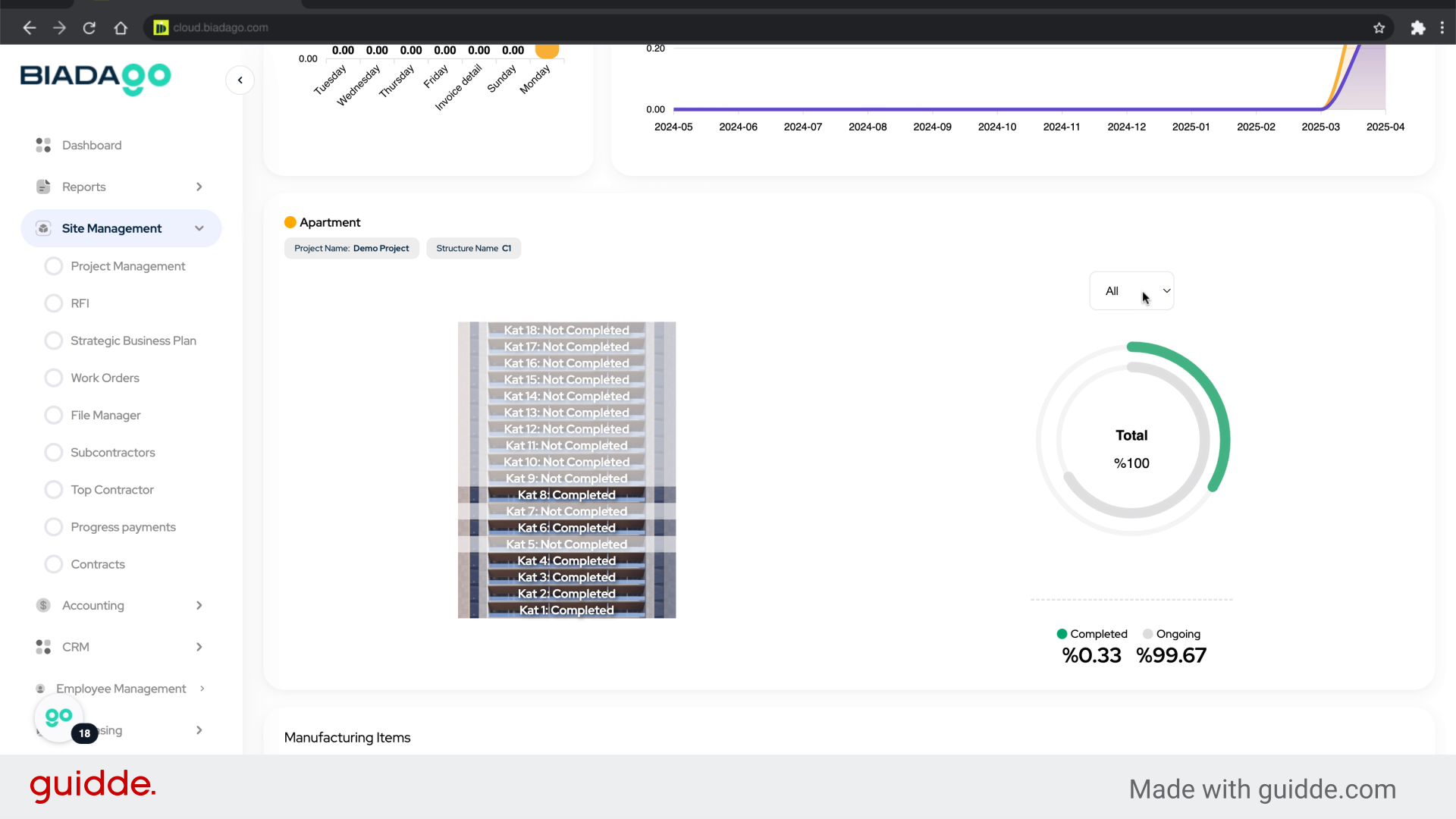
This guide in BiadaGO covers steps to track project progress and generate reports efficiently. By exploring features like project and site management, data input, and report viewing, you can effectively manage your projects using the platform.